Connect your Xiaohongshu account
- As the project owner, open Operations → Use on mobile → Xiaohongshu MiniTool. On your first visit, select Generate, then open Configuration.
- Select Connect with QR code. Scan the code in the Xiaohongshu app while signed in to the account you plan to publish from, then approve the request.
- Return to superun. Once the account shows as connected, you can create a preview.
Try it on your phone
Under Mobile preview, select Generate preview QR code. The preview uses sample data. Creating a new demo uses project credits. You can close the dialog and check progress later. When it is ready, open the preview code and scan it in Xiaohongshu. Use the existing code to try the same version again. Update the preview when you want to test changes to the project.Prepare the listing and submit it for review
- Open Review and share → Publication details. Check the name and one-line description. Each field allows up to 14 characters.
- Check any icon or cover carried over from your project, then choose images for any fields you want to fill or replace. Use a square JPG or PNG up to 5 MB for the icon. For the cover, use a portrait JPG or PNG with a 3:4 width-to-height ratio, up to 10 MB.
- Choose a category and select only the permissions the MiniTool uses. Select Next: check publication preview.
- In Xiaohongshu, scan the preview code for the version you are about to submit. Check the version, listing, and pages. Confirm that you want this version published if approved, then select Submit for review.
Check the result and share
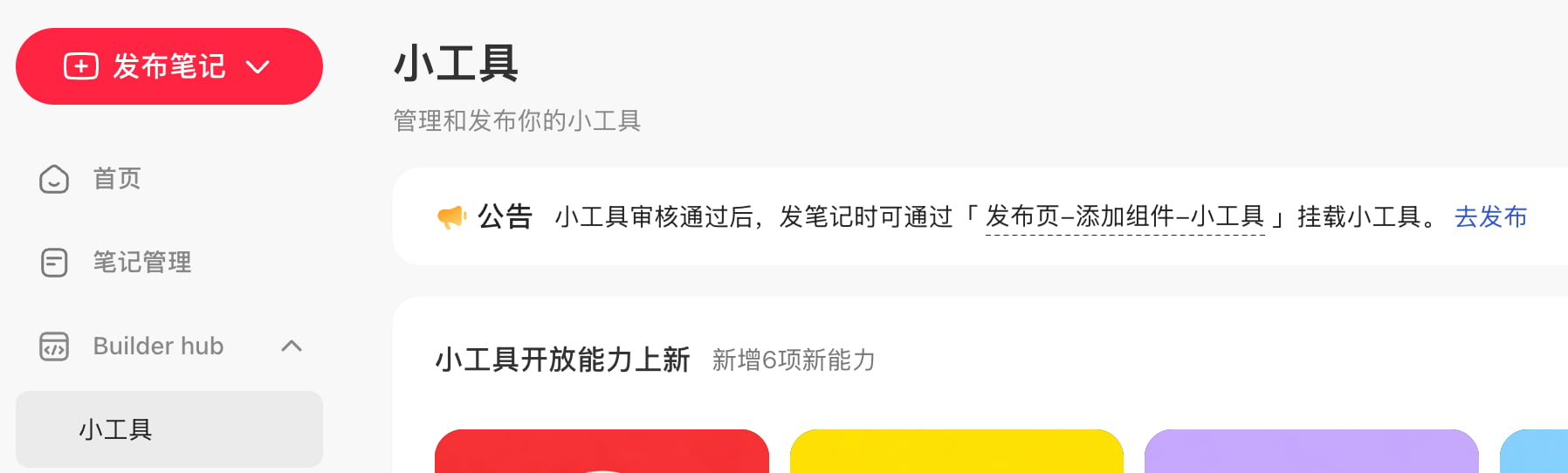
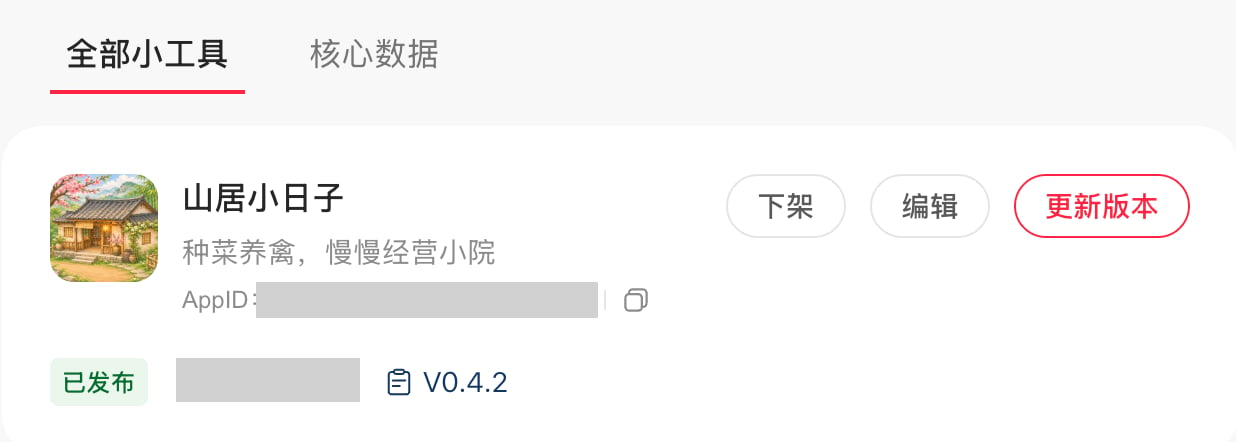
Under Review and share, select Refresh review status. Once the status shows Published, open the share code to copy the public link or save the QR code. To check the result in Xiaohongshu, sign in to the creator console with the same account and open Builder hub → 小工具 (MiniTools).