

Phase 1: Planning and getting started
Project planning tips
Page steps after requirement clarification
After you submit your initial prompt, superun clarifies requirements and moves into the page-steps phase. At this stage, you can choose how to proceed based on what you see.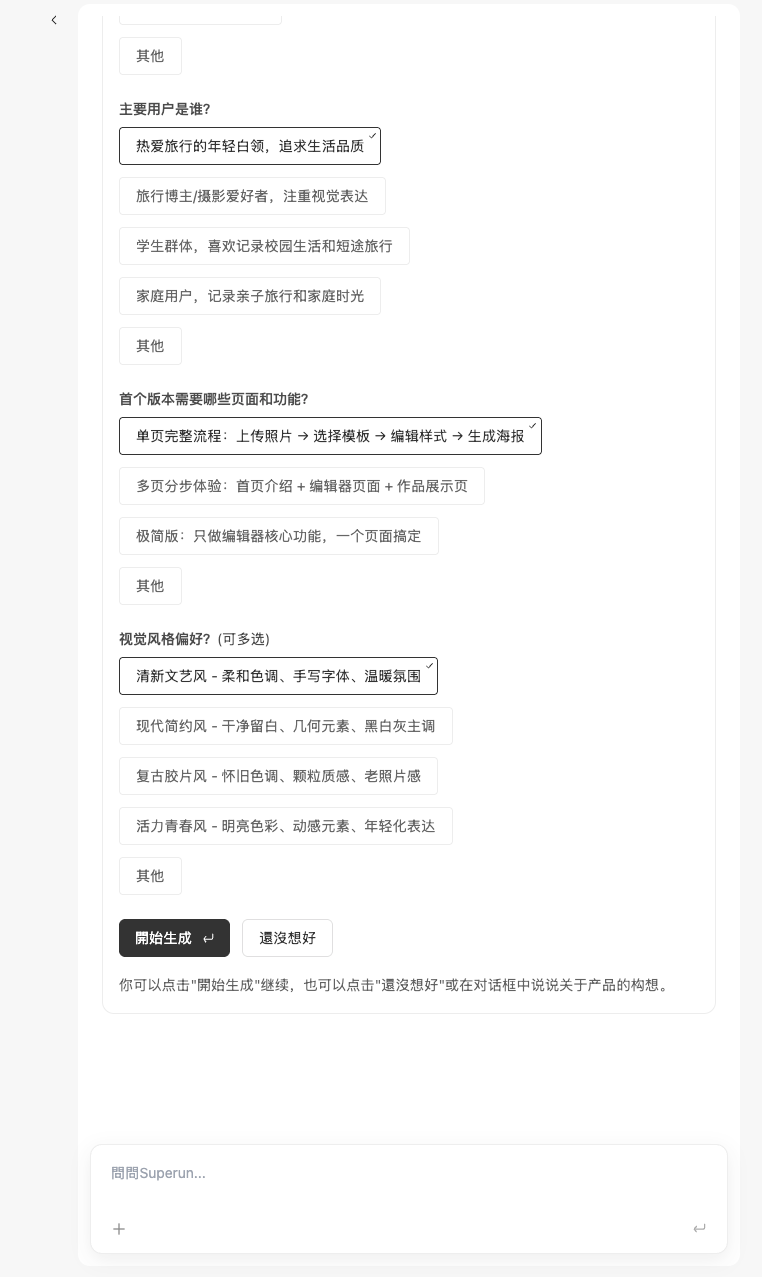 Options:
-
Looks good — start generating
- If the page steps match what you want, click Start generating
- superun continues the flow from those steps
-
Not what you expected, but hard to describe
- If something feels off but you are not sure how to say it
- Click Not sure yet
- The model will offer new options to choose from
-
You have ideas and want changes
- If you want to adjust the page steps
- Type your requirements in the chat
- The model combines your input and regenerates options
💡 Tip: Use requirement clarification fully so later generation matches your intent. If you are not satisfied, pause and refine before moving on.
Select and preview a concept
After starting generation, preview free Concept A. If you want another direction, commission a senior designer from the designer card. Each commission creates one additional concept.- Open a completed concept to compare layout, content, and color. You can adjust its design theme in the right panel.
- Use Continue with this concept when satisfied. You do not need to wait for every other concept; work already started continues.
- Each user has one free first commission across projects. Later commissions are estimated at 50–100 Compute Credits, settled by actual usage after completion, and require the actual paying account’s balance to exceed 100 credits to start.
Automatic transition to Demo
After selecting a concept, you can open Demo to check progress. Once usage scenarios are ready and the current generation round ends, superun automatically opens Demo and shows the completion card. No extra “Got it — start the demo” confirmation is needed. Tab clicks only switch views and do not generate again. Use test data in the demo to validate pages, interactions, and usage flows before connecting real capabilities. Later demo generation, edits, and development are billed by actual usage.Development phase
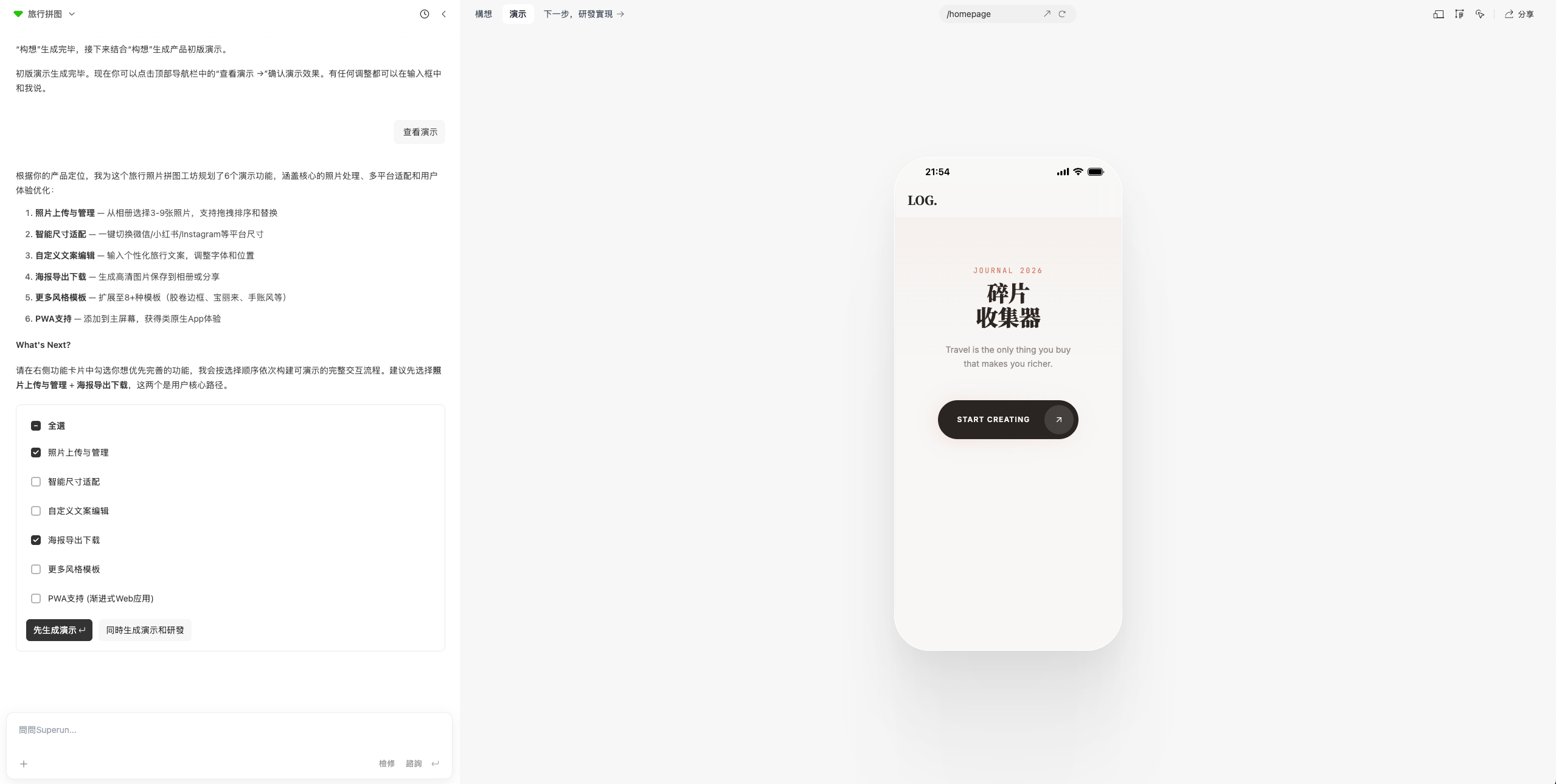
- Next steps after viewing the demo
- After the demo, choose the features you need
- Generate demo first builds a richer demo for the features you select
- Generate demo and development together builds real features with real data and gives you a follow-up feature list
- Or click Next: development in the navigation bar to go straight to the feature list
- Choosing features in development
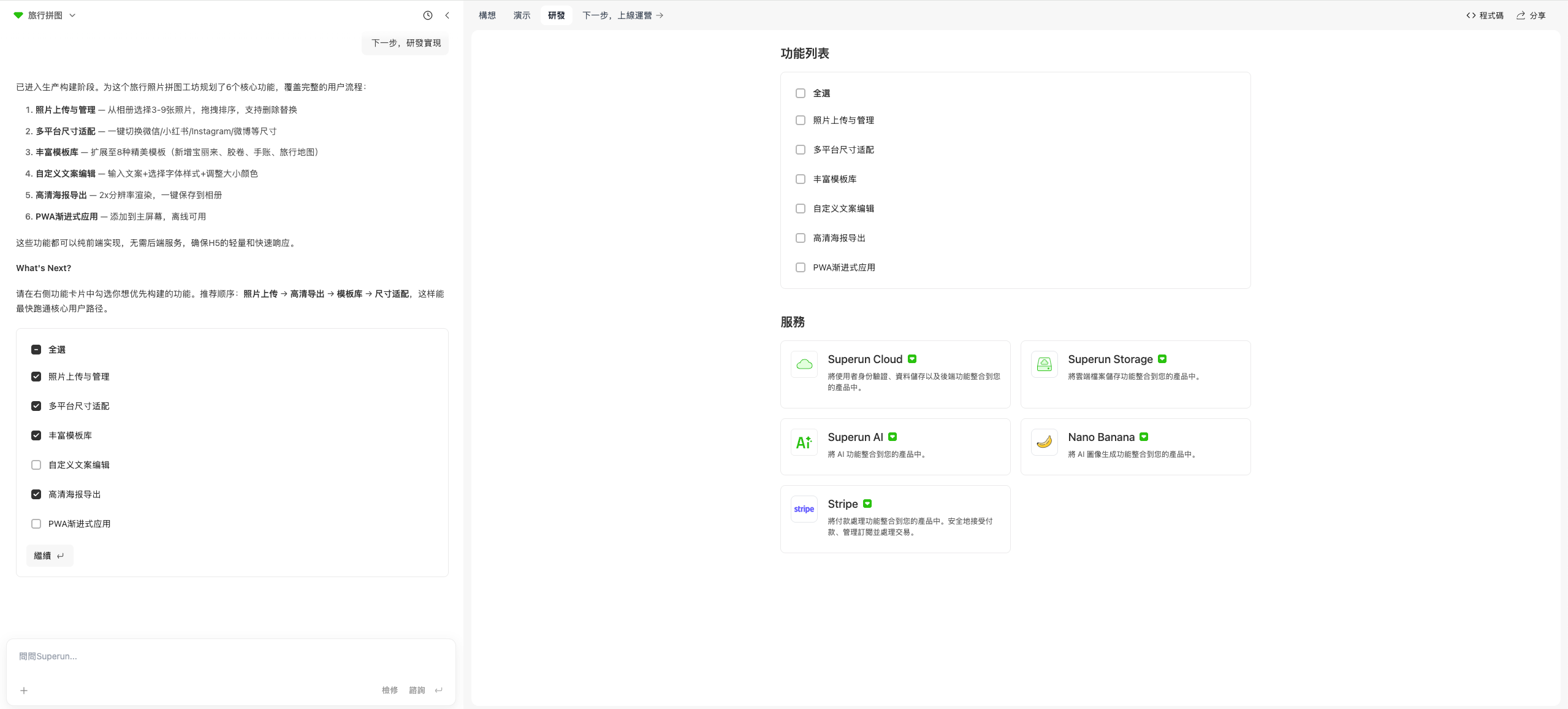
- Follow the model’s suggested order, or select everything at once
- Pick only what you need
- Choose in the chat stream or on the Development tab
- After you continue, superun implements what you selected
- Acceptance and continued development
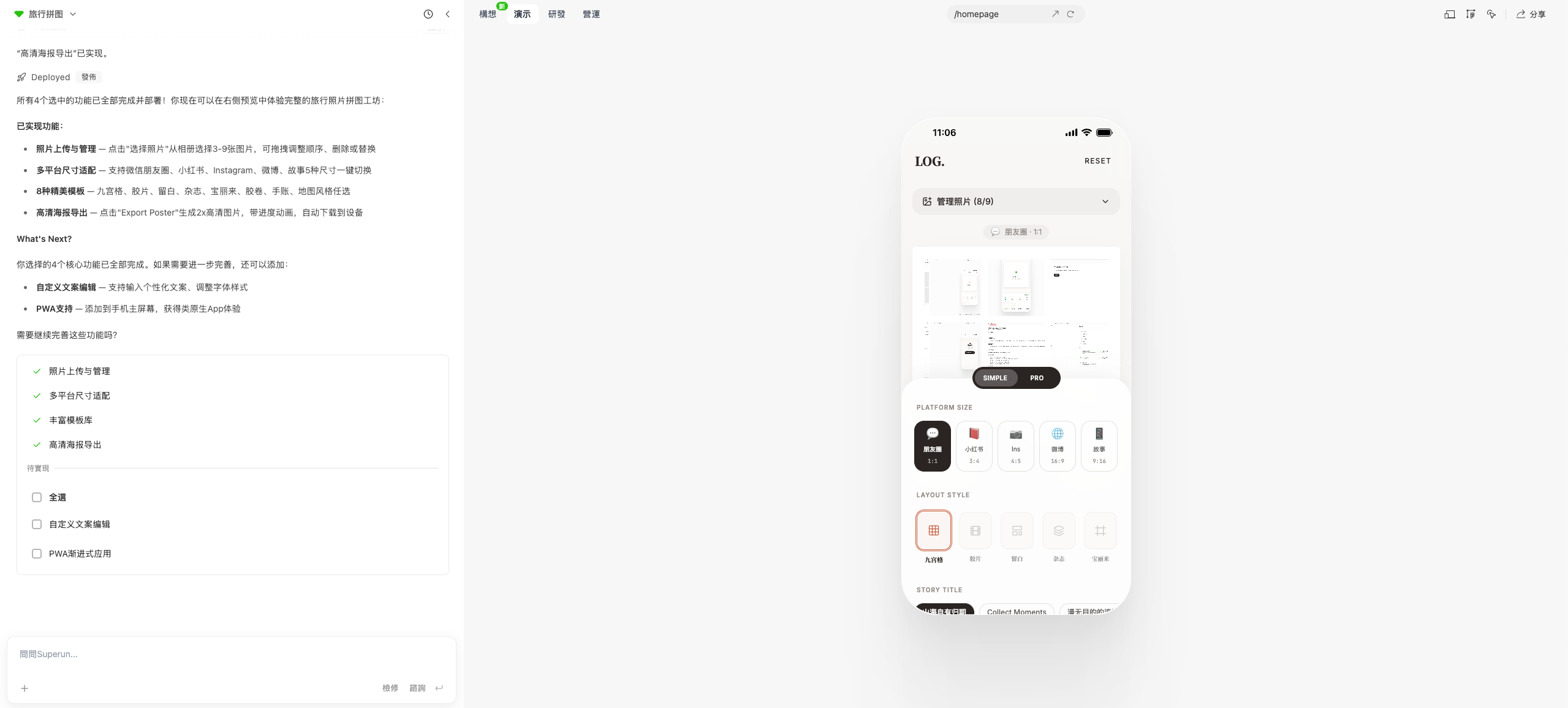
- When selected features are done, try them and accept or reject
- If something is wrong, say so in chat and let superun fix it until it matches your expectations
- When features look good, select remaining items and continue building
- You can also describe new requirements in chat for superun to implement
- Route switcher
- If admin or other standalone routes are not reachable by clicking through the UI
- Use the route switcher in the middle of the navigation bar
- Pick a route from the dropdown to jump directly to that page

Launch and operations
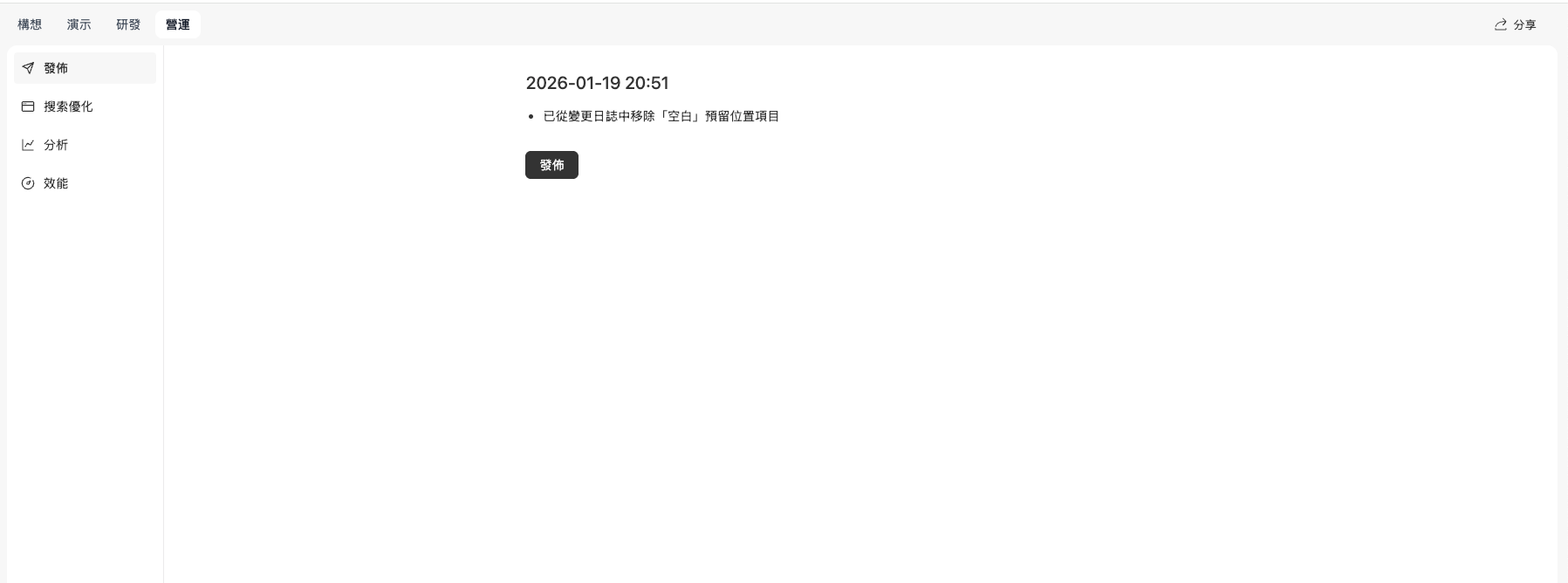
- Click Next: launch and operations for publishing, search optimization, analytics, performance, and related launch tools
- Everything here ties to going live
- One-click publish
- Search optimization and similar features
💡 Tip: Demos are a fast way to validate design and flow. Before building the full app, use a demo to refine requirements.
Save credits: when something breaks, do not rush random fixes
When the site errors or freezes, understand the problem before fixing—avoid blind edits. Common situations:- Errors or freezes—try Auto-fix a few times
- Refreshing does not lose work; the model can be unstable and work may finish before the page updates
- Understand: Copy the error and ask the AI: “What does this mean, and where might the issue be?”
- Align on a plan: Discuss possible fixes with the AI
- Then change: Only after you agree on approach, ask it to modify code
- ❌ Asking the AI to change things randomly at the first error
- ❌ Editing without analysis
- ❌ Many quick fixes that make the problem worse
- ✅ Understand the error message first
- ✅ Find the root cause
- ✅ Agree on a fix plan
- ✅ Then apply changes
Roll back using version history
If the project breaks or you want a stable earlier state, use version history to roll back. When to use it:- Recent changes broke functionality
- You want a previous stable version
- Compare versions side by side
- Try a different implementation path
- Open the project’s version history
- Review past versions
- Pick the target version
- Click Roll back to this version or Restore this version
- Confirm
- superun restores that snapshot
- Rollback drops changes between now and the target version
- You can keep building from the restored version
- If the project uses a database, watch for data compatibility
💡 Tip: Stable milestones in version history make rollback fast when you need it.
Prompt writing tips
Save credits: think in consultation mode, then let AI act
Plan before you generate—do not ask for everything at once. Recommended flow: Step 1: Consult first (click Free consultation at the bottom right of the input):- Discuss ideas
- Nail down structure
- Ask “Does this make sense?”
- Confirm direction and details
- Ask the AI to generate or modify
- Implement what you agreed in consultation
- Keep direction consistent
- Less off-target generation
- Lower credit use (consultation costs less)
- Catch issues early
- Clearer thinking
Phase 2: Design
Image usage tips
Upload images directly in chat
Upload images in chat; the AI inserts them and styles them for you. Steps:- Upload from the chat box
- In your prompt, say where each image goes and how large it should be
- The AI inserts and adjusts styling
- Product photos
- Brand assets
- Reference designs
💡 Tip: You can upload multiple images—say what each one is for in the prompt.
Replace images in the design editor
Use the design editor to swap images visually—what you see is what you get. Steps:- Click Design editor in the top navigation bar
- Select the image placeholder to replace
- Choose the new image
- Visual, straightforward
- Instant preview
- No code changes
Upload project images to superun storage
Upload project images to superun storage, then reference the storage path in prompts. Steps:- Create a bucket in superun storage if needed
- Upload image files
- Copy the storage path
- Reference the path in your prompt
- Centralized project assets
- Easier versioning
- Faster loading
superun file storage guide
Full tutorial on superun file storage—upload, manage, and use stored assets in your app.
UI design tips
Quick style tweaks in the design editor
Use the design editor to adjust colors, typography, spacing, and more. What you can change:- Text content and style
- Colors and backgrounds
- Fonts and sizes
- Spacing and layout
- Responsive settings
- Click Design editor in the top navigation bar
- Select an element
- Adjust properties
- Preview immediately
Why visual editing helps
Visual editing is faster and safer than editing code for many changes. Benefits:- Speed: Direct manipulation, no code
- Safety: Less risk to existing behavior
- Instant preview: See results immediately
- Easy iteration: Tweak until it looks right
- Layout and styling
- Copy changes
- Image swaps
- Responsive polish
Limits on mobile
On mobile, some superun features are limited. Works on mobile:- Browse and view projects
- Pick a concept and continue generation
- Basic project navigation
- Design theme editing
- Visual design editor
- Advanced editing
Phase 3: Development
Automated capabilities
superun automates much of development so you can move faster. What is automated:Built-in AI models
- Connect AI models to your product without wiring low-level APIs yourself
- No API key setup required
- Ready to use
Deploy to the cloud
- Deploy to the cloud without managing servers
- No server environment setup
- One-click publish
Automatic media storage
- Images and video stored automatically for use in the site
- Unified asset management
- Automatic optimization
Text-to-image (superun image generation)
- Built-in text-to-image tooling
- No external service required
- Generate images quickly
Common features configured for you
- Sign-up, login, payments, and similar setup in one flow
- Less repetitive work
- Faster time to launch
Dynamic variable nodes
In superun flowcharts and logic nodes, dynamic variable node content is filled by the AI from chat context—you cannot edit it directly by hand. Do this:- Tell the AI the values or logic you want; it updates the node
- To change something, say in chat: “Set node X’s value to …”
- ❌ Double-clicking to type manually → does not work
- ✅ Describe changes in chat → updates apply automatically
Knowledge base tips
Custom knowledge for project context
Use custom knowledge to record product vision, user journeys, core features, and more. What to record:- Product vision: Core value and goals
- User journey: End-to-end usage
- Core features: Main modules and capabilities
- Design rules: Standards and constraints
- The AI keeps referencing this context
- More consistent output
- Better accuracy
Roles and boundaries
Define roles and boundaries (admin, user, investor, etc.) so generated code respects permissions. Define:- Role types: Admin, standard user, guest, etc.
- Permission boundaries: What each role can access
- Data isolation: What data each role sees
Generate a project knowledge base
From implemented features, ask for a structured knowledge base. Example prompt:- Project overview
- Feature list
- Role definitions
- Design standards
- Technical architecture
Save patterns that work and reuse them
Whenever you notice:- Wording that works well
- Structures the AI understands reliably
- Steps that rarely fail
- Keep them for next time
- Add to the project knowledge base
- Turn into prompt templates
- Store in custom knowledge
- Higher efficiency
- Consistency
- Fewer mistakes
- Reuse what already worked
💡 Tip: Periodically refine these patterns into your own best-practice library.
Prompt optimization tips
Point to a specific page or module
Name the page or module and state exactly what to build. Good example:- Page path
- Location (section, module)
- Desired behavior
Database integration tips
Version management tips
Pin every good state
superun records version history at important milestones—you do not need manual version tags. How it works:- After a major feature or change, the system adds an entry to version history
- Each version is a full project snapshot you can view or restore
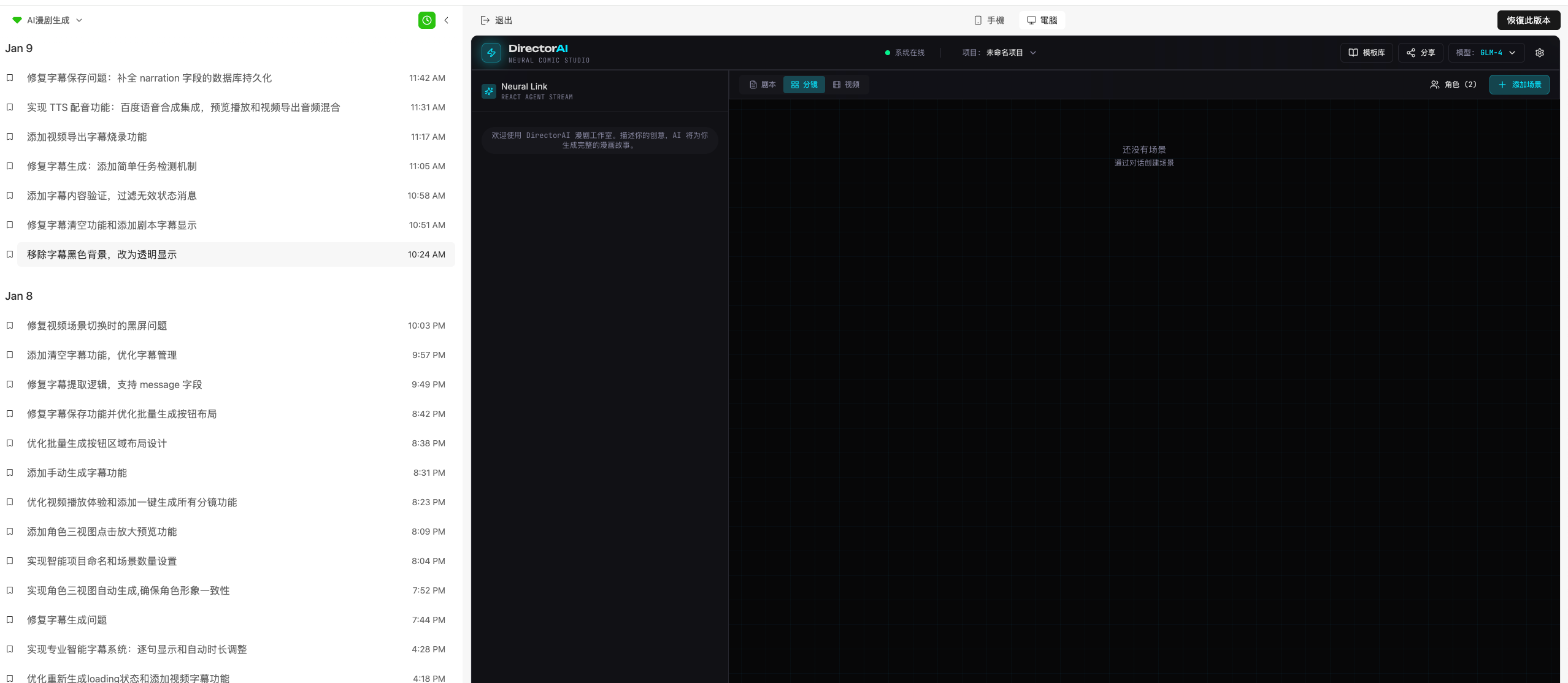 Suggested workflow:
- After a major feature, test that it works
- The system saves the current state to version history automatically
- Review milestone entries in version history
- Roll back to any snapshot
- Compare versions
- Progress tracked without manual tagging
💡 Tip: Focus on building—version history is automatic.
Rebuild by rolling back to a version
When the project is stuck in error loops or messy structure, roll back to a stable snapshot. When to use it:- Structure is too messy to fix incrementally
- Too many errors; fix cost is high
- You want a new approach from a known-good base
- You need a version where features worked
- Open version history
- Find a stable version where features worked
- Select it
- Click Restore this version
- Confirm rollback
- superun restores that state
- Continue development from there
- ⚠️ Important: Rollback removes all changes after the target version—proceed carefully
- With a connected database, check data compatibility before rollback
- You can keep editing after rollback
⚠️ Note: Check database compatibility before rolling back.
Email configuration (as needed)
Configure email with Resend
Resend is a modern email API for transactional and marketing mail in your project. Get an API key:- Sign up at resend.com
- Verify your email
- In the Resend dashboard, open API Keys
- Click Create API key
- Name it (for example, “superun App”)
- Copy the key (starts with
re_) - Keep it secret—never expose it in client-side code
Resend integration guide
Full Resend tutorial—API setup and usage.
Configure SMTP with a personal NetEase mailbox
For email in your project, you can use a personal NetEase mailbox for quick SMTP setup. Good for:- Product validation
- Internal notifications
- Testing email
- No business verification required
- Quick setup (about five minutes)
- Low cost
Speech engine configuration (as needed)
For speech-to-text (ASR) and text-to-speech (TTS), you can connect mainstream Chinese speech providers. Supported providers:- Baidu AI Cloud
- iFLYTEK Open Platform
- Volcano Engine
- Alibaba Cloud
WeChat H5 voice input limits
In WeChat H5, browser native voice input (getUserMedia) does not work—that is a WeChat browser limitation.
Workaround: Use WeChat JS-SDK recording APIs:
- Configure JS-SDK trusted domains in the Official Account backend
- In your superun project, integrate WeChat JS-SDK (
wx.startRecord/wx.stopRecord) - After recording, upload to WeChat servers, then convert to text or files as needed
⚠️ Note: This applies to WeChat H5 (Official Account web pages) only—not desktop browsers or WeChat Mini Programs.
Developer tool tips
html2canvas element alignment issues
html2canvas screenshots can misalign elements compared to what the browser renders. Core issue: Alignment drift between html2canvas output and live rendering. Fix: inject temporary CSS Inject short-lived fix styles and tune render options.
Notes:
- Consistency: Use the same options for single export, batch export, and similar flows.
-
Wait long enough: After DOM or style changes, wait at least
1000msbefore capture so layout settles. -
Clean up: Use
try...finallysoexport-fix-styleis always removed. - Test broadly: Single export, batch export, and complex layouts (images, text, nesting).
Phase 4: Launch
Phase 5: Troubleshooting
Data issues
Unexpected data rollback
Data keeps reverting? Use a separate admin backend and separate data from model logic. Cause: Model code may re-initialize old data when loading fails. Fix:- Separate admin for data: Decouple data management from model logic
- Let the model update data directly: Keep mutations on a single path
- Use version history for important states
- Back up data regularly
- Implement durable persistence
Let the model modify data directly
Fewer hops between UI and database mean fewer inconsistencies. Benefits:- Less drift
- Lower error rate
- Simpler data flow
- Model writes directly to the database
- Avoid multi-layer transforms
- One clear entry point for changes
API errors
Debugging AI feature errors
AI feature failing? Check that request headers match body serialization. Common causes:- Headers breaking body serialization
- Content-Type mismatch
- Wrong payload format
- Inspect request headers on the API call
- Ask the AI to find redundant headers
- Align headers with body serialization
- Remove unnecessary header config
Match Content-Type correctly
Remove extra headers so Content-Type matches the body. Check:- Correct Content-Type
- Body format matches
- Encoding is consistent
- JSON body with
text/plain - Form data with
application/json - Encoding mismatch
Credits issues
Session errors after topping up credits
Session broken after a credit top-up? Check logs → use Auto-fix → retest. Steps:- Logs: Confirm the error after top-up
- Auto-fix: Use Auto-fix in superun (Auto-fix button) to clear bad state
- Retest: Confirm the session continues normally
- Check account state before topping up
- Wait a few seconds after top-up for sync
How to save credits
Symptoms:- Simple edits cost too many credits
- Repeat fixes burn credits
- Manual edit: Style tweaks via Manual edit (zero credits)
- Consultation mode: Plan in consultation mode (free)
- Auto-fix: Try Auto-fix first when something breaks (free)
- Invite users: Invite new users who complete the demo for a 20-credit reward
- Stop early: When something is wrong, pause—do not keep spending on a bad path
- ❌ Change styles in chat: uses credits
- ✅ Manual edit for styles: zero credits
- ❌ Run features directly: uses credits
- ✅ Plan in consultation: free
- ❌ Manual debugging in chat: uses credits
- ✅ Auto-fix: free
- Consultation mode: Phase 1: Save credits: think in consultation mode, then let AI act
Version rollback and demo state
Cannot interact after rolling back history
Symptoms:- After rollback from history, the page does not respond to clicks
- The right-side feature menu disappears
- Nothing is clickable
- Check if you are on a demo: Demos are read-only. If you rolled back to a demo snapshot, continue into the development build
- Version history: If rollback caused issues, roll back again to an earlier stable version
⚠️ Note: To work on a project after rolling back to a demo snapshot, continue generating the development version.Related:
- Basic rollback: Phase 1: Roll back using version history
- Rebuild from a version: Phase 3: Rebuild by rolling back to a version
Chat and input issues
Input disabled or send button grayed out
Symptoms:- Cannot type in the input
- Send button is gray and not clickable
- Toast says insufficient credits when sending
- You can usually still type when credits are low
- Sending shows a “Insufficient credits” toast
- Fix: Top up credits, then send again
- Finish the initial demo: Early-stage projects may need Generate demo checked and completed before chat edits
- Consultation in progress: An active consultation grays out send—wait for it to finish before main-flow instructions
Preview issues
Preview keeps loading or will not show
Symptoms:- Preview spinner never finishes
- Concept selection preview pane empty on the right
- Preview fails but the published URL works
- Refresh: Clear cache and hard-refresh the whole browser tab (not in-app refresh only)
- Network: Try another network
- New tab: Open the preview URL in a new tab
- PWA: Older projects may hit PWA issues
- In consultation, ask: “My preview will not load—is PWA the cause?”
- If yes, ask in main flow to “Remove PWA support”
- Network test: Visit
https://net-test.superun.app/ - Wait for jobs: If a task is running, wait until it finishes, then preview again
Login issues
Admin entry and role-based redirects
Many apps with roles (admin consoles, multi-role platforms) redirect after login by role instead of a fixed admin URL. Open the admin console:- Open the project and use the client switcher (top right—dropdown or “Switch client”)
- Choose Admin or Admin console
- Sign in with an admin account
- Confirm the account has the admin role
- Go to Development → Database → users (or your roles table), set
roletoadminfor that user (field names vary by project) - Or ask in consultation: “How do I grant admin to a user in this project?”
- On the Development page, click + and open Cloud tabs
- Ask in consultation: “How many clients does my project have? What is the admin path?”
Login button does nothing
Symptoms:- Login button has no effect
- Blank page after login
- Multiple admin consoles cannot log in
- Use Auto-fix: Click the in-product Auto-fix entry and describe the dead login button
- Add detail if needed:
- Browser: Try Chrome or another browser
- Cache: Clear cache and sign in again
- Providers: Confirm enabled login methods (email, phone, Google) under Build → Services → superun Cloud → Authentication
Image upload issues
Image upload fails
Symptoms:- All admin image uploads fail
- Images do not display after upload
- Storage: Confirm superun storage is configured
- Development → Services → superun file storage
- Ensure storage is enabled
- Workaround: Upload to superun file storage and paste the URL in chat
- Auto-fix: Run Auto-fix to repair upload flows
- Reconfigure: Ask in chat to reconfigure image upload
- See Phase 2: Image usage tips
- Chat upload, design editor replace, superun storage
Page display issues
Blank page or content covered
Symptoms:- Blank page
- Content hidden behind other elements
- Missing buttons
- Auto-fix first
- Rollback if Auto-fix does not help
- Layout: In consultation, ask:
- Follow the AI’s advice before changing layout in main flow
- Refresh after fixes
- Console: F12 → copy errors into chat for targeted fixes
Repeated failed fixes
Feature breaks again after a fix
Symptoms:- Fix works briefly then breaks again
- Same issue after many attempts
- High credit spend
- Rollback to a working version and try a different approach
- Consultation to plan before executing
- Avoid loops—do not keep asking the same fix in chat
- Complex UI (e.g. poster editors): prefer superun image generation and similar tools
- Stop the thread if the AI is stuck in a loop and start fresh
- Understand: Copy errors and ask what they mean
- Plan: Discuss fixes with the AI
- Change: Apply only after you agree
💡 Tip: Models can spiral after an early mistake—stop early and change approach.
Domain binding and SEO
Domain binding fails
Symptoms:- GoDaddy apex domain cannot bind CNAME directly
- Domain resolves but redirects to the superun homepage
- Cloudflare: Point nameservers to Cloudflare, then bind in superun
- Update nameservers at your registrar
- Bind via Cloudflare in superun
- Ask the AI: In consultation:
- Confirm the correct domain before asking for config changes in main flow
Fonts and styling
Cannot change numeric fonts via chat
Symptoms:- Numbers will not change font through chat alone
- Text and images feel mismatched
- Select element and edit: Use Select element and edit, pick the element, then describe the change
- Upload fonts: Upload a
.ttfand ask the AI to apply it to specific elements - Manual edit for pure styling
- Reference image: Upload a reference for the AI to match
Sound playback
Unreliable sound effects
Symptoms:- Sound sometimes plays, sometimes not
- Inconsistent playback
- Re-upload the audio file
- Caching: In consultation, ask:
- If yes, ask for preload/cache in main flow
- Auto-fix the playback logic
- Format: Prefer MP3 or WAV
After consultation, unsure how to implement
Symptoms:- Nothing changed after talking with Su Xiaoqiang in consultation
- Unclear how to turn discussion into edits
- Talk only — consultation with Su Xiaoqiang does not edit or regenerate the project
- Main flow executes — switch back to main input, describe changes, and send
- Free — consultation does not use credits
- Send is gray while a consultation is active
- Wait for it to finish
- Phase 1: Save credits: think in consultation mode, then let AI act
- Meet Su Xiaoqiang for proactive tips and recommendations
Payments
Slow WeChat Pay security check
Symptoms:- WeChat Pay security check is very slow
- Clear cache and retry
- Wait — security checks can take time
- Stable network
File upload and replace
Cannot replace images
Symptoms:- Cannot replace images on the page
- Uploaded files are unusable
- Select element and edit: Select the image and provide a new URL in chat
- superun file storage: Upload there, copy link, use in chat
- Development → Services → superun file storage
- Design editor: Design editor in the top bar—right-click layers if selection is hard
- Describe in chat: Annotate a screenshot and describe the swap
System update failures
“System error” when updating
Symptoms:- Update shows “System error” or fails
- Network: Wait and retry
- Busy: Wait if another task is running
- Already latest: No Update button when you are on the latest version
- Auto-fix
- Refresh and retry update
Mobile adaptation
Mobile display problems
Symptoms:- Broken layout on mobile
- Poor adaptation
- Consultation:
- Confirm plan, then ask for responsive design in main flow
- Browser: Use modern mobile browsers (Chrome, Safari, etc.)
- Responsive design: screen sizes, touch, layout and typography
- PWA: add to home screen, offline, app-like feel, push (where supported)
Network errors and stuck tasks
“Network error” toasts
Symptoms:- Frequent “Network error”
- Task stuck on “Reading console logs”
- Wait — high load often clears in a minute or two
- Test:
https://net-test.superun.app/ - Switch network (e.g. phone hotspot)
- Refresh
- Clear cache
Deployment
superun builds web apps
superun produces web apps by default. To install on a phone for testing, use Publish App in Operations to cloud-build an Android / HarmonyOS / iOS installer. That is not the same as downloading superun’s own creation client. Notes:- The site and preview remain web apps; use responsive design in the mobile browser
- Real-device installers go through Publish App — do not confuse this with the desktop / mobile client
- Account requirements for a production iOS build follow the in-product prompts
- Responsive design / Progressive Web App (PWA)
- Publish App cloud-built installers
Admin console deployment
Need an admin backend? superun adds admin routes in the same project—focus on access control. How it works:- Admin pages and routes live in the same deploy as the main app
- Same domain; paths like
/adminor/dashboardseparate admin
- Authentication on admin routes
- Roles: admin vs standard users
- Route guards for sensitive paths
- Data scope: admin sees only authorized data
- Ask superun to generate the admin system (routes + pages)
- Configure auth and permissions
- Test that only authorized users reach admin
💡 Tip: Admin is part of one deployment—permissions matter more than a second host.
Optimize the mobile experience
Improve mobile with responsive design or a PWA. Responsive design:- Adapt to screen sizes
- Touch-friendly interactions
- Layout and typography tuned for small screens
- Add to home screen
- Offline support
- App-like experience
- Push notifications (where supported)
General troubleshooting flow
Standard steps when something goes wrong
Step 1: Understand- Copy error messages
- Ask the AI what they mean and where to look
- Do not ask for random fixes at first sight of an error
- Click Auto-fix
- Fixes common issues automatically
- Free—no credits
- If Auto-fix is not enough, use consultation
- Agree on a plan, then execute in main flow
- For deep issues, restore a known-good version
- Try a different fix path
- Avoid error spirals
- Check connectivity
- Clear browser cache
- Try another browser
💡 Tip: Understand first, then fix. Auto-fix is free—try it early. Most issues yield to Auto-fix, consultation, rollback, and cache clears.