

Tips
Actions after requirement clarification (page steps)
After you submit your initial prompt, superun clarifies requirements, then moves into the page-steps phase. You can choose different actions depending on the situation.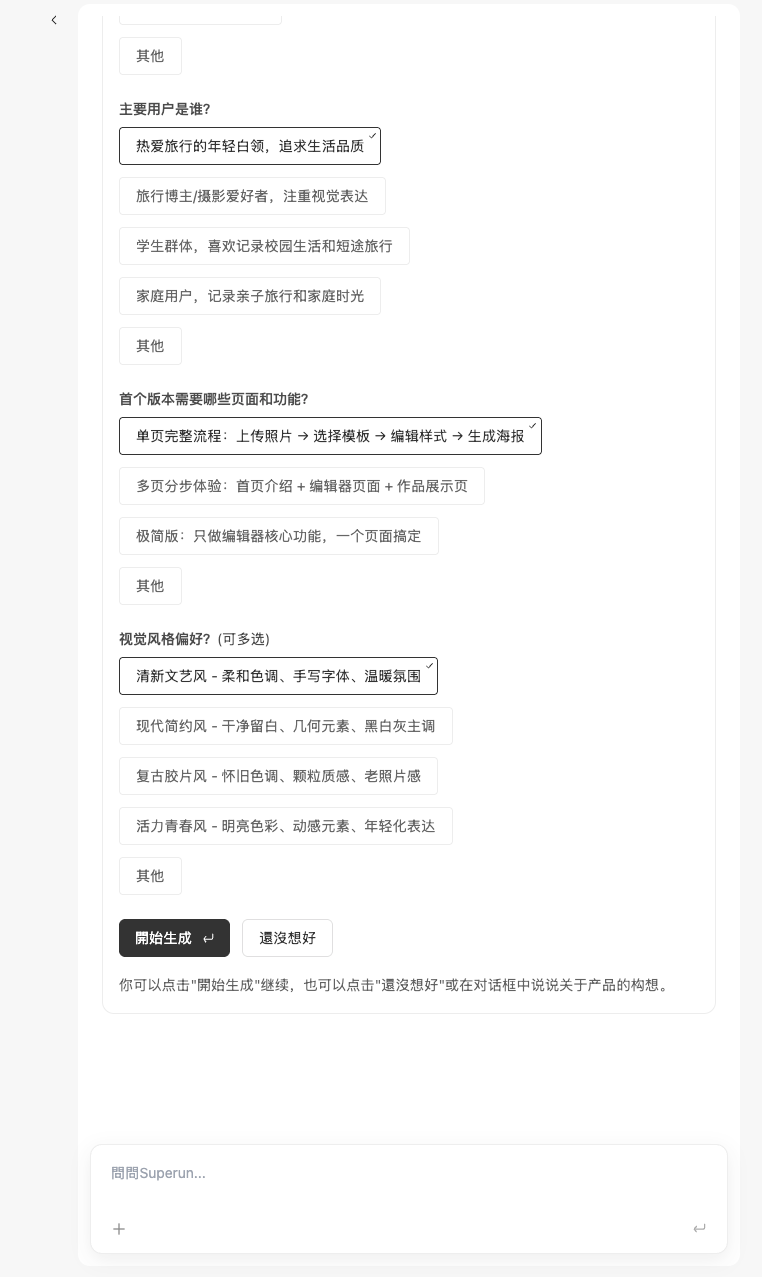 Options:
- Looks good — start generation
- If the page steps match your expectations, click Start generation
- The system continues the flow from those steps
- Not what I want, but hard to describe
- If something feels off but you are not sure how to say it
- Click Not sure yet
- The model will offer new options to choose from
- I have ideas and want adjustments
- If you want to change the page steps
- Type your requirements in the chat
- The model combines your input and generates updated options
💡 Tip: Use the clarification phase fully so later generation matches your expectations. If you are not satisfied, adjust before moving on.
Select and preview a concept
After starting generation, preview free Concept A. If you want another direction, commission a senior designer from the designer card. Each commission creates one additional concept.- Open a completed concept to compare layout, content, and color. You can adjust its design theme in the right panel.
- Use Continue with this concept when satisfied. You do not need to wait for every other concept; work already started continues.
- Each user has one free first commission across projects. Later commissions are estimated at 50–100 Compute Credits, settled by actual usage after completion, and require the actual paying account’s balance to exceed 100 credits to start.
Automatic transition to Demo
After selecting a concept, you can open Demo to check progress. Once usage scenarios are ready and the current generation round ends, superun automatically opens Demo and shows the completion card. No extra “Got it — start the demo” confirmation is needed. Tab clicks only switch views and do not generate again. Use test data in the demo to validate pages, interactions, and usage flows before connecting real capabilities. Later demo generation, edits, and development are billed by actual usage.Phased development to reduce rework
For complex projects, follow this order:- Ideation: Define target users, core features, and business flows.
- Demo: Confirm page structure, interaction paths, and visual style.
- Build: Add database, login, permissions, and other backend capabilities.
- Validation: Use code review and automated tests.
- Launch: Confirm domain, compliance filing, data, and publish status.
One-click back to demo while build plan is “pending confirmation”
While the build plan is pending confirmation, you can return to demo in one click. Typical cases:- Key pages or flows are not confirmed;
- The demo diverges from real business processes;
- Build scope is too large and needs splitting;
- You need to reconfirm UI/UX before database, login, or permissions.
Build phase
- Next steps after viewing the demo
- After the demo, select the features you need
- Generate demo first — deeper demo for selected features
- Generate demo and build together — real features with real data plus a follow-up feature list
- Or click Next: build implementation in the nav bar to go straight to the feature list
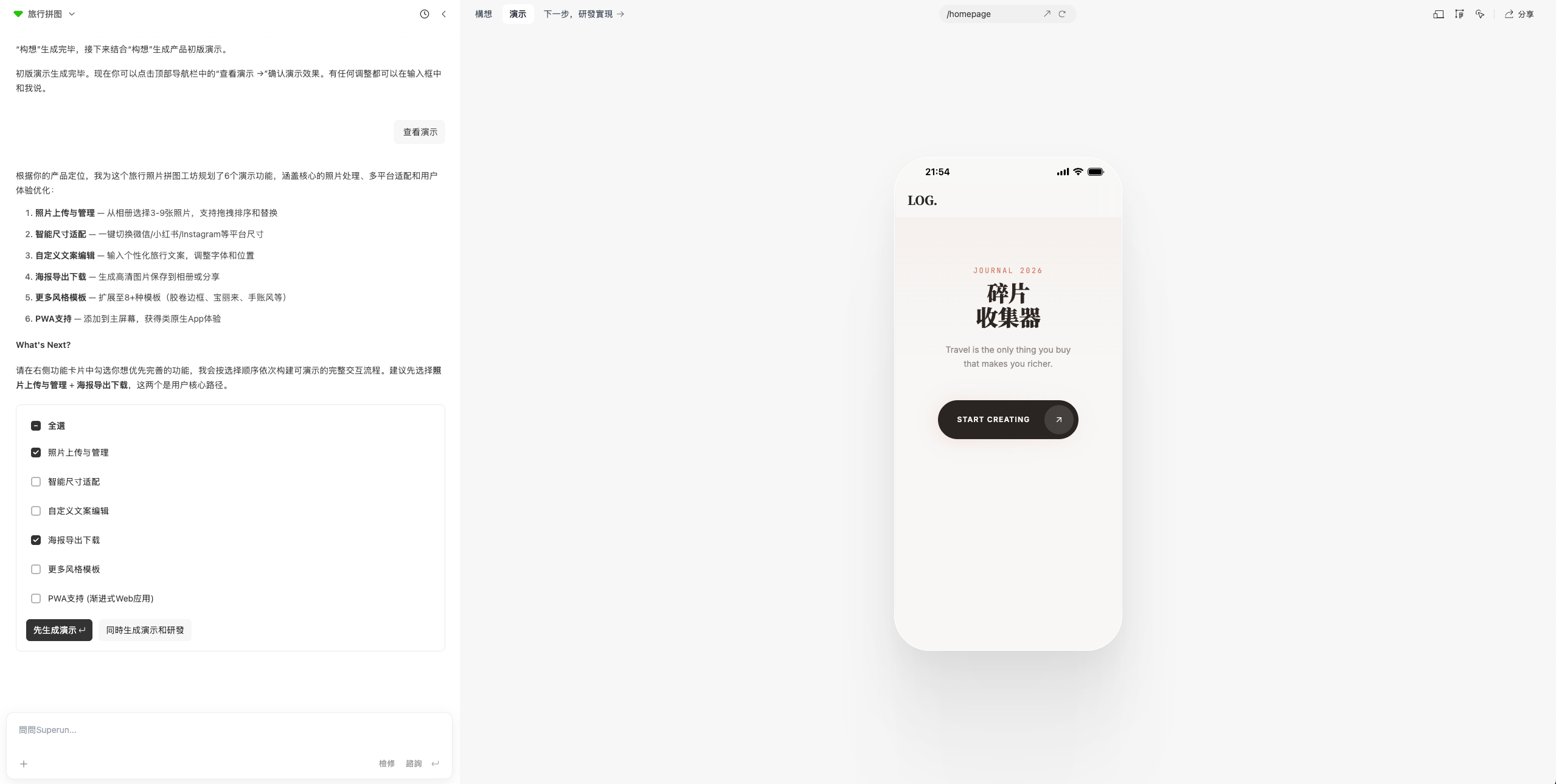
- Choosing features in the build phase
- Follow the model’s recommended order, or select all
- Pick what you need
- Continue in the chat stream or on the Build tab
- After you continue, superun implements your selections
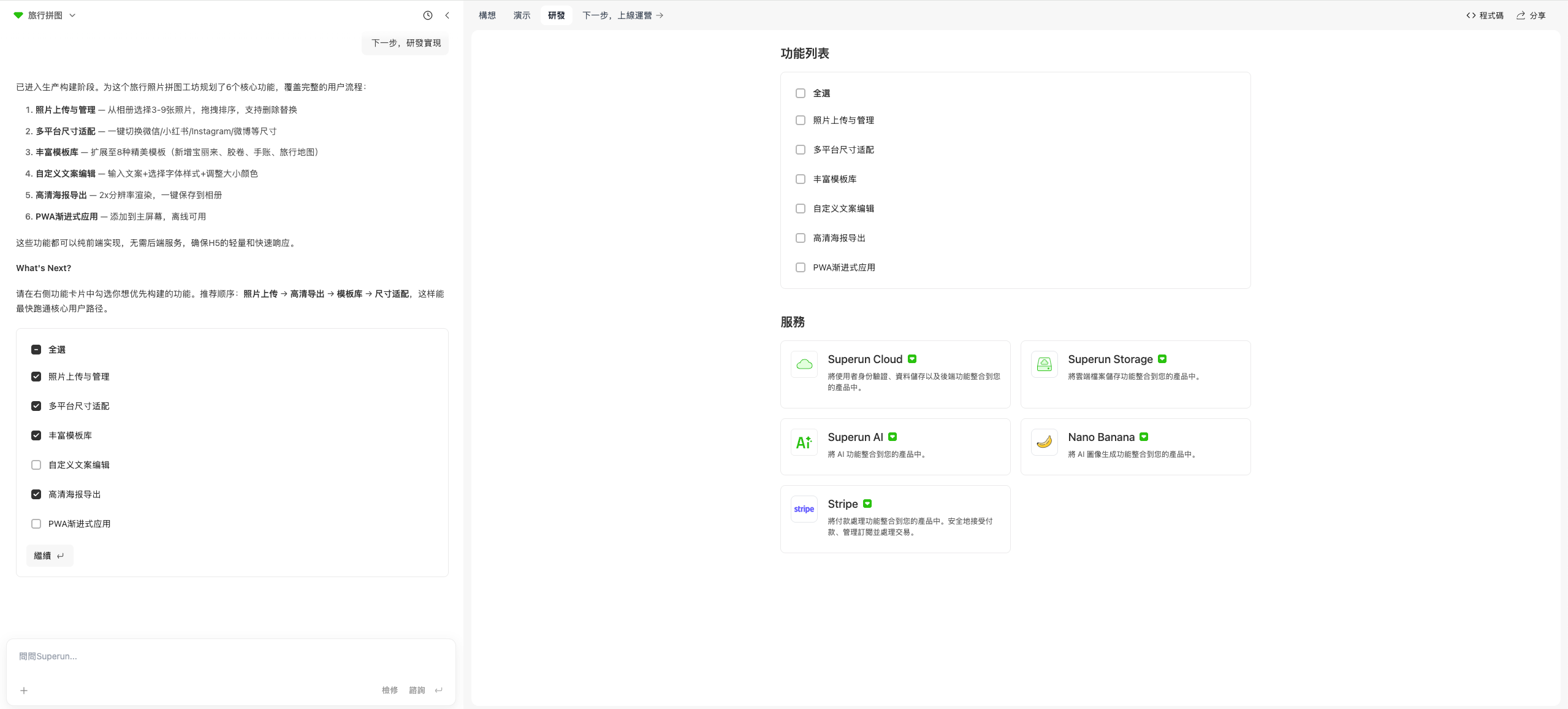
- Acceptance and continued development
- When selected features are done, test them
- Report issues in chat until behavior matches expectations
- Then continue with remaining features or describe new requirements
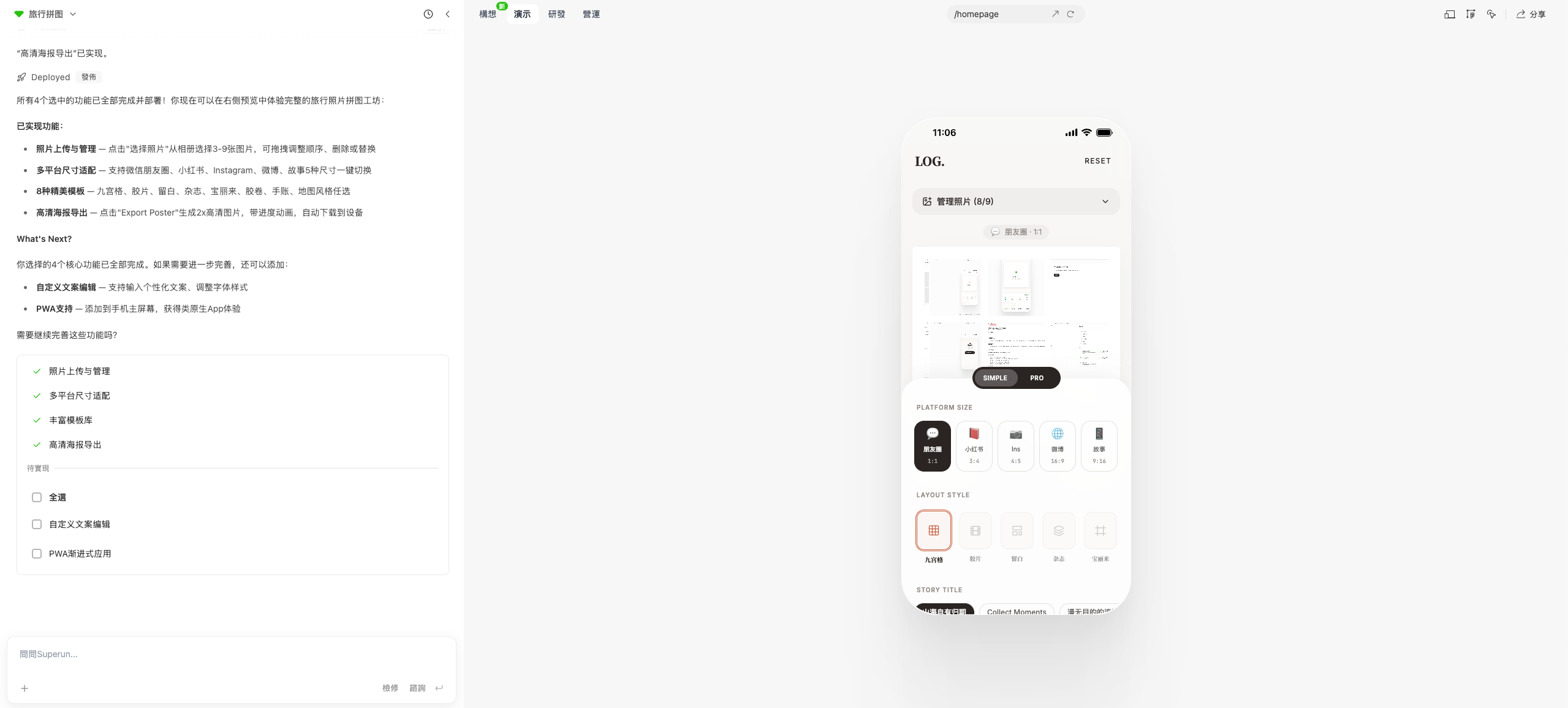
- Route switcher
- If admin or other standalone routes are not reachable by clicking in the UI
- Use the route switcher in the middle of the nav bar
- Pick a route from the dropdown to jump directly

Launch and operations
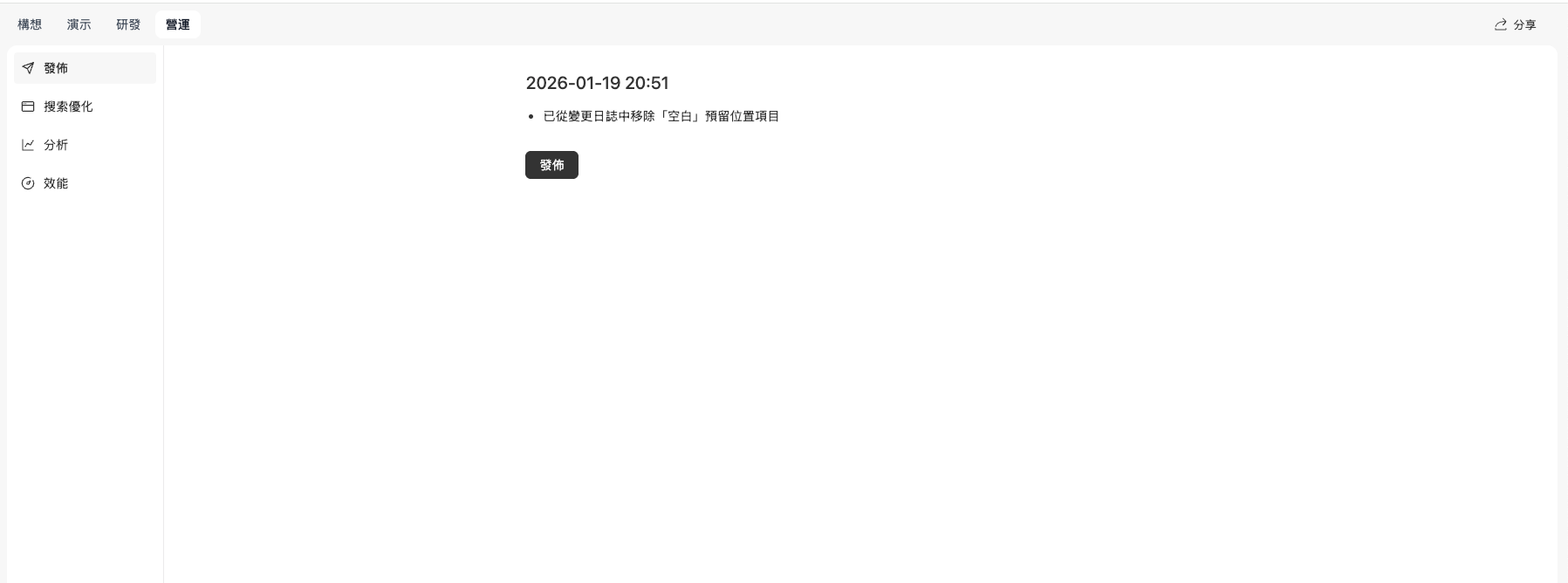
- Click Next: launch & operations for publish, SEO, analytics, performance, and related launch features
- These features tie to going live
- One-click publish
- SEO optimization and related tools
Save Compute Credits: when something breaks, do not let the AI change things blindly
When the site errors or freezes, understand the problem before fixing. Common situations:- Errors or freezes — try Troubleshoot more than once if needed
- Refresh does not lose data; the model can be unstable while work finished but the page did not update
- Understand: Copy the error and ask the AI what it means and where the issue might be
- Confirm approach: Discuss fixes with the AI
- Then change: Apply changes only after the approach is clear
- ❌ Asking the AI to change code at random on every error
- ❌ Editing without analysis
- ❌ Many consecutive edits that make things worse
- ✅ Understand the error first
- ✅ Find root cause
- ✅ Plan the fix
- ✅ Then execute
Save Compute Credits: use chat mode to think, then let the AI act
Think first; do not generate everything at once. Flow: Step 1 — chat first (click Free consultation at the bottom-right of the input):- Discuss ideas
- Clarify structure
- Ask whether the plan makes sense
- Confirm direction and details
- Generate or modify based on the discussion
- Implement agreed scope
- Keep direction correct
- Avoid off-target generation
- Save Compute Credits (consultation uses less)
- Catch issues early
- Clearer thinking
Point to a specific page or module
Reference the page or module and state the feature clearly. Good example:- Give the page path
- Specify location (area, module)
- Describe the feature to implement