

How to
Custom domain setup
Configure a custom domain in superun to bind your project to your own domain for branding and SEO.Mainland China domains: Read Custom domain first; match the in-product Custom domain notice dialog — complete ICP filing and Tencent Cloud access filing.Steps:
- Open SEO settings
- In the project, open Launch in the top nav
- In the left sidebar, click SEO
- Under Domain, click + Custom domain
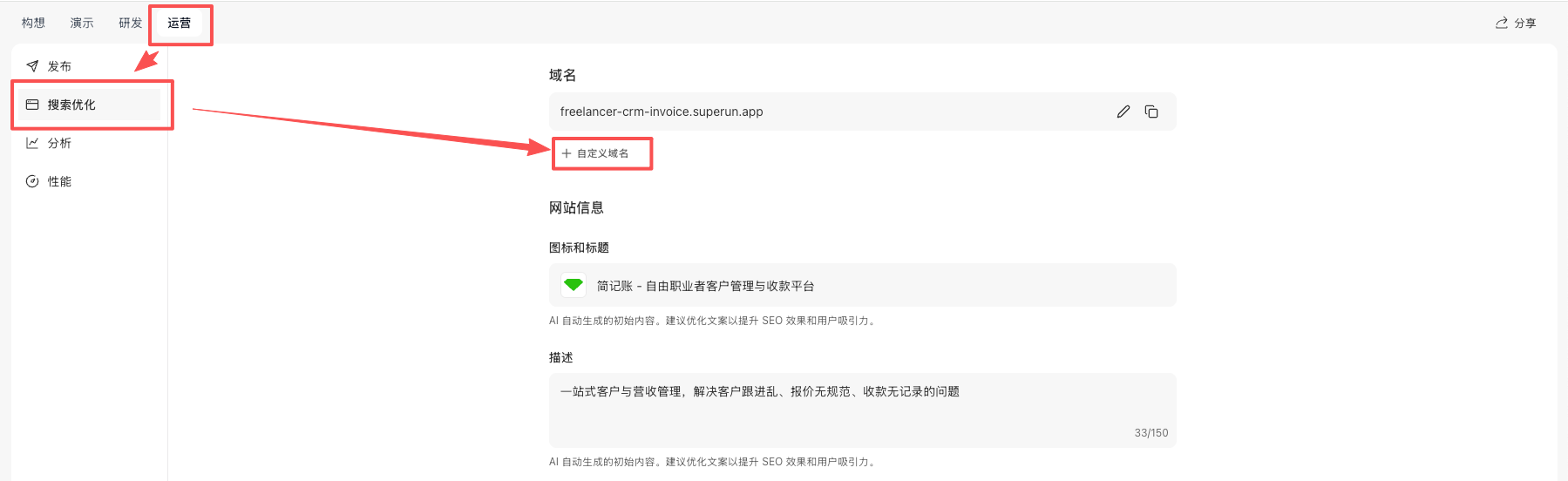
- Start setup
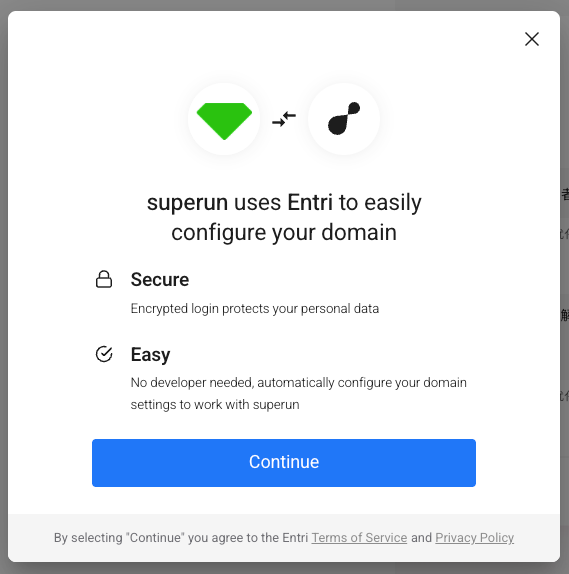
- In the dialog, click Continue
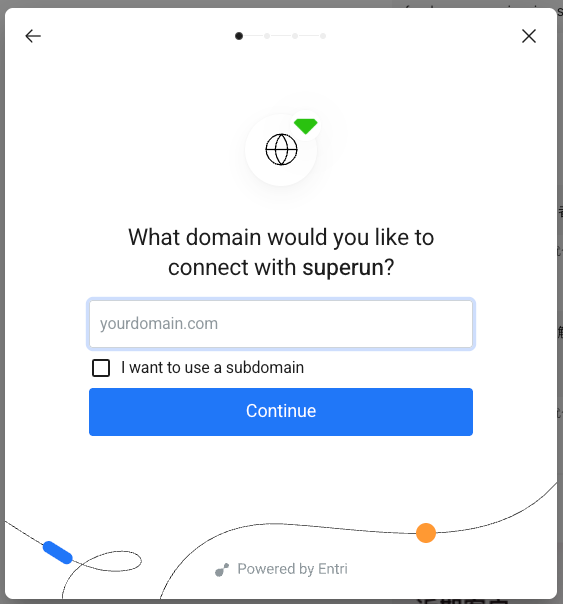
- Enter domain
- Enter your apex domain (for example,
yourdomain.com) - For a subdomain, check I want to use a subdomain
- Click Continue
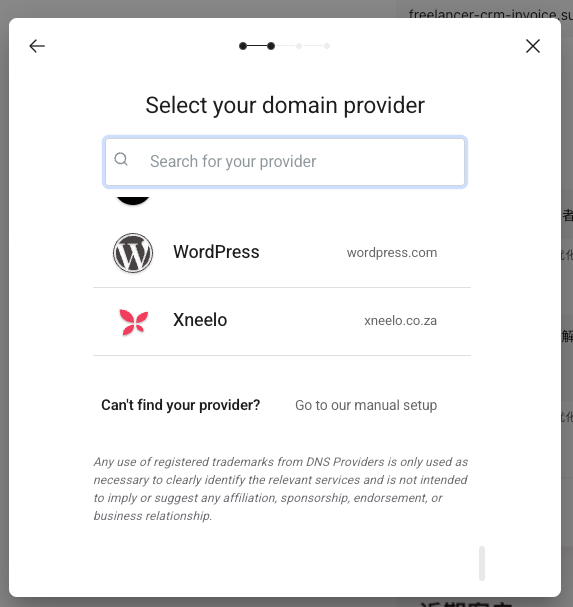
- Choose provider
- Pick your registrar if listed
- Otherwise scroll to Go to our manual setup
- DNS records
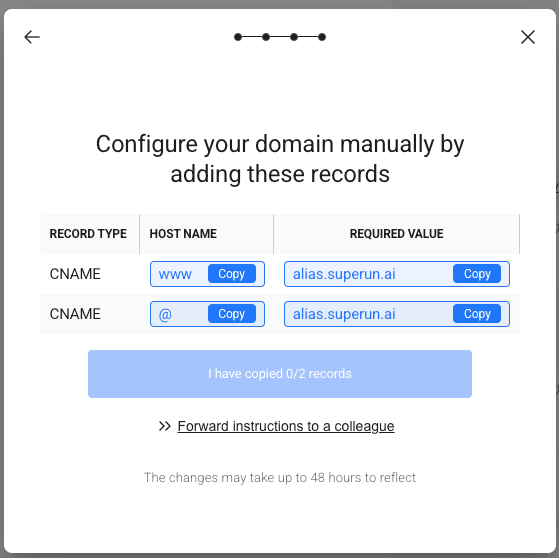
- On Configure your domain manually by adding these records, add two CNAME records:
- First:
- RECORD TYPE:
CNAME - HOST NAME:
www - REQUIRED VALUE:
[target from superun] - Second:
- RECORD TYPE:
CNAME - HOST NAME:
@ - REQUIRED VALUE:
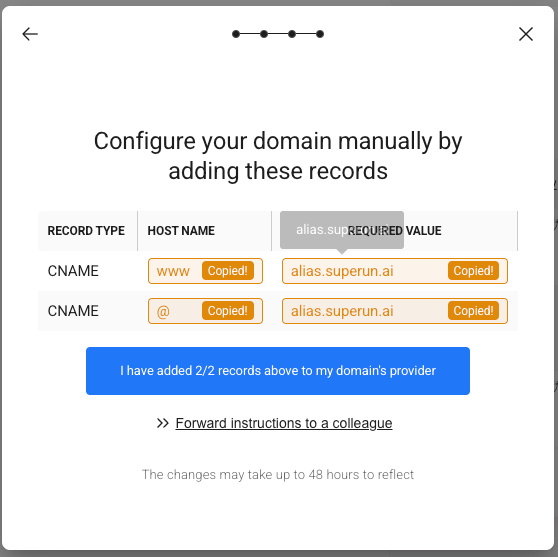
[target from superun] - Copy values with Copy
- Add records at your DNS host (Alibaba Cloud, Tencent Cloud, etc.)
- Confirm DNS
- After adding records at your provider, return to superun
- Click I have added 2/2 records above to my domain’s provider
- Finish
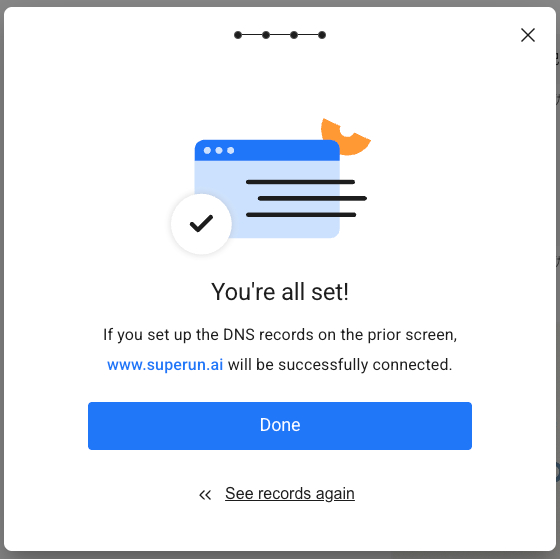
- Wait for DNS verification (minutes to hours)
- When successful, click Done
 Notes:
- DNS can take up to 48 hours to propagate globally
- Add both CNAME records correctly
- SSL is provisioned automatically
- If the site does not load, recheck DNS
- Provider not listed: Use manual setup (Go to our manual setup)
- DNS added but site down: Wait for propagation (up to 48 hours)
- SSL pending: Certificates apply after DNS is valid
- 301 redirects: Configure at your registrar/DNS host, not in superun
Troubleshooting
Domain binding fails
Symptoms:- GoDaddy apex domain cannot use CNAME directly
- Domain resolves but redirects to superun homepage
- Cloudflare: Point nameservers to Cloudflare, then bind via superun
- Update nameservers at your registrar
- Complete binding in superun with Cloudflare
- Ask AI after consulting:
- Confirm the correct domain in main flow and ask the AI to update config