

Overview
Manual edit (Manul Edit) lets you fine-tune a single page after AI generation. You can:- Adjust layout and styles in a visual UI (colors, type size, alignment, borders, image edits, and more)
- Edit copy directly with WYSIWYG preview
- Choose whether to apply changes to the project or keep them as a trial in the current session
Manual edit is free and does not consume credits. It applies to the current page only and does not automatically sync to other pages.
How to open Manual Edit
1. From Preview
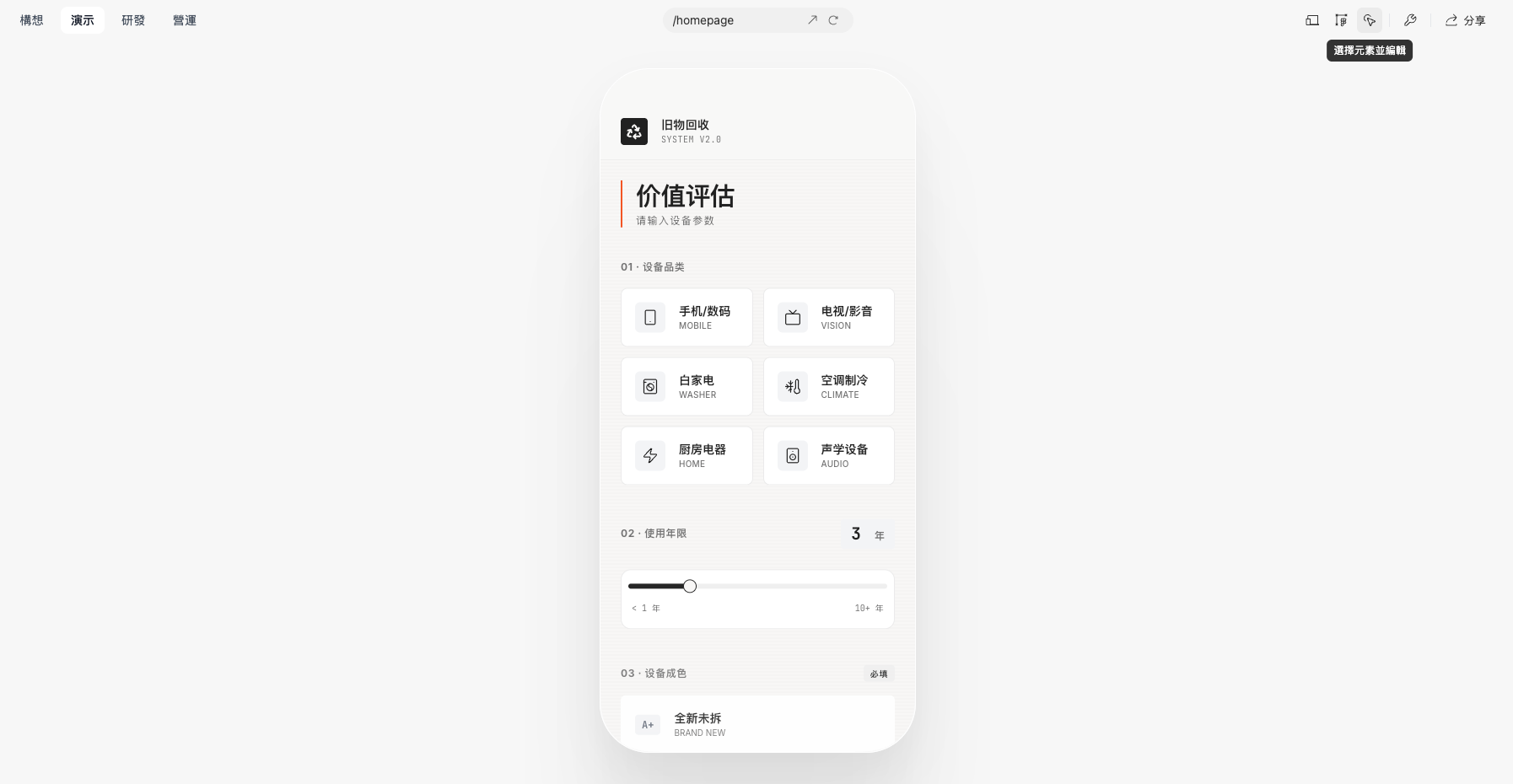
On a project page, switch to the Preview tab and wait for the page to finish loading. In the top-right toolbar you will see:- “Select element and edit” (top-right of the toolbar)
2. Choose an element
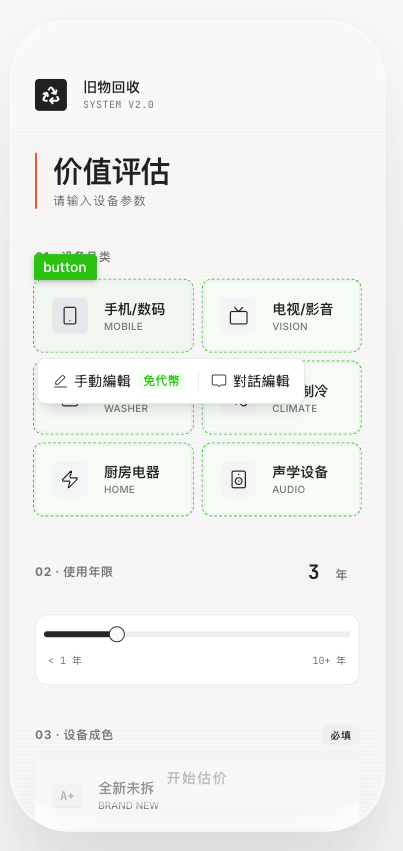
After clicking “Select element and edit”, move the cursor over the page:- Editable elements show a green dashed outline
- Click an element to open a small dialog beside it
The entry is enabled only when you have edit permission (Owner / Editor) and preview has finished loading.
When Manual Edit is available
The Manual Edit (Manul Edit) entry is enabled only when all of the following are true:-
Permissions
- Your role on the project is Owner or Editor
- Viewers can see the page but cannot open manual edit
-
Page state
- Preview has loaded and you can scroll and interact normally
- The project has successfully generated UI in this session (not a blank “not yet generated” project)
- You are past the “choose a concept” onboarding screen and on a normal page
-
Edit flow
- No other edit flow is active (no Exit edit shown top-right)
- The system is not in a “entering edit” loading state
- No in-progress Apply changes / Update product action from moments ago
When Manual Edit is unavailable
In these cases, “Select element and edit” and Manul Edit are disabled or do not open the editor. The top-right entry appears disabled until chat or system flows finish and the page is ready:-
No edit permission
- You are not Owner or Editor—for example, you were invited as read-only
-
Page not ready
- The page is still loading, or preview is starting right after publish
- The project has no generated UI yet (new project, first generation not done)
- You are still on choose a concept / theme and must pick a concept first
-
Chat still running
- An AI chat or generation flow is still in progress
-
Edit flow conflict
- A previous Manual edit click is still opening (editor not fully loaded)
- The system is applying the last round of changes and updating the product
- You are already in the editor; clicking again exits edit instead of starting a new session

Manual edit UI
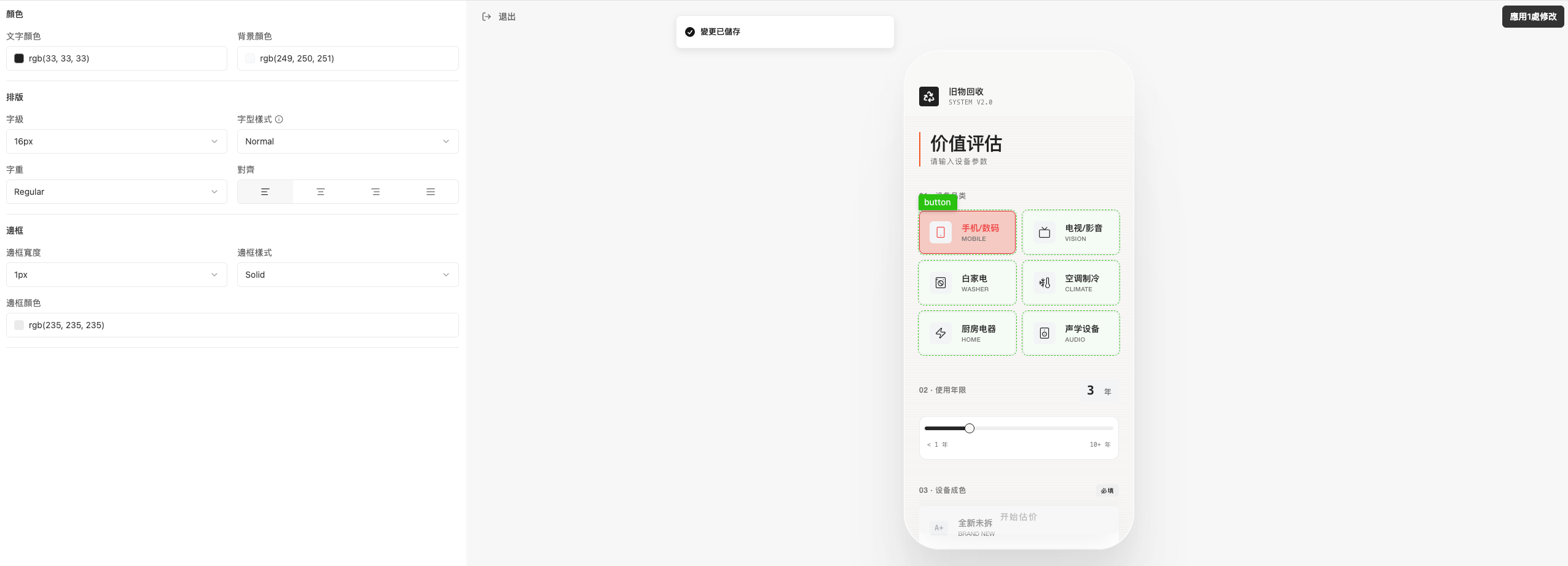
Once inside manual edit, the screen has three main areas:- Left panel: Style controls for the selected element, such as:
- Text and background color
- Font size, weight, alignment
- Border width, style, and color
- Other layout and appearance settings
- Right: Live preview of the current page
- Top right: “Apply changes” button
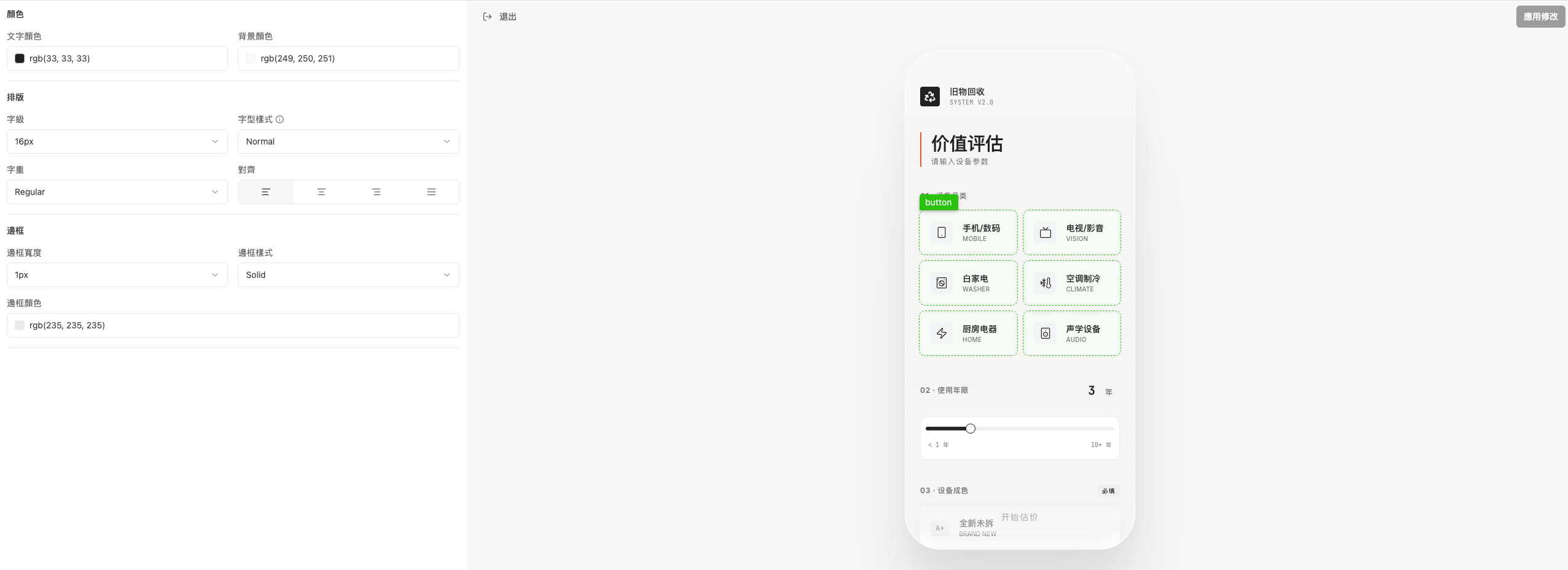 Changes on the left update the preview on the right immediately. When styles or content change, “Revert” and “Stage changes” appear at the bottom so you can stage edits before applying.
Note: Available controls in the left panel depend on the selected element type.
- Options are controlled by the product dynamically; exiting and asking for changes in chat may behave differently—that is expected.
Example: emphasize a button
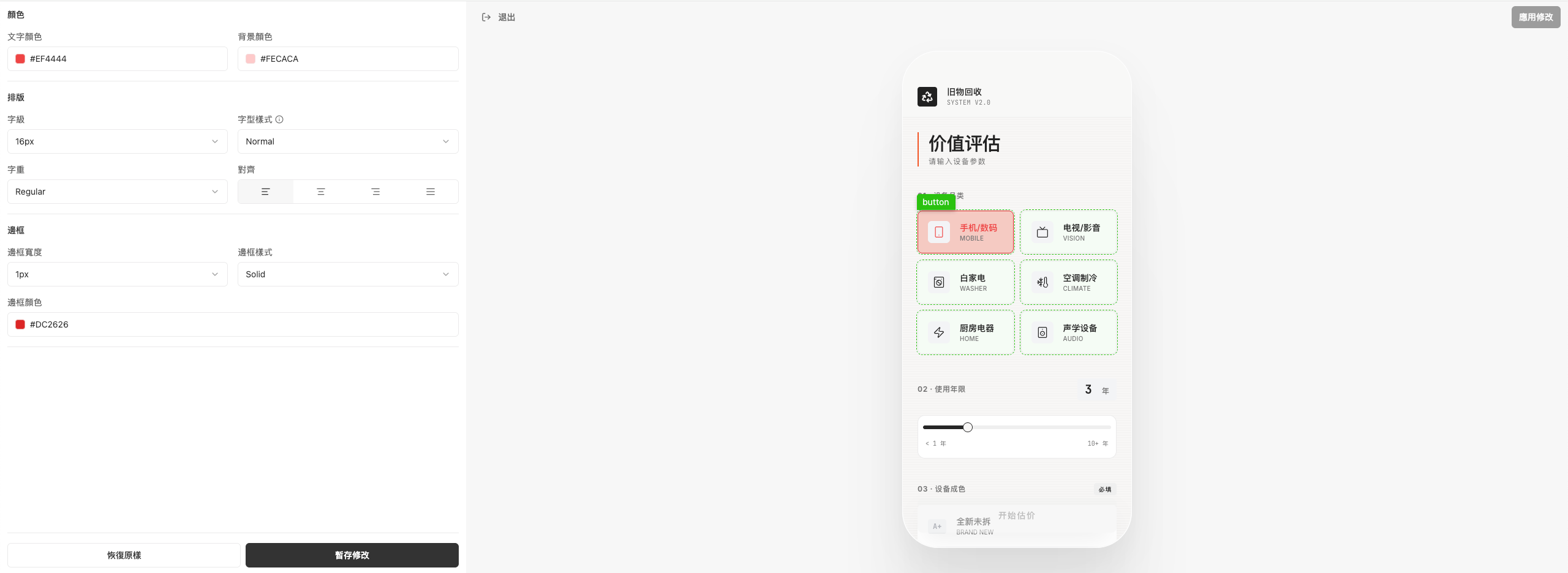
On a pricing page, select the “Phones / Digital” button and set:- Background color to a strong red
- Border color to match for emphasis
Actions: Revert, Stage changes, Apply, Exit
Buttons at the bottom and top-right control when and how changes are written to the project.1) Revert
- Purpose: Undo all changes in this edit session that have not been applied yet
- Effect: The page returns to how it looked when you opened manual edit
- Scope: Only this session’s staged edits—not changes already applied to the project in the past
2) Stage changes
- Purpose: Save adjustments to styles, colors, copy, etc. in the left panel for this session
- Effect: The right preview updates immediately; the project is not updated yet
- You can stage multiple times; each successful stage increments the count on “Apply changes” top-right
3) Apply changes / Apply N changes
- Initial state: With no staged changes, “Apply changes” is gray and disabled
- After at least one “Stage changes”:
- The label becomes “Apply 1 change”, “Apply 2 changes”, etc., and the button is active
- On click:
- The system writes those changes to the project and updates the page prototype / code
- A “Changes saved” (or similar) message appears top-right
- The count resets and the button returns to gray “Apply changes”
4) Exit
- Purpose: Leave the design editor and return to normal preview
- If there are no unapplied staged changes:
- Exit immediately with no extra prompt
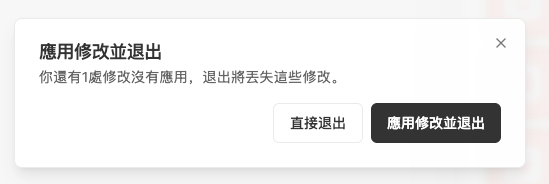
- If staged changes are not applied yet:
- A confirmation dialog offers:
- “Exit without applying”: Discard all unapplied changes in this session
- “Apply and exit”: Run Apply N changes once, then leave the editor
After you apply or discard
When you choose “Apply changes”
- Manual edit sends your adjusted UI structure back to superun
- The prototype / product for this page in the project is updated:
- Future previews use this version
- Build code view is generated from this version
- Later AI edits start from this manually edited baseline
When you discard changes
- Nothing from this session is written to the project
- The page returns to its state before you opened the editor
- Later AI generation and existing code are unaffected
Interruptions or forced close
-
If you close the window or lose network while opening the editor or updating the product:
- That edit round may not be saved
- The system clears intermediate states such as “entering edit”
- Click “Select element and edit / Manual edit” again to restart
-
If you staged changes but did not apply, then refresh or leave and return, you may see:
- Preview showing the version before staging
- Manual edit showing the version after staging when you reopen
- A short mismatch between preview and the editor for the same page
- Use version history rollback: Roll back to a version you trust—this is the recommended fix.
- In chat, you can ask to “Deploy directly, skip checks” so the system skips debug checks (which can take time) and deploys the current version
Clicking anywhere jumps to home / endless loading
- Clicks send you to home: Try enter edit mode → exit edit mode → complete normal login → enter edit again
- Endless spinner: The first entry into edit mode can take time to load; wait briefly. The feature depends on underlying capabilities that are still being improved.
superun website
Visit the superun website for more features and examples.