

Tips
Roll back using version history
If something breaks or you want a previous stable state, use version history rollback. When to use:- Recent changes broke functionality
- Return to a stable version
- Compare versions
- Try a different implementation
- Open the project’s version history
- Review past versions
- Choose the target version
- Click Roll back to this version or Restore this version
- Confirm
- The project restores to that state
- Rollback drops changes between current and target versions
- You can keep building from the restored version
- If the project uses a database, watch for data compatibility
💡 Tip: Good states are recorded automatically in history — you can roll back when needed.
Every good state is preserved
superun records version history at important milestones; you do not need manual version tags. How it works:- After meaningful work, history gets a new entry
- Each entry is a full project snapshot you can view or restore
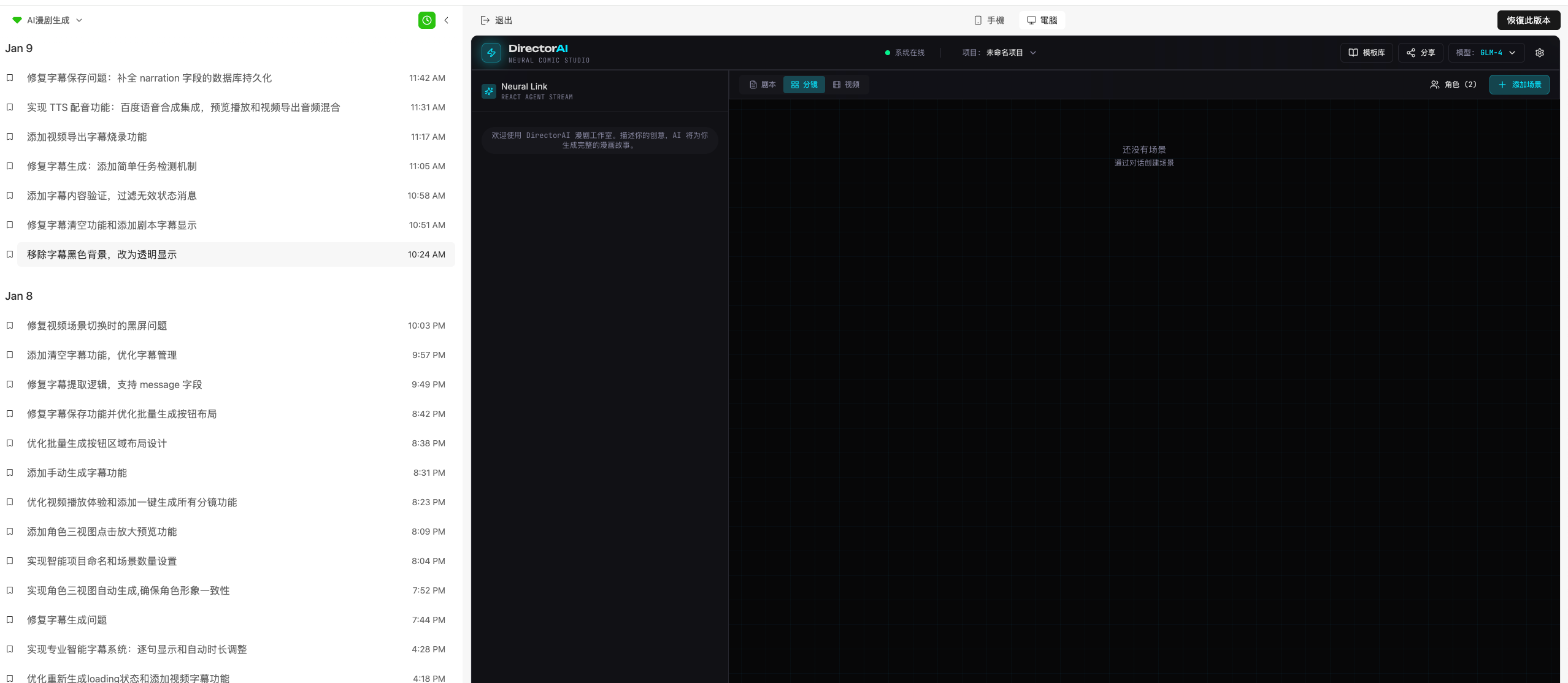 Suggested workflow:
- Finish a feature and test it
- The system saves state to version history
- Browse key milestones in history
- Roll back to any snapshot
- Compare versions
- Automatic progress tracking
💡 Tip: Focus on building; the system manages version records.
Roll back to rebuild from a stable version
When the project is stuck in error loops or structure is messy, roll back to a stable snapshot. When to use:- Structure is too messy to fix incrementally
- Too many errors; rollback is cheaper
- Restart from stable ground for a new approach
- Return to a version that worked
- Open version history
- Find a stable, working version
- Select it
- Click Restore this version
- Confirm
- Continue development from there
- ⚠️ Important: Rollback removes changes after the target version — proceed carefully
- With a connected database, check data compatibility before rollback
- You can edit normally after rollback
⚠️ Note: Check database compatibility before rolling back.
Troubleshooting
Cannot interact after rollback
Symptoms:- After rollback from history, the page is not clickable
- Right-side menus disappear
- No actions work
- Demo vs build: Demo versions are read-only. If you rolled back to a demo, continue into the build phase
- Version history: If rollback caused issues, roll back again to an earlier stable version
⚠️ Note: To operate after rolling back a demo snapshot, continue generating the build version.