

What It Is
You can copy an existing project into a new project, then continue editing, chatting, and publishing from there. Project Copy currently has two entries:- Copy My Works: duplicate a project from My Works into a new personal project.
- Copy Marketplace Works: copy a public marketplace work into your workspace as either a demo version or a full app.
Entry 1: Copy My Works
In My Works, find the project you want to reuse, click the … menu on the project card, then choose Copy.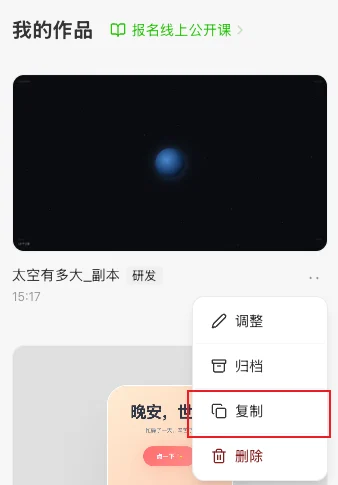
- Keep the original project while creating a new version.
- Reuse existing pages, conversations, and settings.
- Try a different direction without changing the current project.
Entry 2: Copy Marketplace Works
On a marketplace work detail page, copy buttons appear at the bottom. Some works offer both Remix Demo and Remix Full App.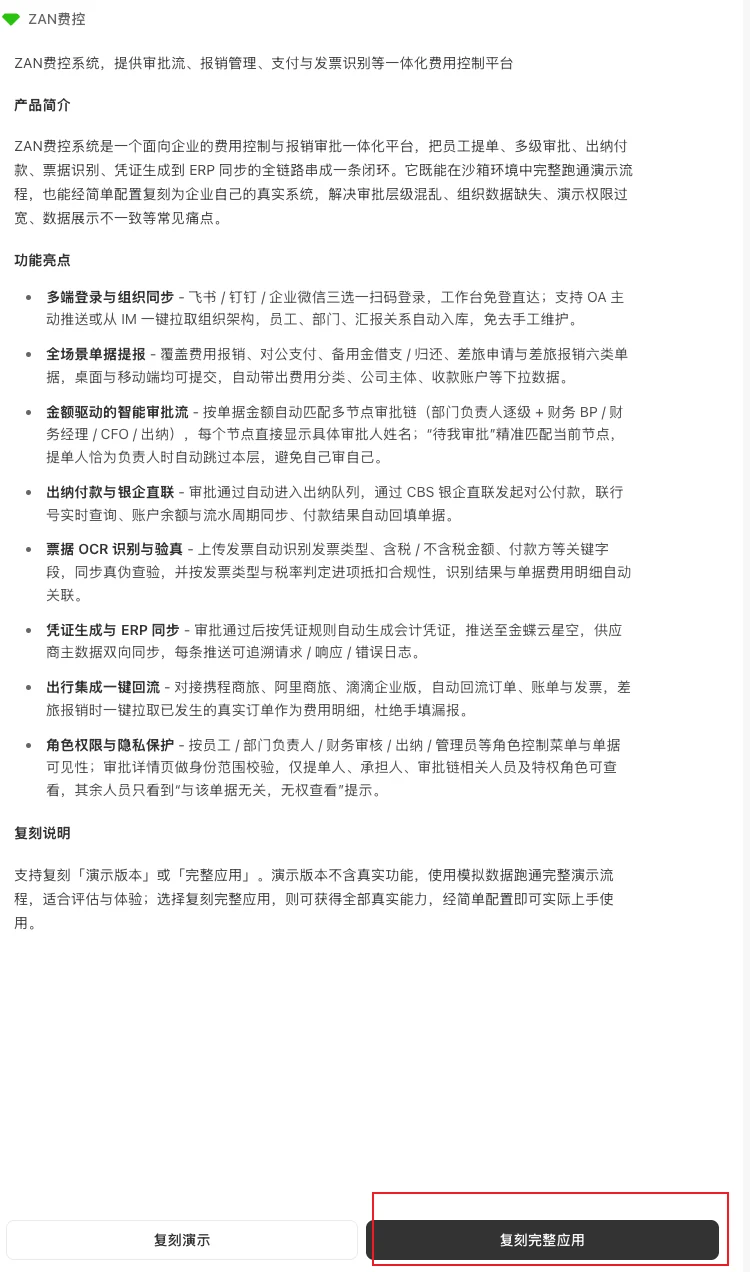
Remix Demo
Choose Remix Demo to copy a version suitable for preview and exploration. The demo version usually includes page design, example content, and demo data. It is useful when you want to understand the work structure first, then continue changing pages, copy, or features.Remix Full App
Choose Remix Full App to copy a more complete version of the app. The full app version is better when you want to continue from a marketplace work and move closer to real usage. Some features may still require setup, such as connecting data, filling account information, or checking publish settings. If remixing the full app costs tokens, the confirmation dialog shows the cost before copying starts. The copy begins only after you confirm.What Happens After Copying
After copying is complete, the new project appears in your works list. You can use it like any other project:- Open the new project.
- Continue changing pages or features through chat.
- Preview the result.
- Complete setup if needed.
- Publish when ready.
Can the copied project be copied again?
- A project copied directly from My Works can be copied again.
- A project copied or transferred directly by its owner can be copied again by the recipient.
- A project remixed from the marketplace cannot be copied again.
Notes
- Copying does not delete or change the original project.
- Avoid repeatedly clicking the copy button before copying completes.
- Larger projects may take a short while to finish copying.
- Full apps may need extra setup before they are ready to launch.
- Project copy currently supports only some Skill Library capabilities: superun Cloud Computing, File Storage, superun AI, superun Image Generation, Video Generation, and Speech Synthesis. If your project uses other Skill Library capabilities, check the page prompts after copying and reconfigure them if needed.
- If copying fails, try again later or copy another work.
FAQ
Will copying affect the original project?
Will copying affect the original project?
No. Copying creates a new project. The original project is not changed.
Why do I need to wait after copying?
Why do I need to wait after copying?
The system needs time to copy the project content into the new project. Larger or more complex projects may take longer.
What is the difference between Remix Demo and Remix Full App?
What is the difference between Remix Demo and Remix Full App?
Remix Demo is better for preview and exploration, and usually uses example content or demo data. Remix Full App is better for continuing toward real usage, with more complete app capabilities.
Does Remix Full App always cost tokens?
Does Remix Full App always cost tokens?
Not always. The confirmation dialog shows whether tokens are required before copying starts.