

What it is
Skills give superun reusable context and guidance for your work:- Official skills are provided and maintained by superun for common workflows.
- Personal skills belong only to the currently signed-in user.
- Team skills are shared with one specific team and are available to that team’s projects.
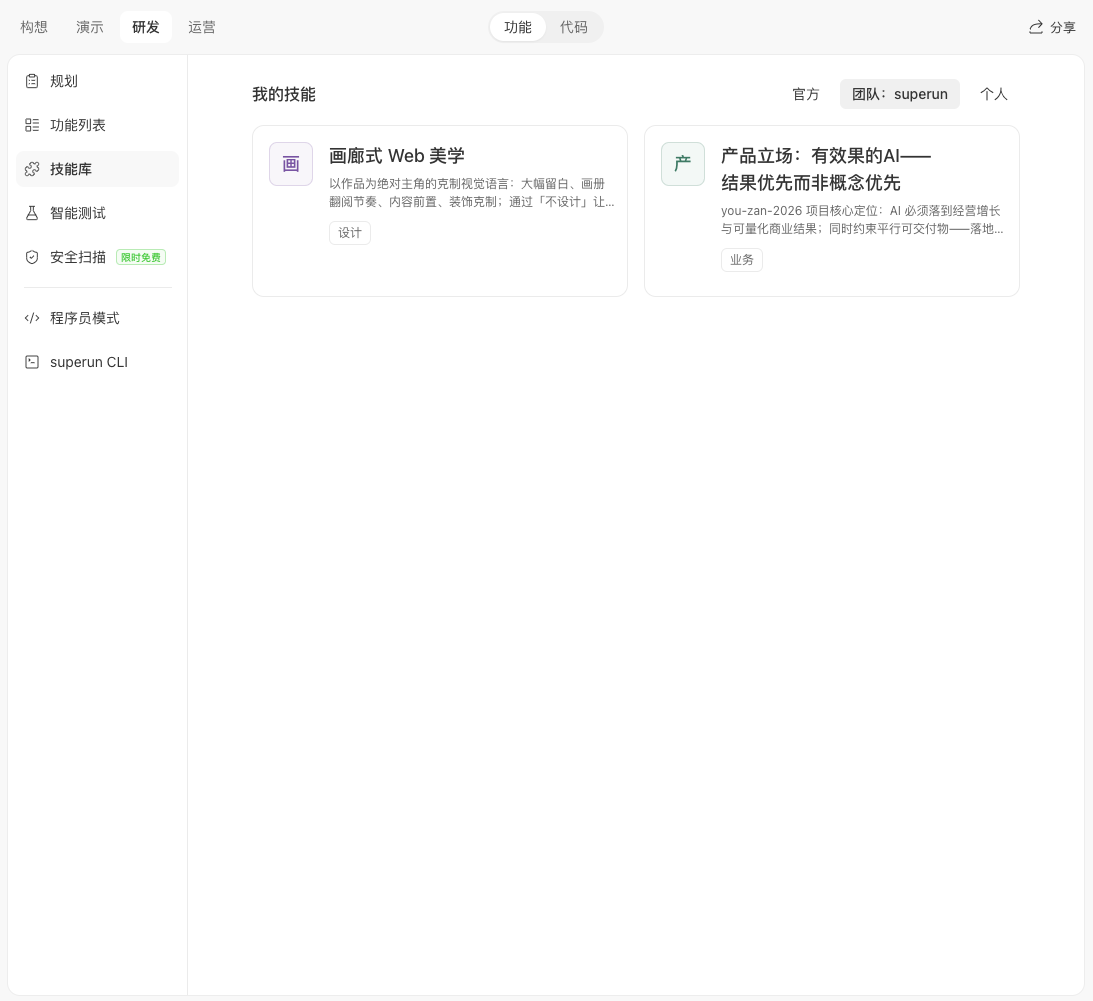
Skill Library in a project
In a project, go to Build → Features → Skill Library. The library is organized into three tabs: Official, Team, and Personal.Official skills
Browse available skills in the Official tab. Click a card to read its description, then follow the on-screen guidance to configure it.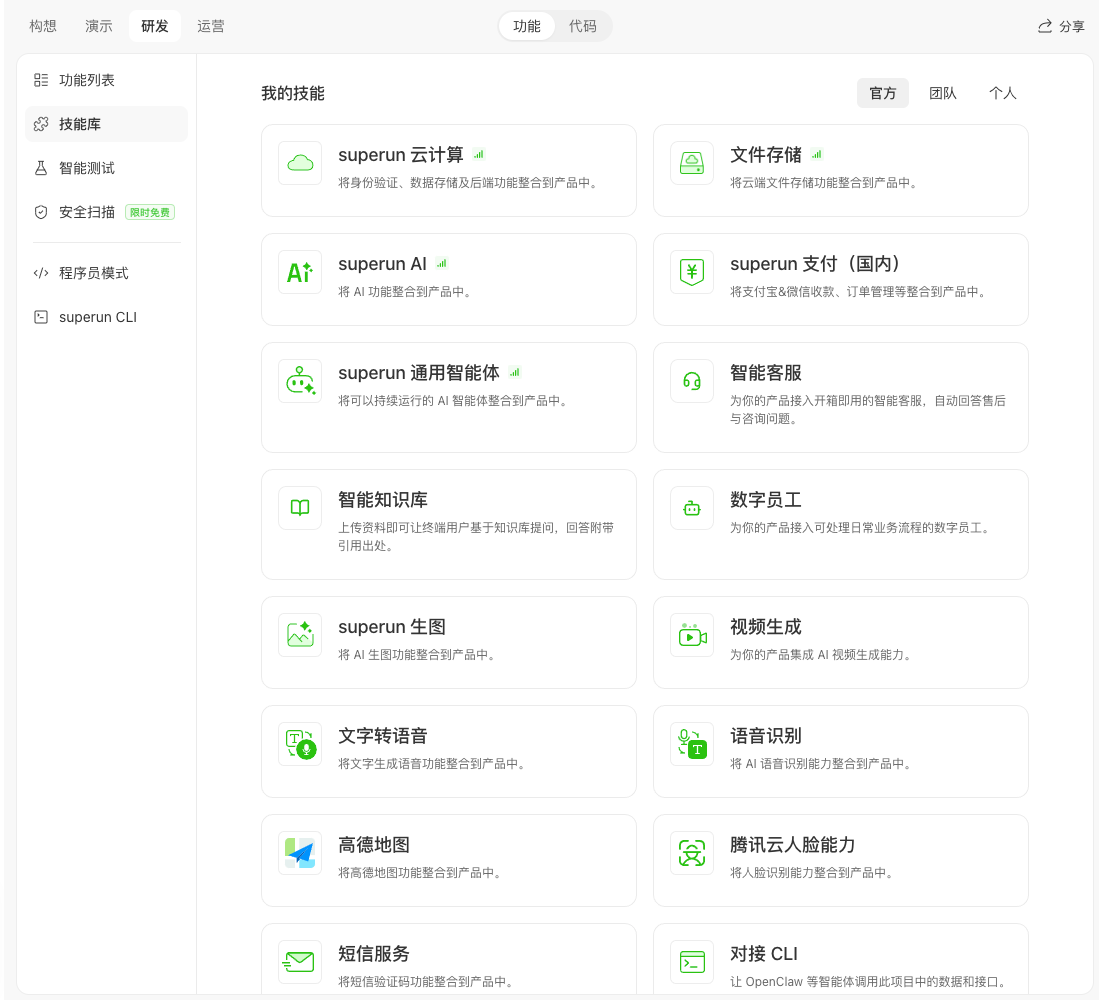
Personal skills
Personal skills are private to the currently signed-in user. At present, they are created by converting items from My Memories into skills. You will not see private skills belonging to the project owner or other collaborators.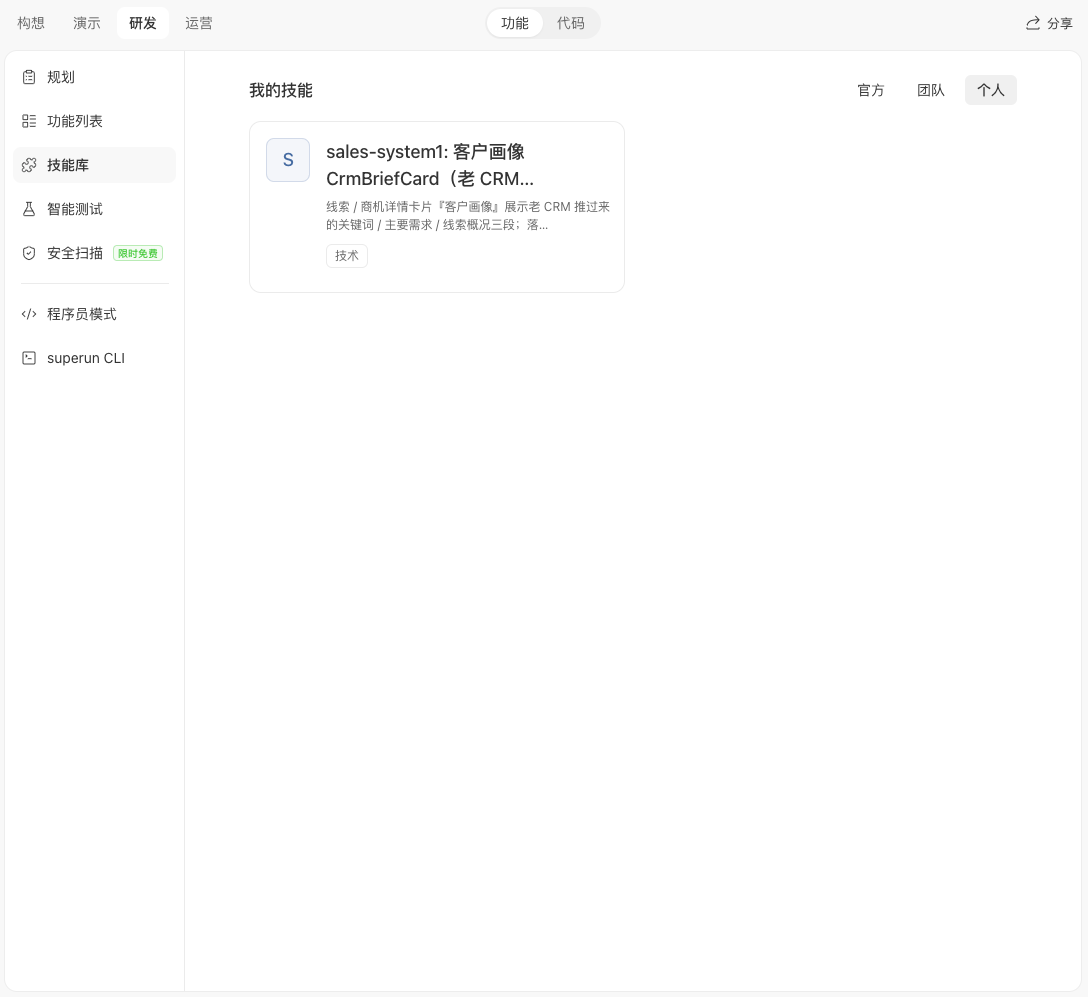
Upload a skill package
In My Skills, open Add to either Convert from My Memories or Upload skill (upload a skill file from your device).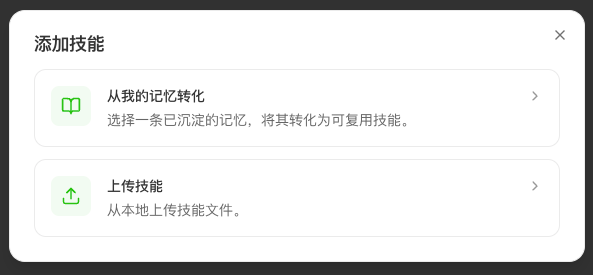 After choosing Upload skill, click or drag a package into the upload area. Supported formats: .zip / .skill, size ≤ 10MB.
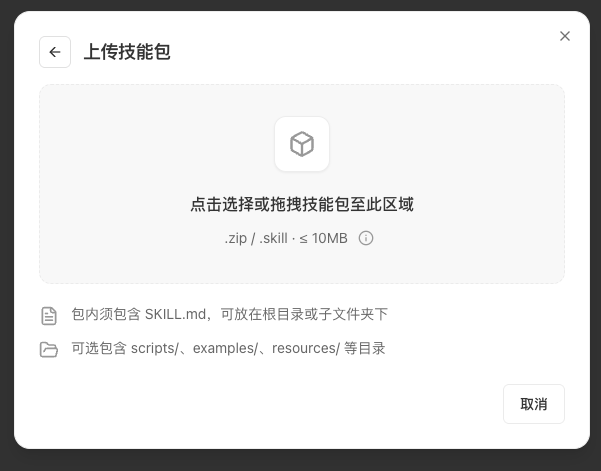
- The package must include SKILL.md (in the root or a subfolder).
- Optional folders such as
scripts/,examples/, andresources/are allowed. - After upload, the system validates the package; errors are collected in a batch with detail, so you can fix items and retry.
- Uploads also go through adaptation review: automatic judgment of ready to use, needs rewrite, or cannot connect due to unsupported capabilities (as shown in product).
- If rewrite is needed, user-facing notes explain the result and impact without dumping unnecessary platform internals.
- Review metadata requires exactly one category tag: business knowledge / design guidelines / design system / technical implementation.
- Skill IDs must not start with
skill.. - After a successful import, you can share the skill with a team using the flow below.
Manage My Skills
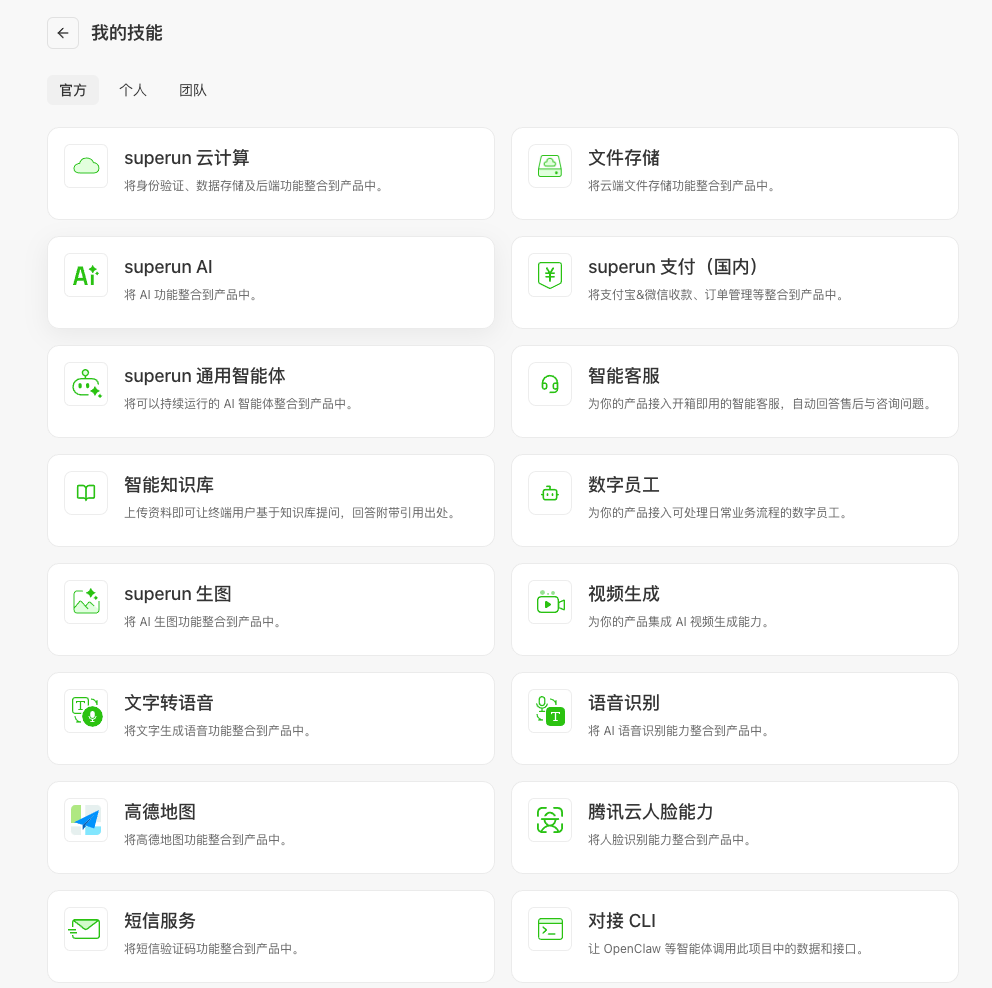
Open the avatar menu and select My Skills.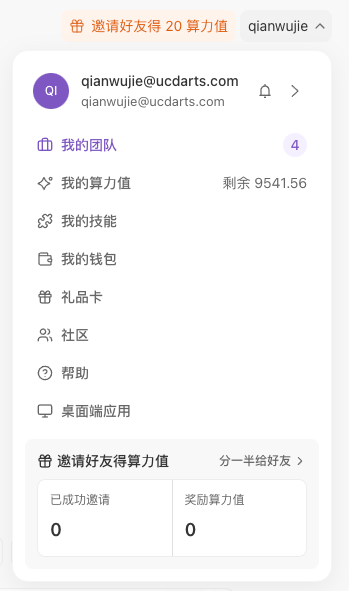 The standalone My Skills page has Official, Personal, and Team tabs. Use it to browse official skills, manage your personal skills, and review skills shared with your teams.
Shortcut from a project
You can also open the project name menu and select My Skills. The destination depends on the project’s progress:- Before development begins, it opens the standalone My Skills page.
- After development begins, it opens the current project’s Skill Library.
- Some older projects open the in-project Skill Library directly.
Share a skill with a team
You can share a personal skill with a team you belong to:- Open the skill on My Skills → Personal.
- Choose the team to share it with and submit the request.
- Track the sharing status on the skill.
- Not shared: the skill is not associated with the team.
- Pending review: the sharing request is waiting for a team administrator.
- Shared: the skill is available to projects owned by that team.
Where skills are available
- Personal projects: official skills + the signed-in user’s personal skills.
- Team projects: official skills + the signed-in user’s personal skills + skills associated with the current team.
FAQ
What is the difference between official, personal, and team skills?
What is the difference between official, personal, and team skills?
Official skills are maintained by superun. Personal skills are private to the signed-in user. Team skills are personal skills that have been reviewed and shared with a specific team.
Can collaborators see my personal skills?
Can collaborators see my personal skills?
No. A project shows only the personal skills of the currently signed-in user. It does not expose the project owner’s or collaborators’ private skills.
Can I use team skills in a personal project?
Can I use team skills in a personal project?
No. Team skills are available only when the current project belongs to the matching team.
Can I use personal and team skills together?
Can I use personal and team skills together?
Yes. In a team project, you can use your personal skills together with skills shared with the current team.
What do the team sharing statuses mean?
What do the team sharing statuses mean?
Not shared means there is no team association, Pending review means an administrator has not yet approved the request, and Shared means the skill is available to that team’s projects.
Does removing a team skill delete the creator's skill?
Does removing a team skill delete the creator's skill?
No. An administrator’s removal only disconnects the skill from the team. The creator keeps the original personal skill.