

Create a team
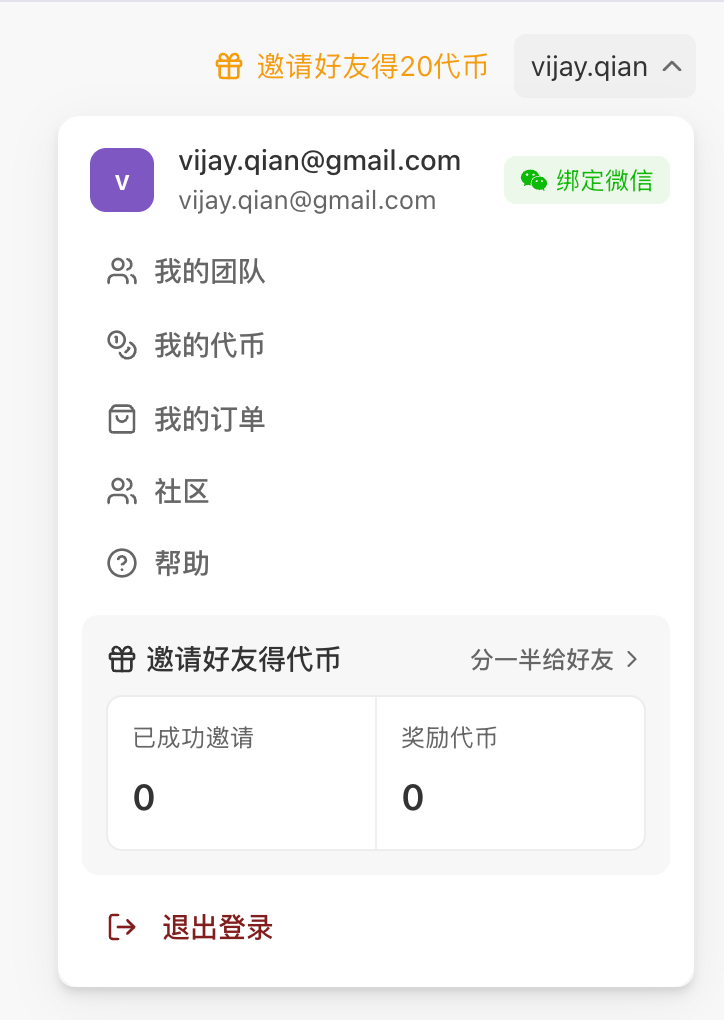
- Log in, click your avatar (top-right), then My teams
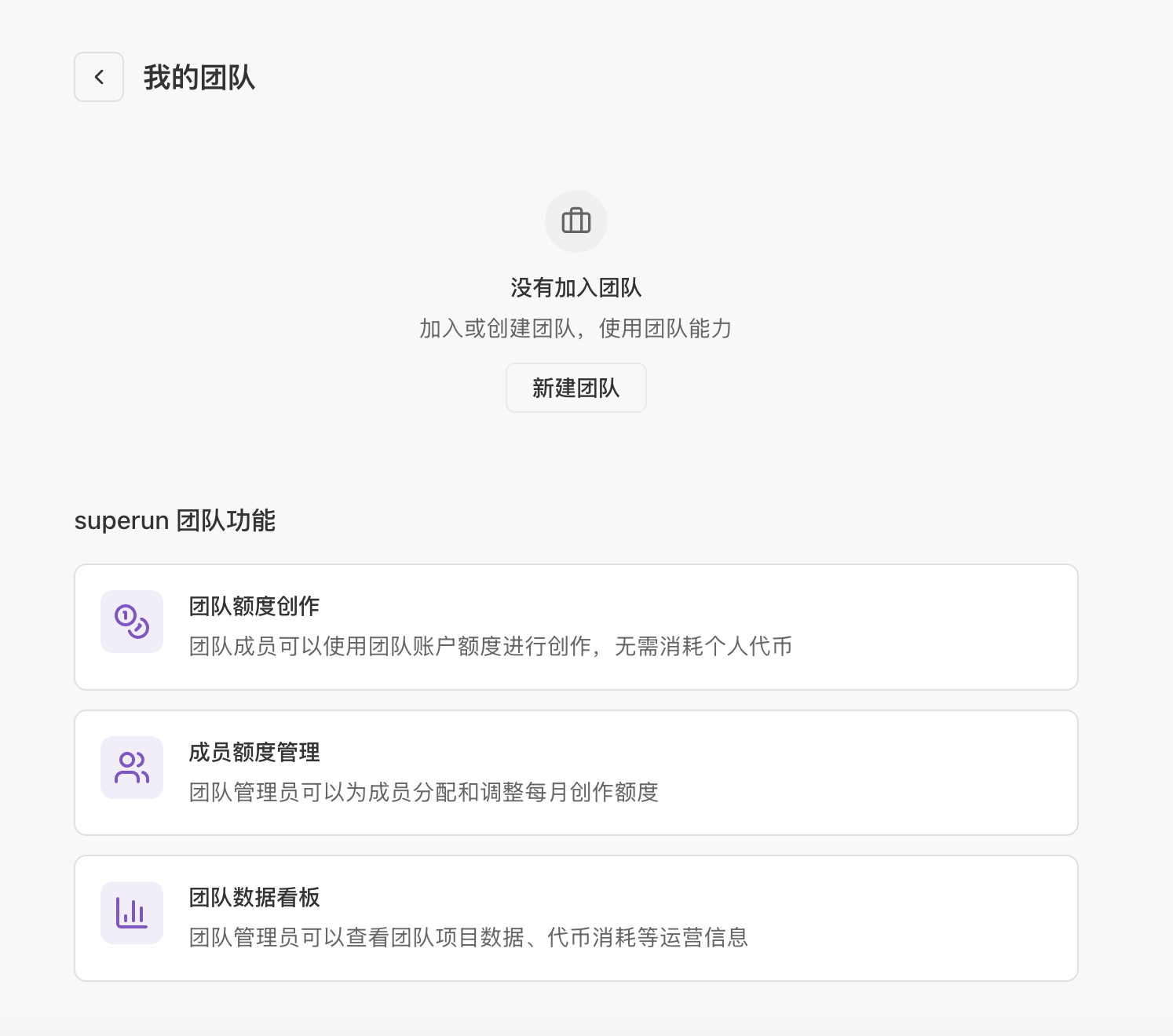
- On the teams page, click Create team and fill in basics
- You enter the team workspace when creation finishes
Invite members
Three ways to add members:Add manually
In member management on the team dashboard, enter member details directly.Bulk import from Excel
- Prepare a spreadsheet with member info
- Choose Import file in member management
- Confirm parsed rows and send invites in bulk
Invite link
- Click Get invite link on the team dashboard
- Share the link
- Members open the link to join; existing superun users see a pending team invite on Home after login
Admins can add notes on members for easier identification in the list.
Team roles
Multiple admins are supported.
Quota management
Workspace quota
Admins can set:- Monthly cap: Compute Credits per calendar month, resets each month
- Lifetime cap: Total Compute Credits for the workspace
Member quota
Per-member Compute Credit limits for fine-grained control.What happens when a quota is reached
A quota blocks new tasks; it does not interrupt tasks already running:- If a task hits the quota midway, it finishes, so final usage can slightly exceed the number you set.
- Tasks started after that are blocked until an admin raises the quota or tops up.
Team top-up
Online top-up
- Click Top up on the team dashboard
- Choose Team top-up (switch personal/team on the same page)
- Pick an amount — tiered pricing, better rates at higher volumes
- Complete payment
Bank transfer
Enterprise customers can pay by corporate transfer. Select bank transfer on the payment page and remit to the listed account.Redemption codes
Admins can apply redemption codes on the top-up page for team quota.Usage details
Admins view usage on the team dashboard:- Usage by member
- Filter by workspace
- Switch between enterprise views where applicable
Add personal projects to a team
- On team management, open Team projects, click Add
- Select one or more eligible personal projects to add to the current team
Projects that belonged to another team cannot be added this way.
FAQ
How does a member leave a team?
How does a member leave a team?
Members can leave from their personal quota page without contacting an admin.
Personal vs team balance?
Personal vs team balance?
Balances are shown separately; project cards show ownership labels for personal vs team projects.
Team quota exhausted?
Team quota exhausted?
Admins are notified when quota is low. Top up online, by bank transfer, or with redemption codes.