

Why Use Personal NetEase Email?
Many people are initially intimidated by “enterprise email, email service providers”, but if you’re just doing product validation or internal notifications, using a personal NetEase email is sufficient:- No enterprise qualification required: Just register a 163 email with your phone number.
- 5 minutes to enable SMTP: Enable IMAP/SMTP in settings, generate an authorization code.
- Direct integration with superun: Fill in SMTP configuration in environment variables, and you can send emails from workflows and actions.
Step 1: Register or Prepare a 163 Email Account
- Open
https://mail.163.com/. - Register a new account using your phone number, for example
myname@163.com. - After completion, you’ll get:
- Email address: e.g.,
myname@163.com - Login password: Used to log in to webmail
- Email address: e.g.,
Note: Login password ≠ “Authorization Code” used for SMTP configuration later. These are different.
Step 2: Enable IMAP/SMTP and Generate Authorization Code in NetEase Email
- Log in to your 163 email using a browser (
mail.163.com). - In the yellow navigation bar at the top of the page, find the “Settings” button to the right of your email address.
- After clicking “Settings”, a dropdown menu will appear. Click “POP3/SMTP/IMAP” from the menu.
- After entering this page, in the “IMAP/SMTP Service” section:
- If not yet enabled, directly check or click “Enable”.
Already Enabled but Sending Fails? Recommend Restarting Service
If you’ve confirmed it’s already enabled, but emails keep failing in superun, you can regenerate the authorization code as follows:- In “IMAP/SMTP Service”, first click “Disable” on the right, confirm to disable.
- After disabling, click “Enable” again.
- The system will require identity verification:
- Usually sends a verification SMS to your bound phone number;
- Enter the verification code from the SMS to complete verification.
- After verification passes, the page will display an “Authorization Code”:
- It’s a random string (e.g.,
ab3XD9kLm...); - Please copy and save it immediately, you’ll need it for SMTP configuration later.
- It’s a random string (e.g.,
Reminder again:
- Authorization code is only used for IMAP/SMTP login.
- When filling in “password” in applications, use the authorization code, not the password you use to log in to email.
Step 3: Confirm SMTP Server Parameters
At the bottom of the “POP3/SMTP/IMAP” settings page, you’ll see the official SMTP information provided, roughly as follows:- SMTP Server:
smtp.163.com - Port:
465(using SSL encryption) - Sender Account: Your NetEase email, e.g.,
myname@163.com - Sender Password: The authorization code just generated
Step 4: Fill in SMTP Environment Variables in superun
When adding environment variables in superun, you’ll see form fields as shown in the image below: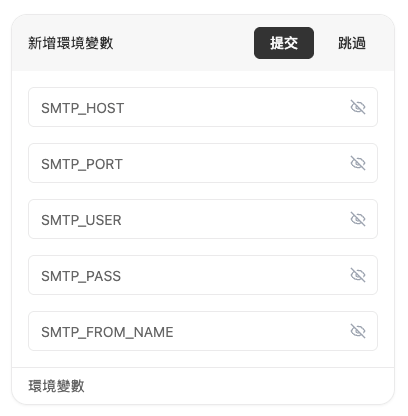 Please fill in as follows (using 163 email as example):
-
SMTP_HOST: Fill in NetEase SMTP server address →smtp.163.com -
SMTP_PORT: Fill in SSL encrypted port →465
If superun or your execution environment has a “Use SSL/TLS” option, remember to check it. -
SMTP_USER: Fill in your NetEase email account → e.g.,myname@163.com -
SMTP_PASS: Fill in the authorization code just generated (not the login password) -
SMTP_FROM_NAME: Fill in the “Sender Name” that recipients will see, can be customized, for example: →My Notifications,System Messages,Operations Assistant, etc.
Step 5: Send Test Email
- Create the simplest workflow or action in superun:
- For example, after triggering, call the “Send Email” action,
- Recipient should first be another email of yours for testing.
- Save and execute this workflow, observe if it succeeds:
- If execution succeeds, you’ll receive the email in your inbox within seconds.
- If it errors, first check back if there are typos in SMTP settings.
Common Issues Troubleshooting
1. Always Getting “Authentication Failed”?
- Check if
SMTP_USERis the complete email address (must include@163.com). - Check if
SMTP_PASSis using the latest authorization code. - Confirm in the “POP3/SMTP/IMAP” page that IMAP/SMTP service is indeed in enabled status.
2. Must Port be 465?
- Official recommendation is to use
465 + SSL, which has the best security and stability. - In very rare environments where 465 cannot connect, you can try
25or587, but you’ll need to adjust program and firewall settings simultaneously.
3. Can Other NetEase Email Services Like 126, yeah, etc. Be Used?
Yes, as long as:- Enable IMAP/SMTP in the corresponding email’s settings and generate an authorization code;
- Change the server address to the corresponding one, for example:
smtp.126.comsmtp.yeah.net
- Other parameters (port, using authorization code) are basically the same as 163.
4. Email Subject or Content Shows Garbled Characters (like =20, etc.)?
Email garbled text is usually caused by the following reasons:
- Using div layout, some email clients are incompatible
- SMTP content encoding is set incorrectly
- HTML structure is too complex
- Table Layout: Use
<table>instead of<div>, all email clients support it - Standard XHTML: Use correct DOCTYPE declaration
- Inline Styles: Write all CSS within HTML tags
- UTF-8 Encoding: Correctly set character encoding
- Simplified Structure: Remove complex nesting, avoid rendering issues
One-Sentence Summary
Register a 163 email with your phone → Enable IMAP/SMTP in settings and get authorization code → Fill insmtp.163.com / 465 / email address / authorization code / sender name in superun’s SMTP environment variables, and you can use personal email to automatically send emails stably in superun.
View More superun Tips
Want to learn more practical cases and configuration tips? Visit the superun official website.