

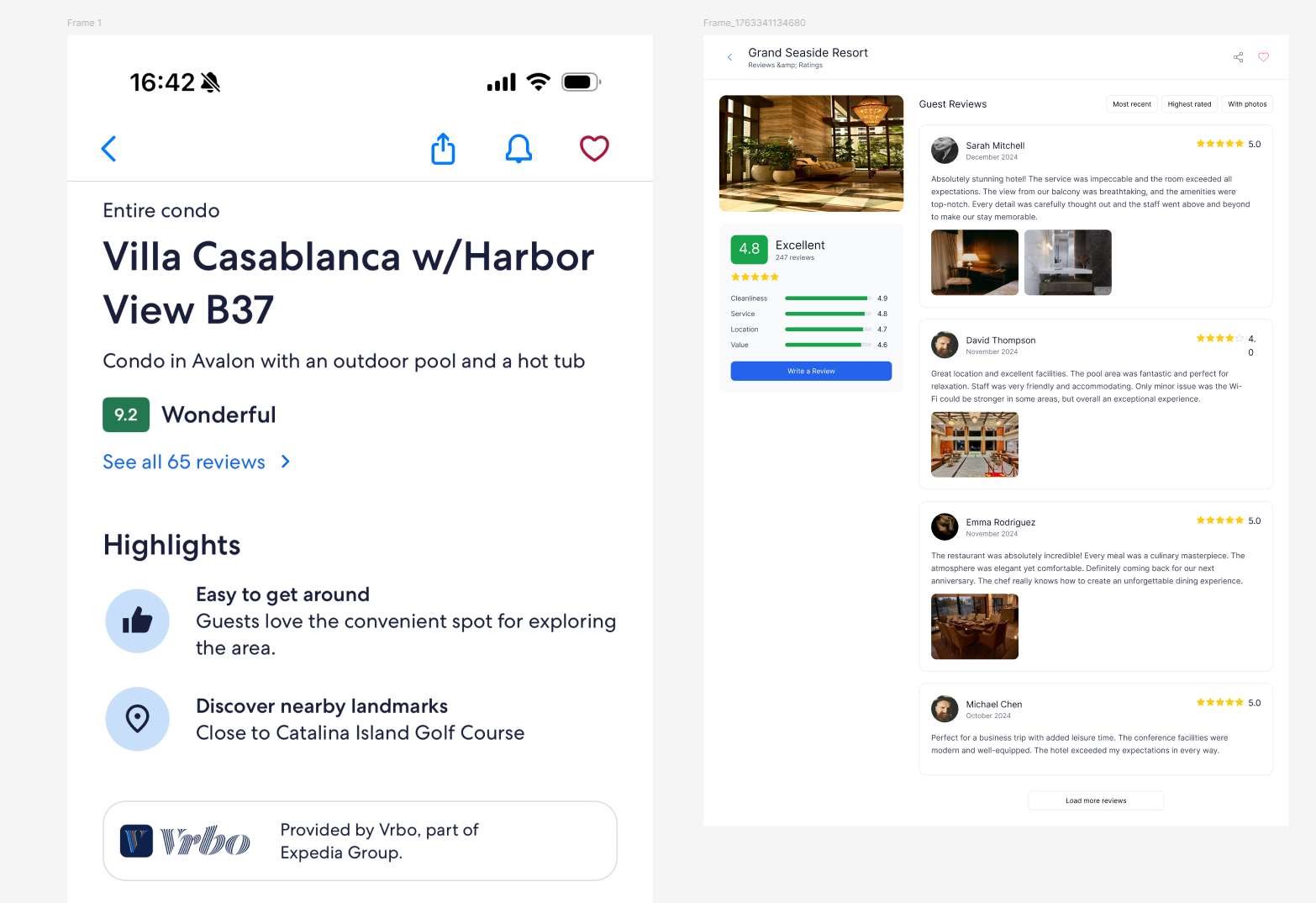
The AI will match the selected frame’s colors, typography, spacing, and layout patterns. Use Style Transfer when you want your new pages to instantly match the design system already in your file.
1. Select the Style Transfer tab
Open the prompt.to.design plugin, then click the Style Transfer tab at the top.This mode allows you to choose an existing frame as the visual reference.
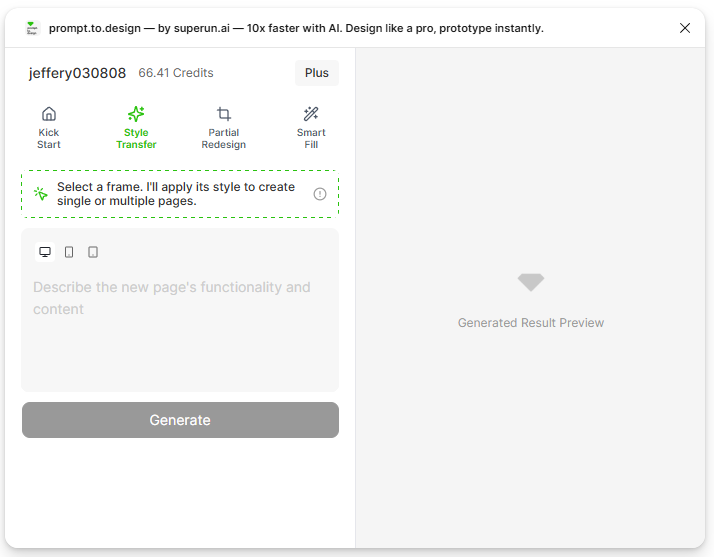
2. Select a frame to use as your style reference
On your Figma canvas, click any existing frame that has the style you want to reuse.This frame will become your style reference, and its colors, typography, spacing, and component patterns will guide the generation.

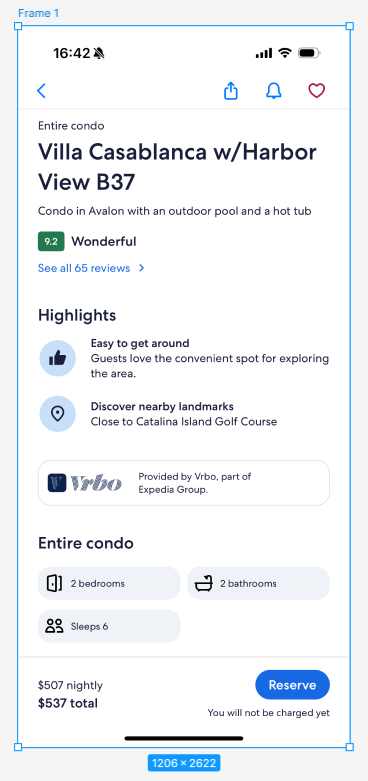
3. Describe the new page you want to generate
Type a short description of the new page layout you want.The AI will generate the page structure using the selected frame’s style. Example prompt:
“Generate a hotel review details page, including comments with images and ratings.”
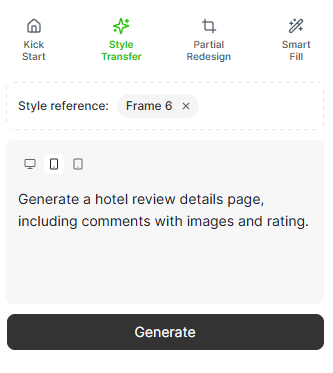
4. Click Generate and review the preview
Click Generate to start styling the new page.When the preview appears, you can scroll or zoom to inspect the AI-generated layout.
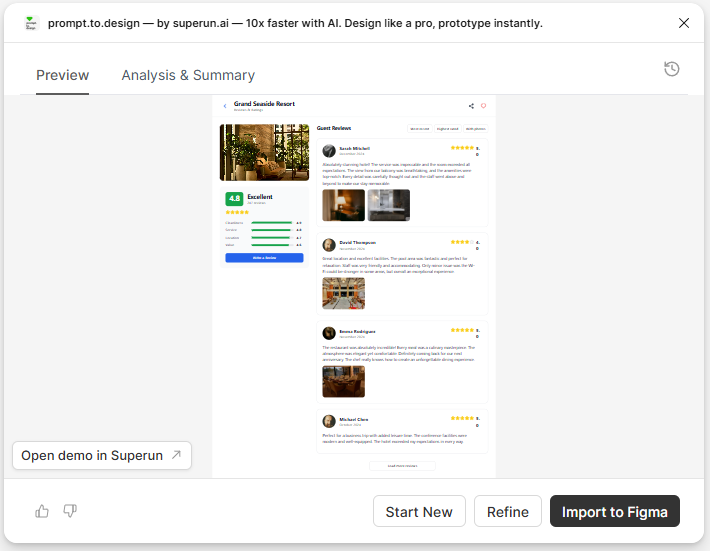
5. Insert the styled layout into Figma
Click Insert to Figma to place the generated page into your canvas.A new frame will appear, styled consistently with your selected reference frame and fully editable.
Summary
With Style Transfer, you can:- Reuse an existing page’s visual style instantly
- Keep colors, fonts, spacing, and UI elements consistent
- Generate new pages that match your design system
- Save time manually adjusting visual details