

Frame Redesign lets you take any existing Figma frame and instantly apply a new visual style with a short prompt. Instead of rebuilding layouts from scratch, you keep your structure and only refresh the look — perfect for redesigns, theme explorations, and light/dark mode variations.

Step-by-step: How Frame Redesign works

1. Open Prompt.to.design and navigate to Frame Redesign
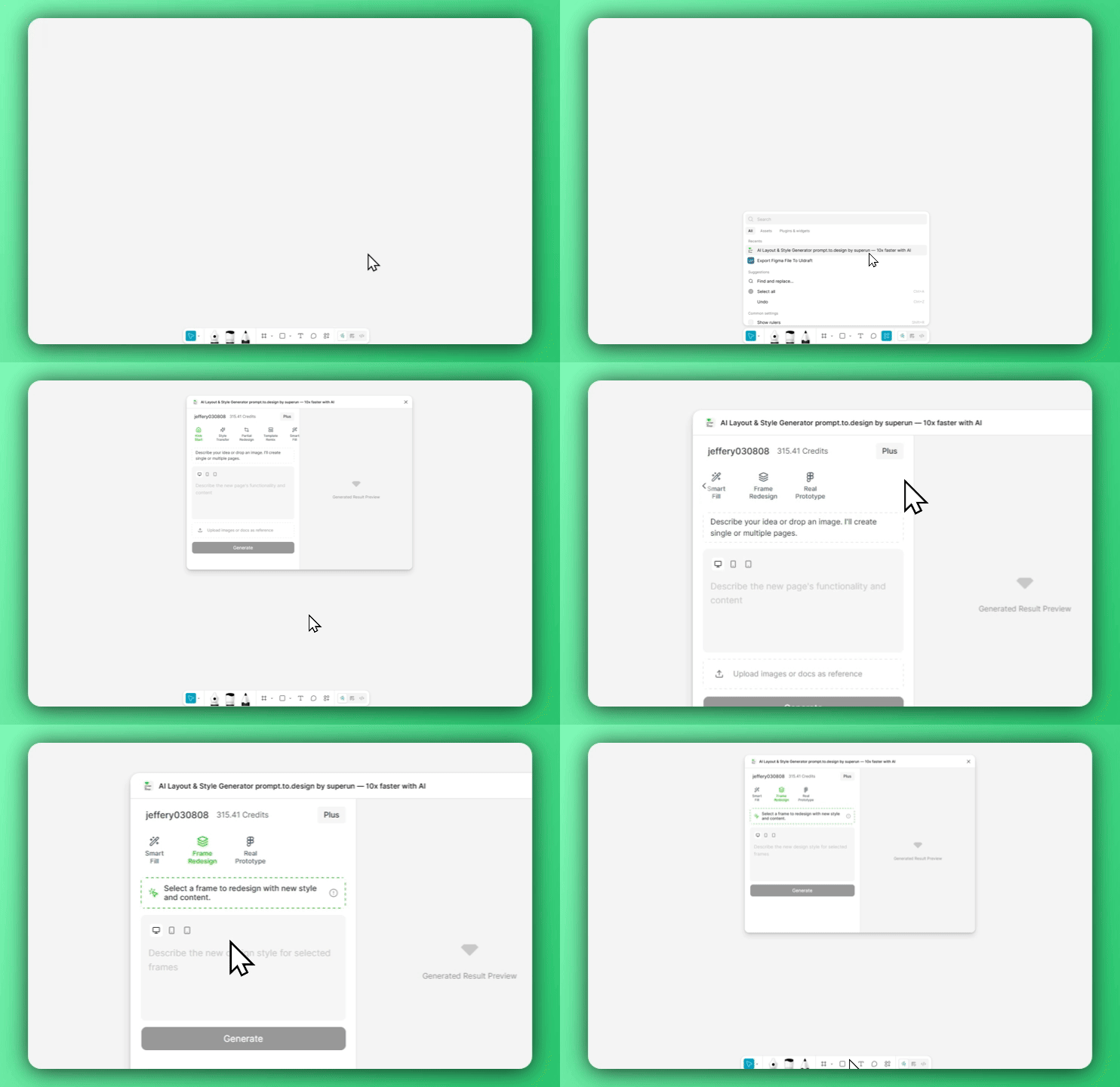
Opening Prompt.to.design and locating the Frame Redesign feature Open the Prompt.to.design plugin in Figma, expand the Features menu, and select Frame Redesign.

2. Select a frame and describe your new style
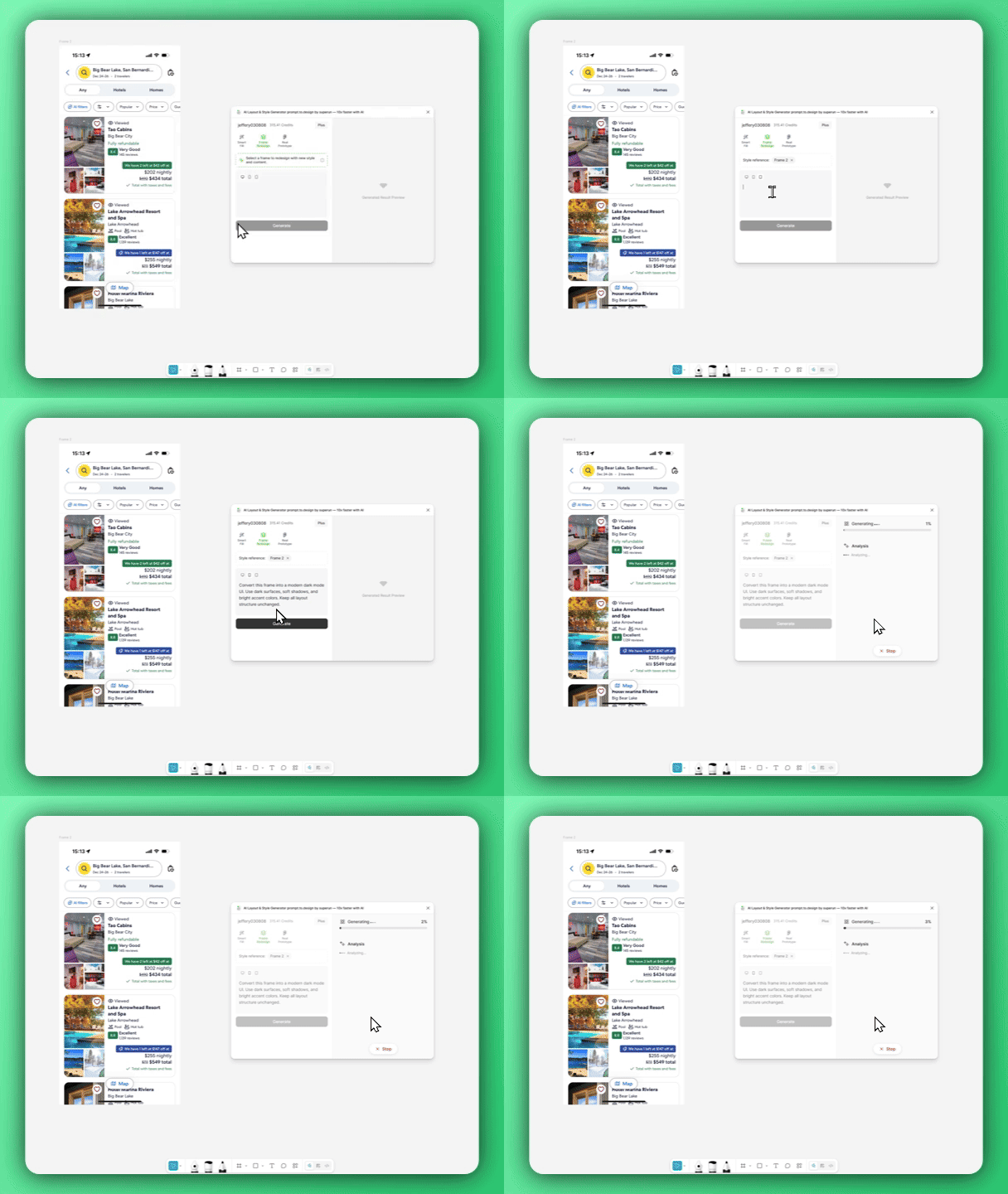
Selecting a frame and entering a Frame Redesign prompt Select the frame you want to restyle on your Figma canvas, then write a short prompt describing the new visual direction you want — such as minimalist white, dark mode, or an iOS-style look. When ready, click Generate to generate your new version. Example prompts:
  • Convert this screen to a clean, minimalist white style.
  • Turn this into a dark mode music app UI with neon accents.
  • Restyle this frame to match an iOS 17 flat, pastel look.

3. Generate, import, and compare the result
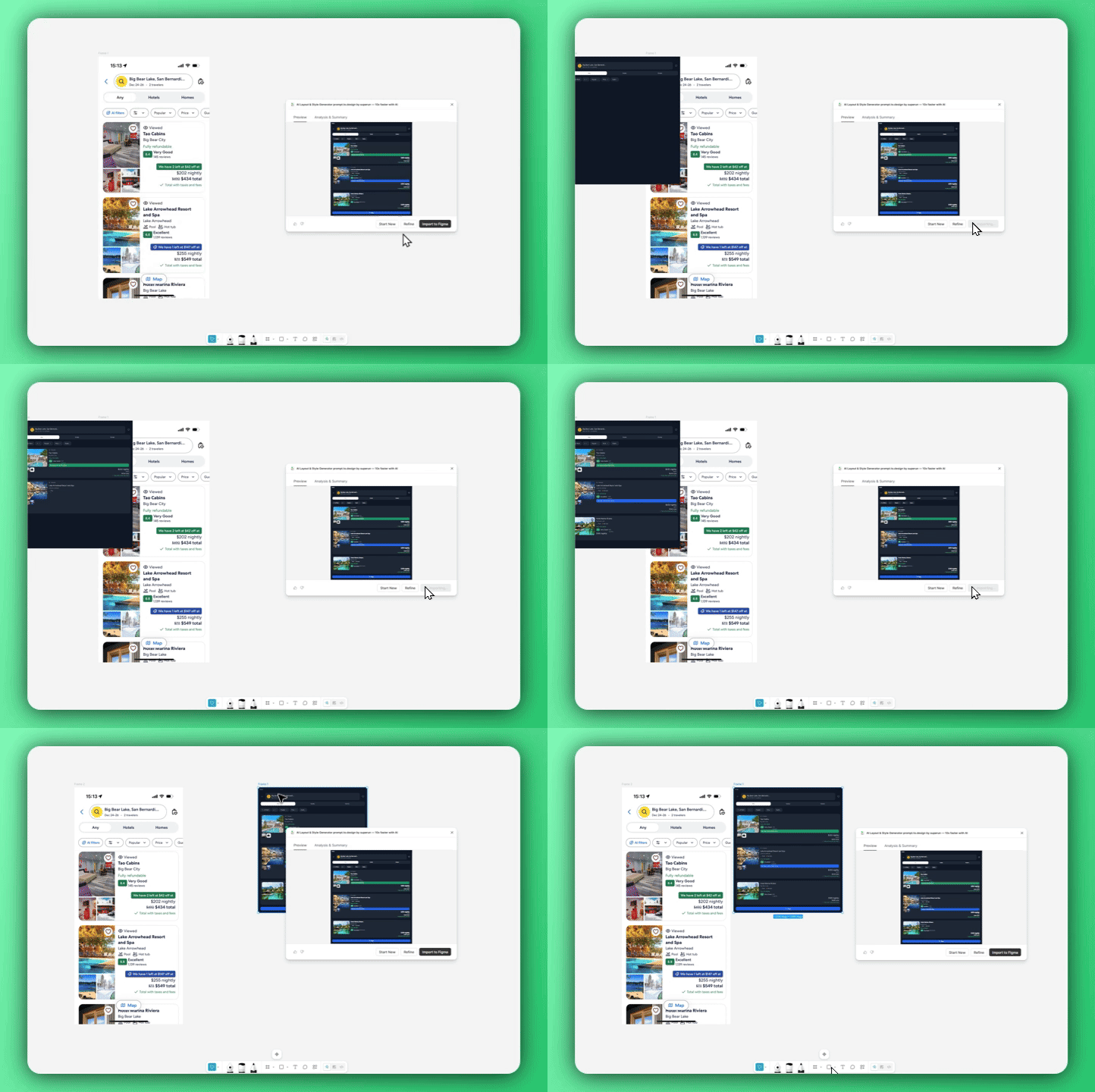
Generating the redesigned frame and comparing before and after in Figma After the new style is generated, import it back into Figma with Insert into Figma. Place it next to your original frame to compare the before-and-after results, and iterate as needed to explore additional style directions.
Frame Redesign keeps your layout intact while refreshing the entire visual language — making style experiments fast, controlled, and fun.