

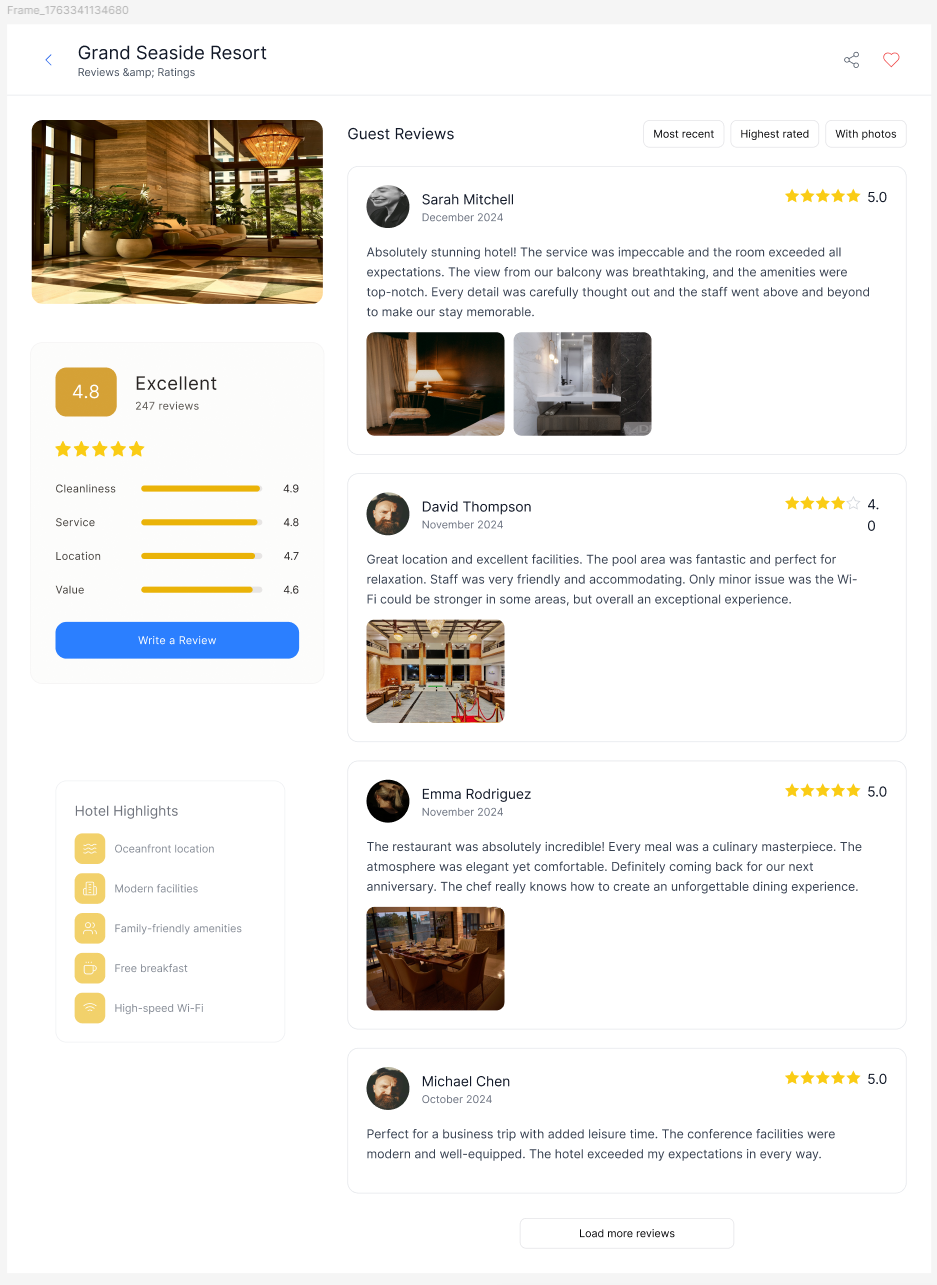
You simply choose a frame → enter a prompt → and Smart Fill inserts a styled content block that matches your existing design.
1. Select the Smart Fill tab
Open the prompt.to.design plugin and click Smart Fill.This mode lets AI add a new content block inside your selected frame.
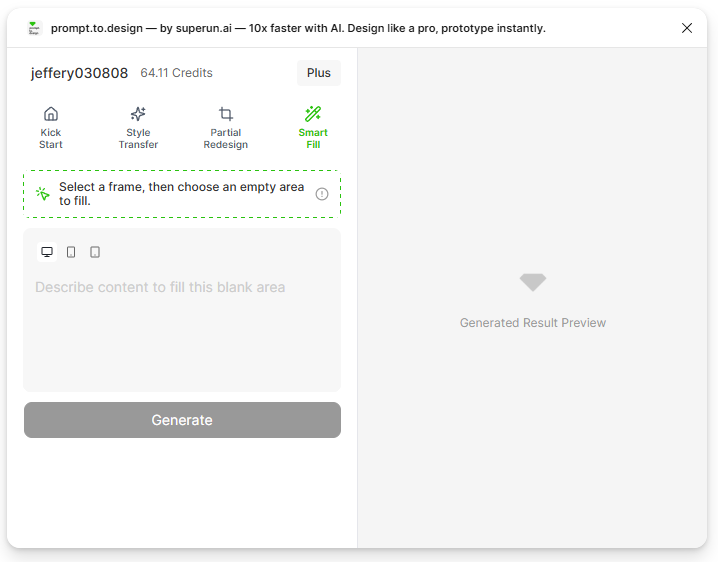
2. Select the frame where you want to add new content
Click on a frame in your Figma canvas.Smart Fill will automatically insert an empty section inside this frame — this is where the new content will be generated.
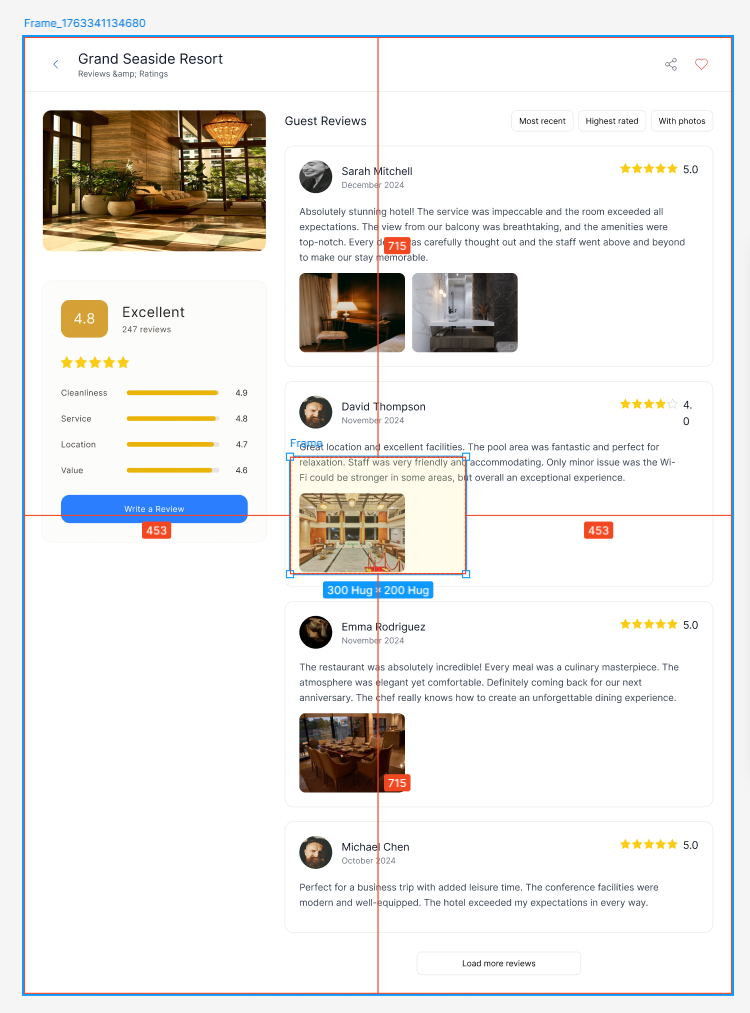
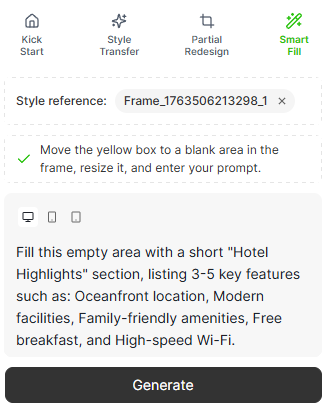
3. Enter a prompt describing the new content you want
Describe the content you want Smart Fill to generate inside the automatically added empty section.Example: “Hotel Highlights”
“Fill the empty section with a ‘Hotel Highlights’ block including:Match the style, spacing, and typography of the existing page.”
- Free WiFi
- Harbor View
- 24/7 Support
4. Generate and review the preview
Click Generate to let the AI create your new content block.The preview will show a styled “Hotel Highlights” section that fits seamlessly with your frame’s existing design.
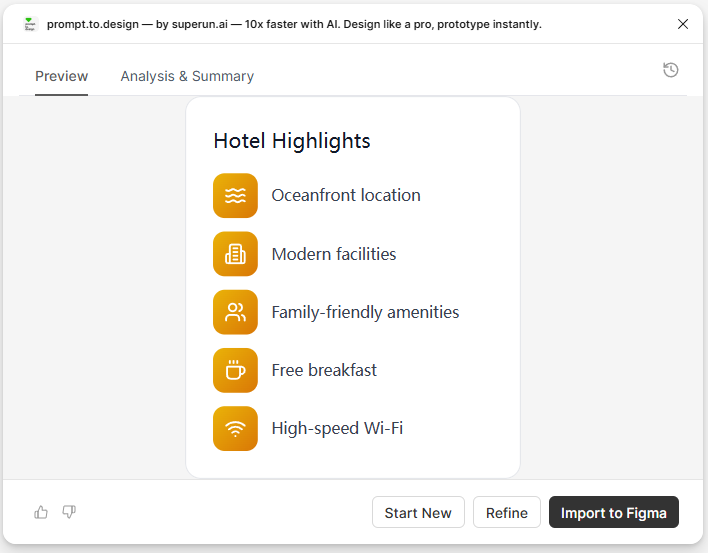
5. Insert the content into Figma
Click Insert to Figma to place the generated section inside your selected frame.Smart Fill will replace the empty section it created earlier with your newly generated content. Only this new section is added — the rest of the frame remains unchanged.
Summary
Smart Fill helps you:- Add new content blocks without manually creating layouts
- Let the plugin automatically create an empty section for you
- Keep styling, spacing, and typography consistent with the page
- Instantly generate sections like:
- Highlights
- Features
- Amenities
- Info blocks
- Key points
- Work entirely with native Figma layers