

Real Prototype transforms a static layout into a fully interactive, clickable prototype — generated entirely from a short prompt. Instead of manually wiring screens or building interactions yourself, Superun automatically creates navigation, container structure, and interaction flow for you.

Step-by-step: How Real Prototype works

1. Open Real Prototype in the plugin
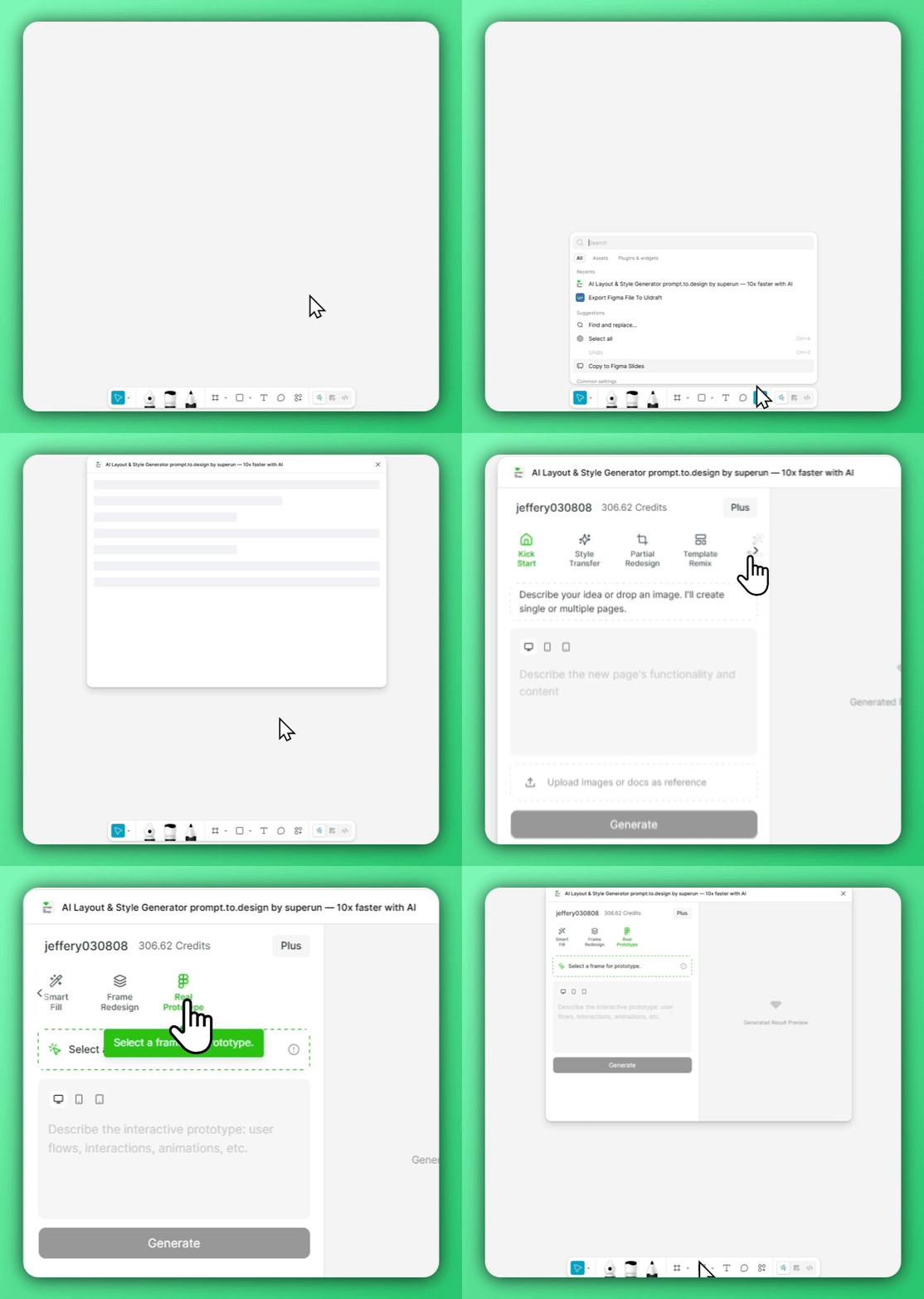
Opening the Real Prototype feature in Prompt.to.design Open the Prompt.to.design plugin and switch to the Real Prototype tab. This mode prepares the system to interpret your layout as an interactive flow rather than a static design.

2. Select a frame and describe the user flow
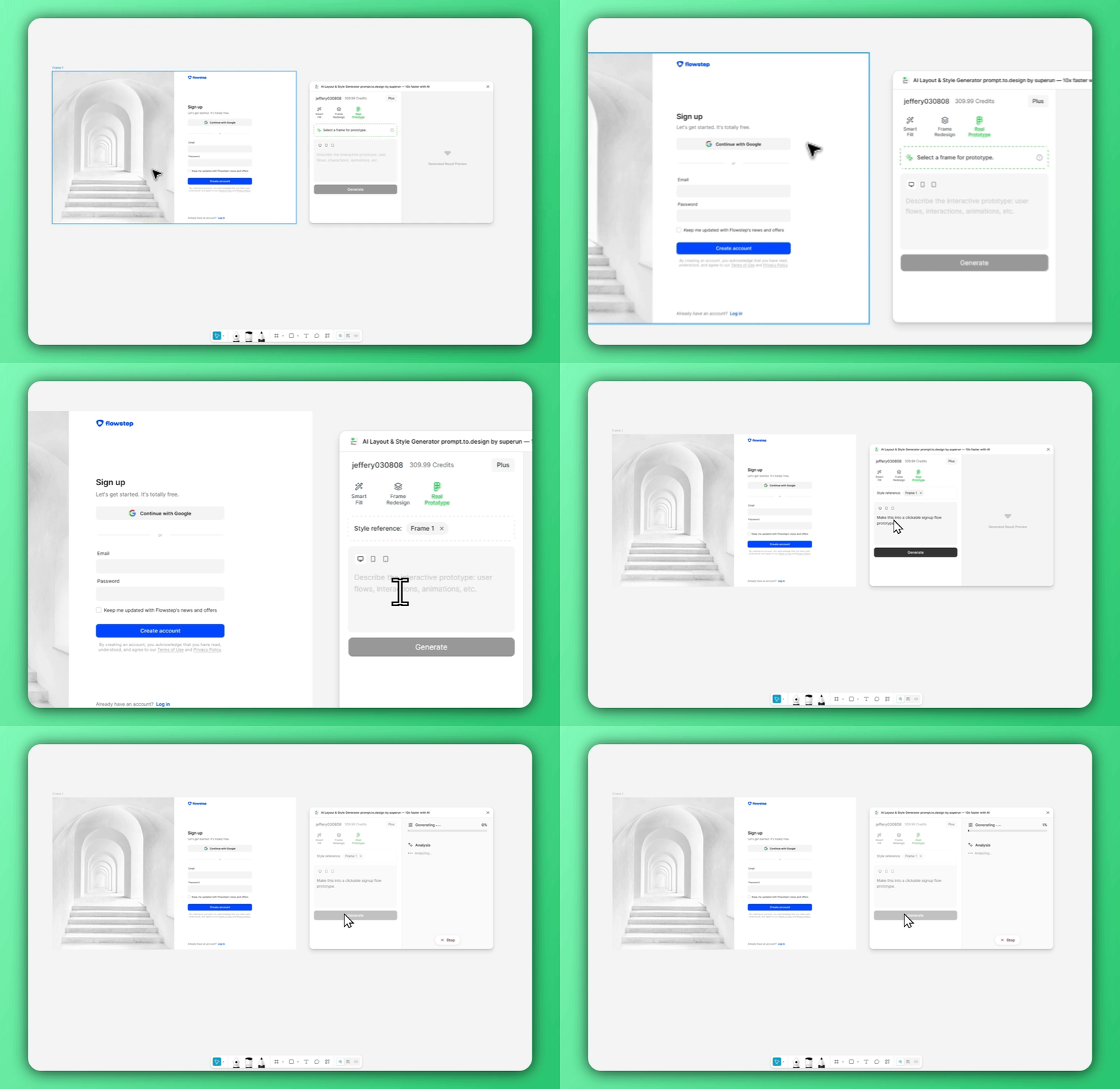
Selecting a frame and entering a Real Prototype prompt Choose the frame you want to turn into an interactive prototype. In this example, the frame is a simple static image — it has no layers, no containers, and no interactions. It’s just a flat graphic. Now describe the behavior you want. For example: Make this into a clickable signup flow prototype. Superun analyzes the visual layout inside your frame and prepares to convert it into structured UI elements that can be interacted with.

3. Generate, import, and experiment with the interactive prototype
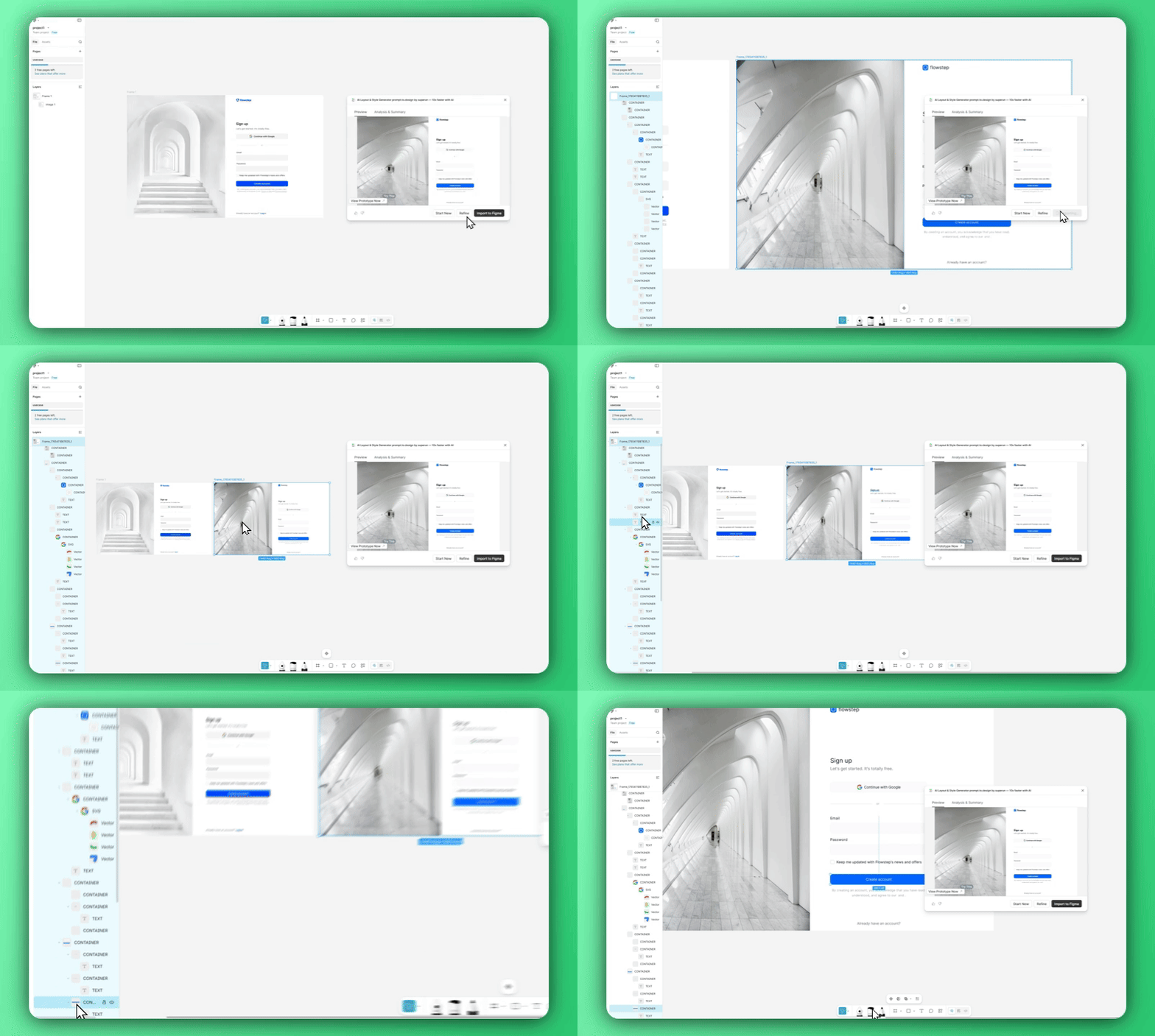
Generated interactive prototype with structured containers and clickable elements Once generated, the result is no longer just a single image.
Superun automatically:
  • Splits the design into meaningful containers
  • Detects buttons, inputs, and interactive regions
  • Applies navigation and flow logic
  • Creates a working prototype you can click through
Import the prototype back into Figma and continue user testing, flow exploration, or motion experiments directly on the canvas. Real Prototype gives you an instantly usable interaction model — perfect for validating ideas before spending time on engineering or manual prototyping.