

It’s the fastest way to turn an idea into a clean, editable frame that matches your existing Figma design style. This guide walks you through each step with simple instructions and visual examples.
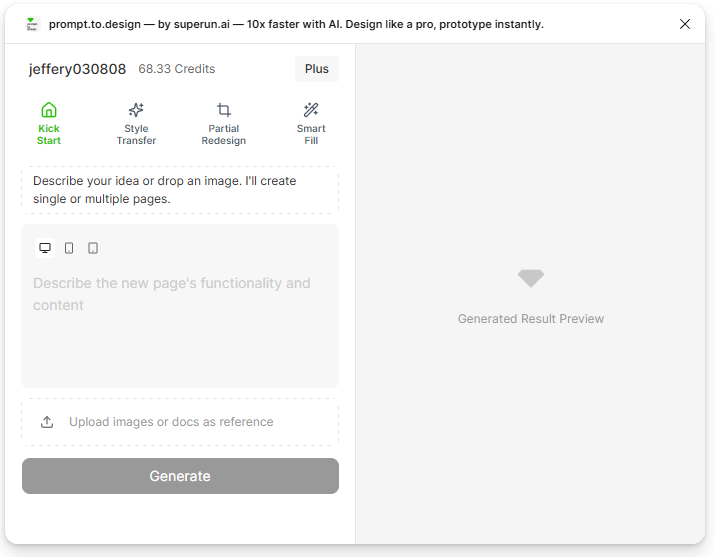
1. Open the plugin and select Kick Start
Open prompt.to.design from the Figma plugin menu.In the top navigation, click the Kick Start tab to start a new layout generation.
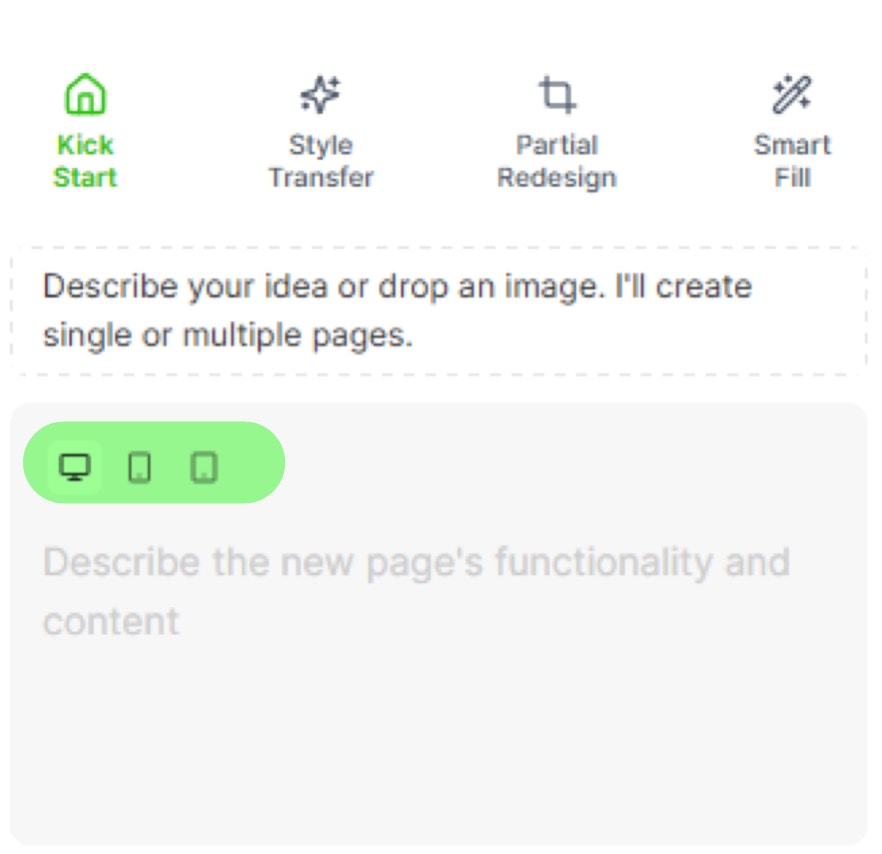
2. Choose device and layout size
Select whether you want to generate a Web or Mobile layout.Then choose a layout size that fits your project (e.g., Desktop 1440px, Mobile 390px).
3. Describe the page you want to generate
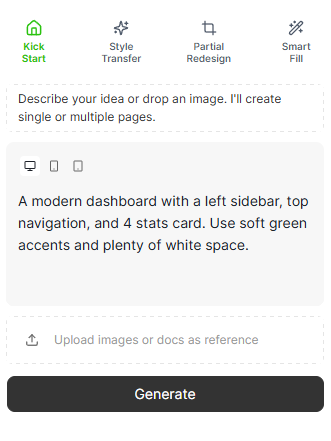
Type a short and clear description of your page in the prompt box.You can describe layout structure, sections, page purpose, or style preferences. Example prompt:
“A modern dashboard with a left sidebar, top navigation, and four stats cards. Clean and minimal.”
4. (Optional) Add an image or document reference
If you want the AI to follow a specific style or visual layout, you can upload a screenshot, UI reference, or document. The reference will appear as a small thumbnail inside the plugin.
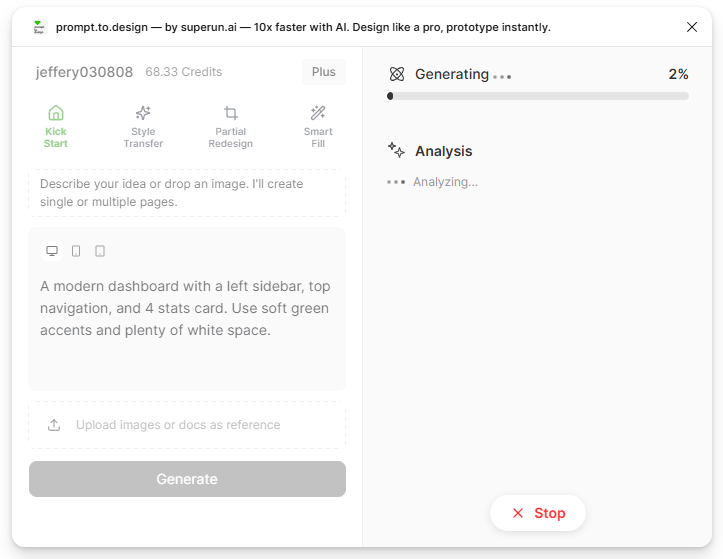
5. Click Generate and review layout previews
Click Generate to start the AI process.The plugin will show layout preview options when the generation is complete.
Scroll or click a preview to inspect the design before inserting it.
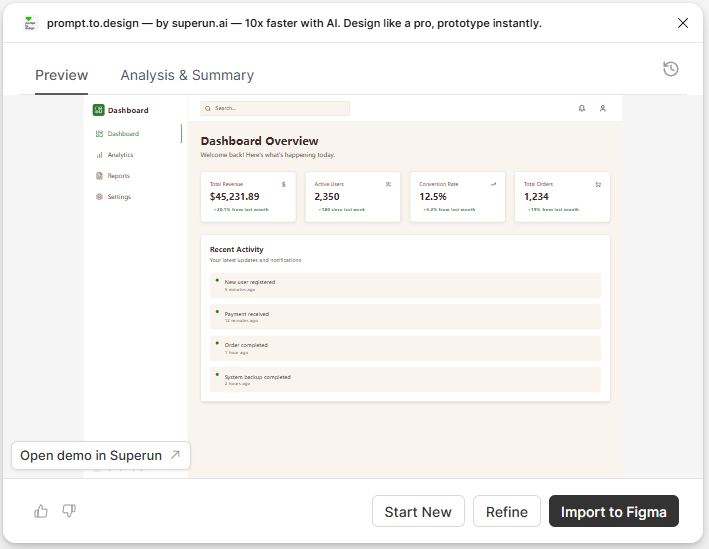
6. Insert the layout into Figma
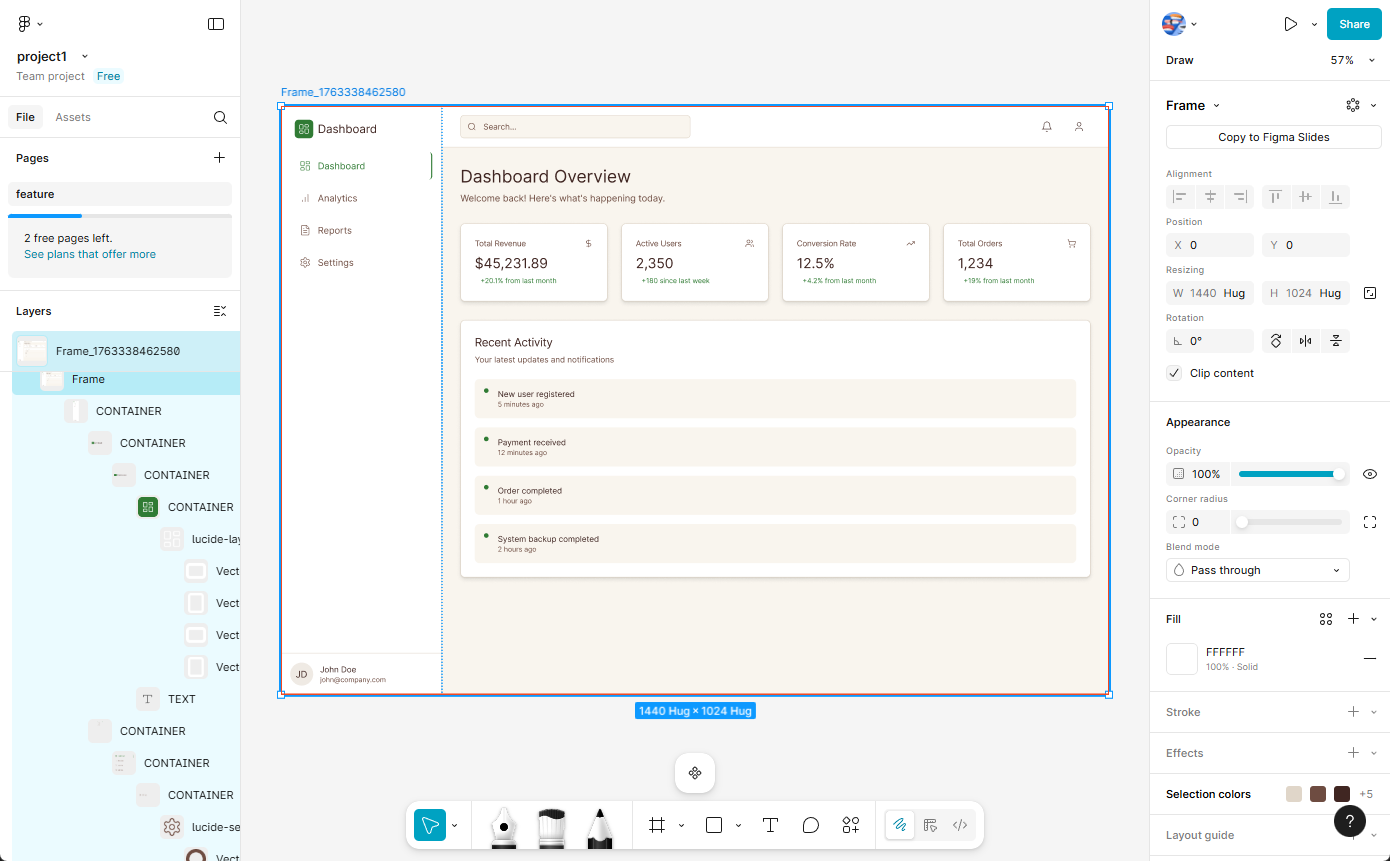
Choose the layout you like and click Insert.A new frame will be added to your Figma canvas.
All generated layers are native Figma elements, fully editable and ready for iteration.
Summary
Kick Start allows you to:- Go from idea to layout in seconds
- Generate clean, editable Figma frames
- Use prompt-to-design with or without reference images
- Jump-start your workflow without drawing wireframes manually