

This page explains every part of the result view and how to use it.
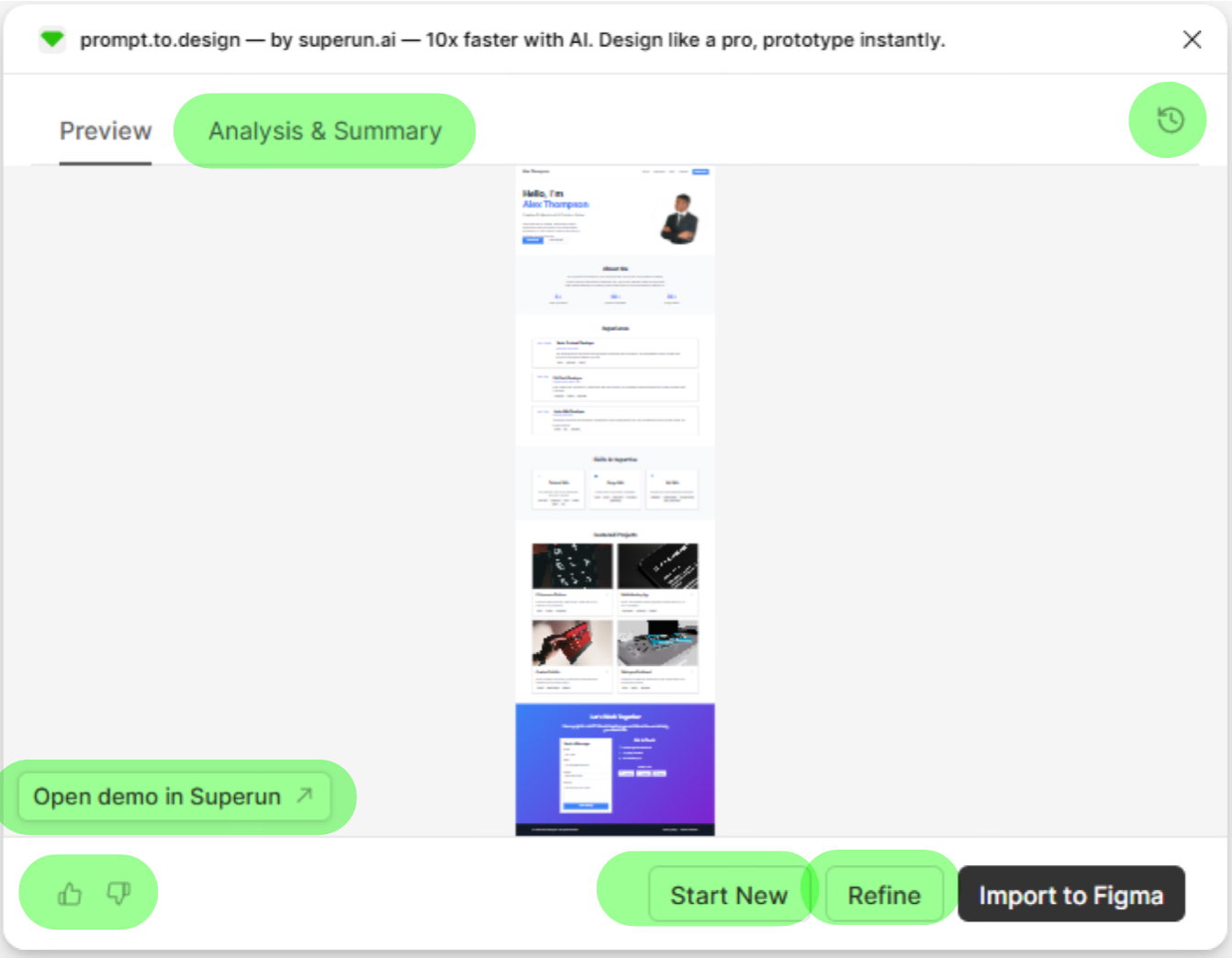
🖼 Preview Panel
The Preview Panel shows your generated layout as a scrollable long image.What you can do:
- Hover to zoom and inspect details
- Scroll to view the full generated layout
- Click sections to jump to highlighted areas
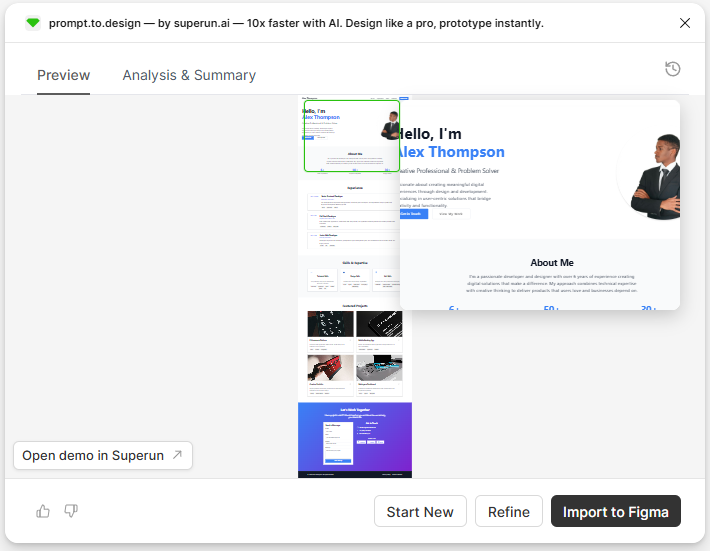
🔍 Hover Zoom
Move your mouse over the preview to zoom in on any section. This helps you:- Inspect spacing
- Check typography
- Preview component clarity
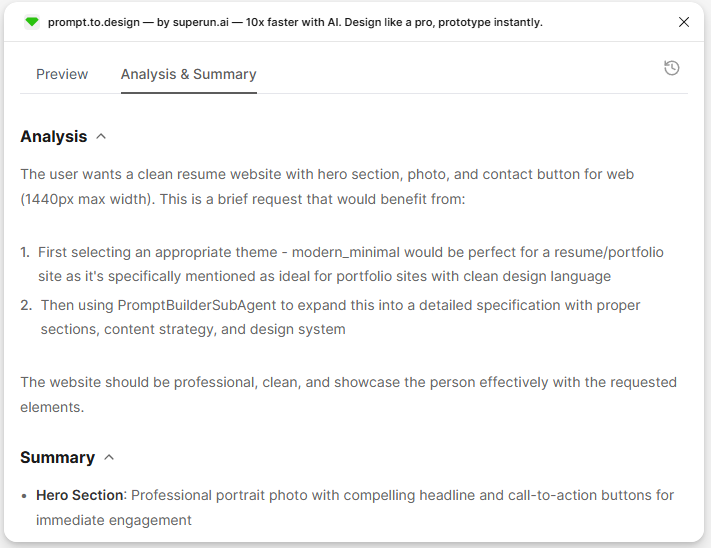
🧠 Analysis & Summary
Switch to this tab to understand how the system interpreted your prompt. You’ll see:- Analysis — understanding of your intent
- Summary — the structure & key sections generated
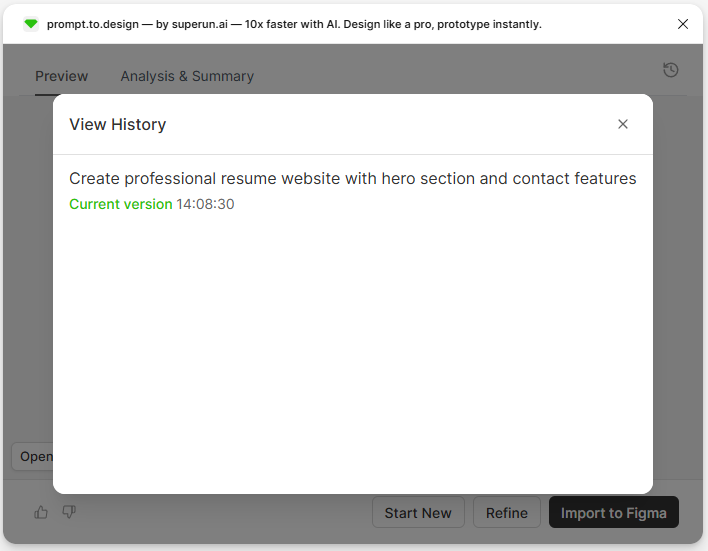
🕘 View History
The History Panel shows each generation step. You can:- Review previous prompts
- Revisit earlier versions
- Compare improvements
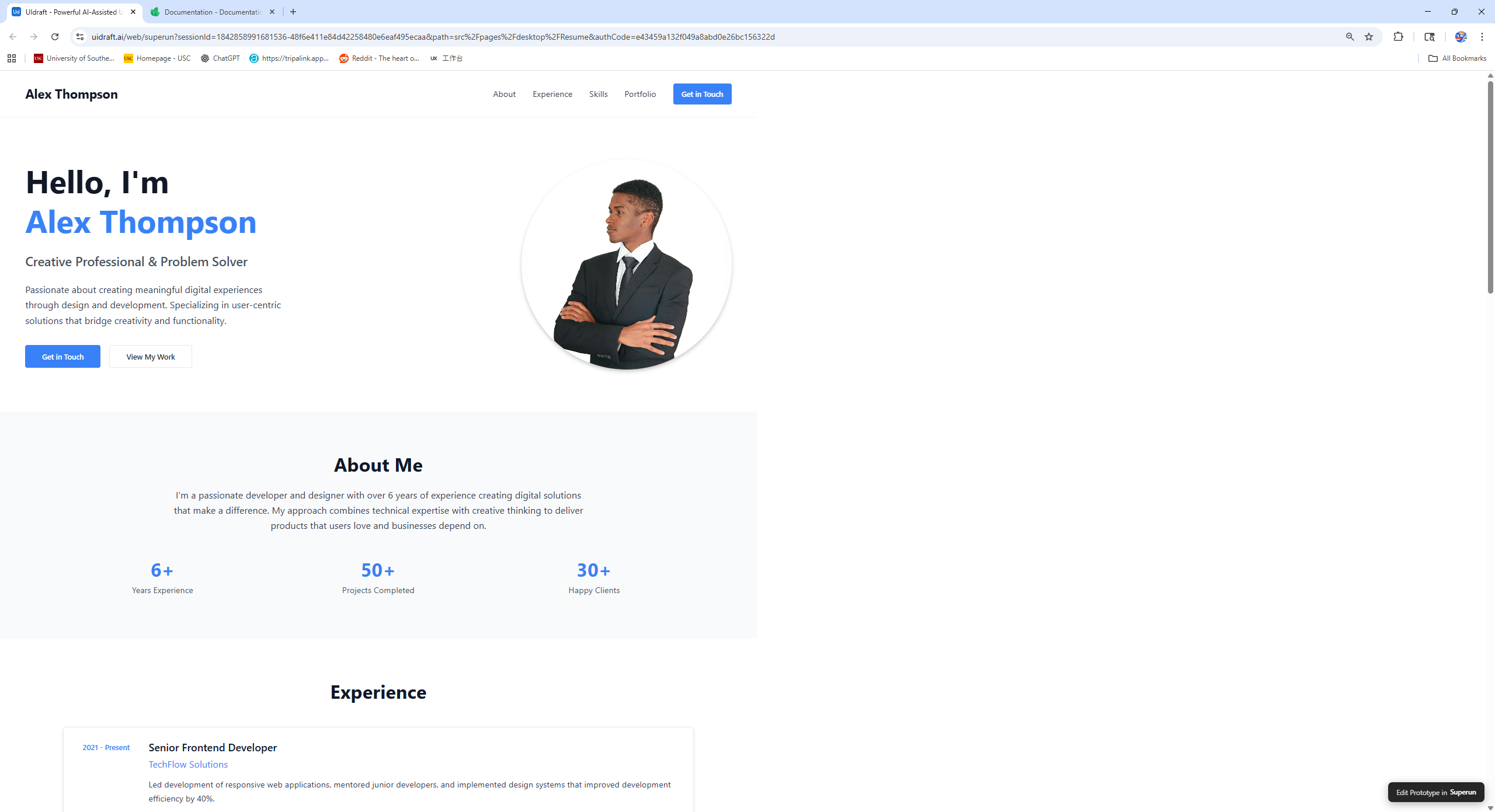
🌐 Open Demo in superun
Click Open demo in superun to view the generated layout in a full webpage. Why use it:- See the design at real scale
- Scroll smoothly
- Preview in browser context
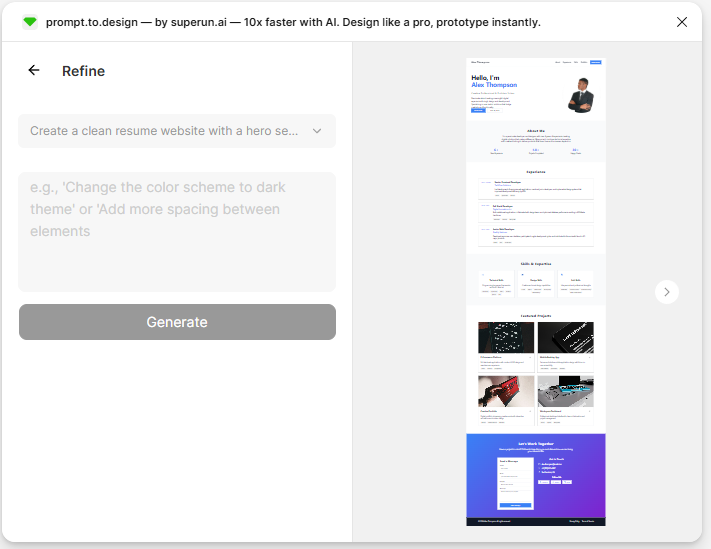
✏️ Refine Your Result
Use Refine to adjust the current version without starting over. Examples:- “Make spacing larger”
- “Switch to dark theme”
- “Update hero layout”
🛠 Import to Figma
When you’re satisfied, click Import to Figma. This will:- Bring the generated layout into your Figma file
- Convert it into editable frames, Auto Layout, text layers, and components
- Maintain styling consistency
👍 / 👎 Provide Feedback
At the bottom-left, you can rate each generation.- 👍 Good result
- 👎 Didn’t match expectations
- 💬 Add comments to improve future model performance
🎯 Summary
This result panel is shared across all features.No matter how you generate your layout, you will always see:
- Preview
- Analysis & Summary
- Hover Zoom
- History
- Demo View
- Refine
- Import to Figma
- Feedback tools