> ## Documentation Index
> Fetch the complete documentation index at: https://docs.superun.ai/llms.txt
> Use this file to discover all available pages before exploring further.
# 智能填充
> 使用 Prompt.to.design 中的智能填充功能,自動填充 Figma 設計中的空白區域,AI 生成的內容與您的頁面風格相匹配.
智能填充允許您通過**在選定Frame內自動創建空白部分**來**快速添加新內容**到您的設計中.\
您只需選擇一個Frame → 輸入提示 → 智能填充就會插入與您現有設計相匹配的樣式內容塊.
***
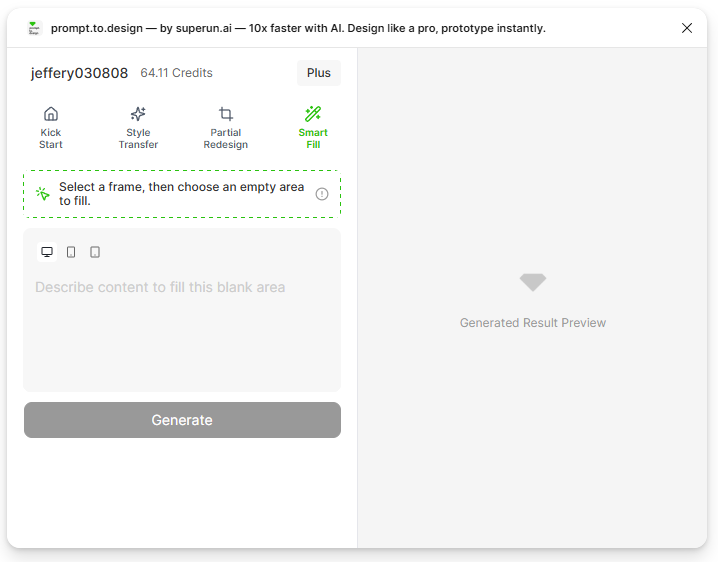
## 1. 選擇 **智能填充** 選項Card
打開 **Prompt.to.design** 插件並點擊 **Smart Fill**.\
此模式讓 AI 在您選擇的Frame內添加新的內容塊.
 ***
## 2. 選擇要添加新內容的Frame
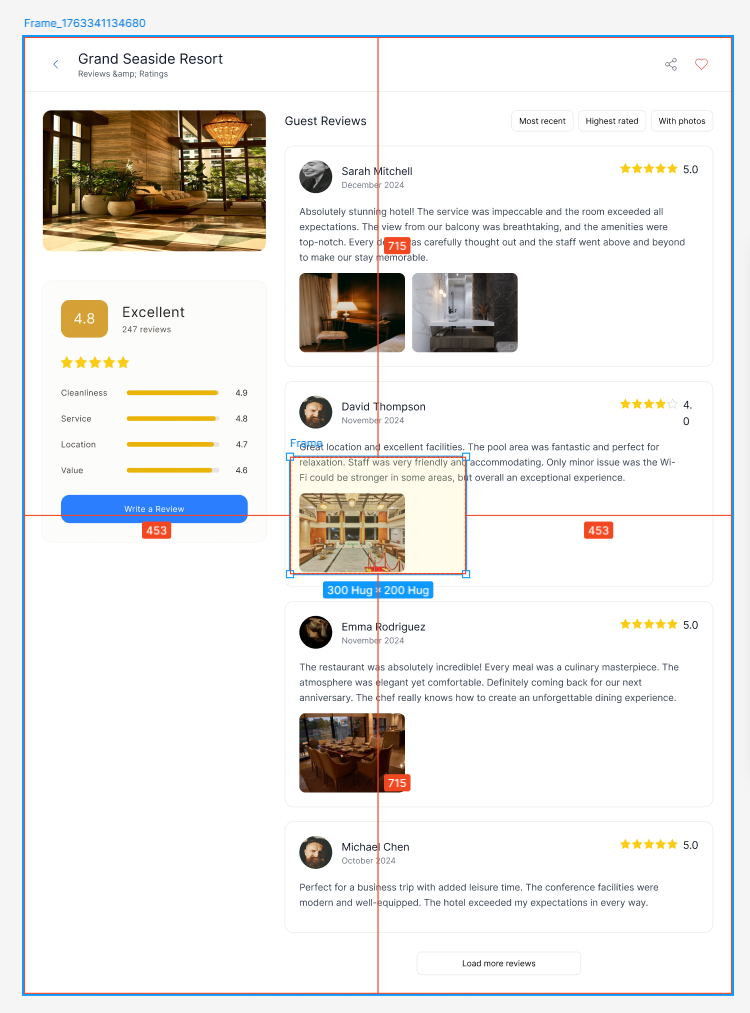
在您的 Figma 畫布上點擊一個 **Frame**.\
智能填充將自動在此Frame內插入**空部分** - 這是生成新內容的地方.
***
## 2. 選擇要添加新內容的Frame
在您的 Figma 畫布上點擊一個 **Frame**.\
智能填充將自動在此Frame內插入**空部分** - 這是生成新內容的地方.
 ***
## 3. 輸入描述您想要的新內容的提示
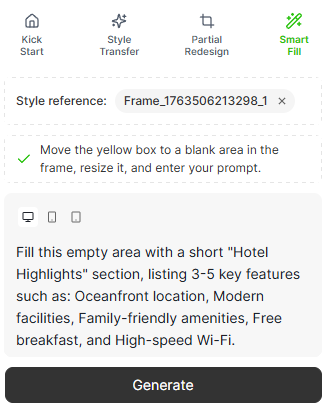
描述您希望智能填充在自動添加的空白部分中生成的內容.
### 示例:"酒店亮點"
> "用"酒店亮點"塊填充空白部分,包括:
>
> * 免費無線網絡
> * 海港景觀
> * 24/7 支持
>
> 匹配現有頁面的樣式,間距和版式."
***
## 3. 輸入描述您想要的新內容的提示
描述您希望智能填充在自動添加的空白部分中生成的內容.
### 示例:"酒店亮點"
> "用"酒店亮點"塊填充空白部分,包括:
>
> * 免費無線網絡
> * 海港景觀
> * 24/7 支持
>
> 匹配現有頁面的樣式,間距和版式."
 ***
## 4. 生成並查看預覽
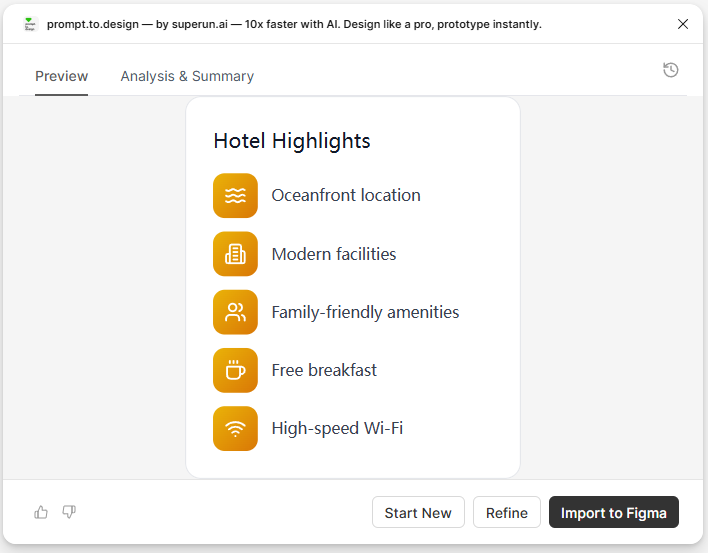
單擊 **生成** 讓 AI 創建您的新內容塊.\
預覽將顯示一個風格化的"酒店亮點"部分,該部分與Frame的現有設計無縫契合.
***
## 4. 生成並查看預覽
單擊 **生成** 讓 AI 創建您的新內容塊.\
預覽將顯示一個風格化的"酒店亮點"部分,該部分與Frame的現有設計無縫契合.
 ***
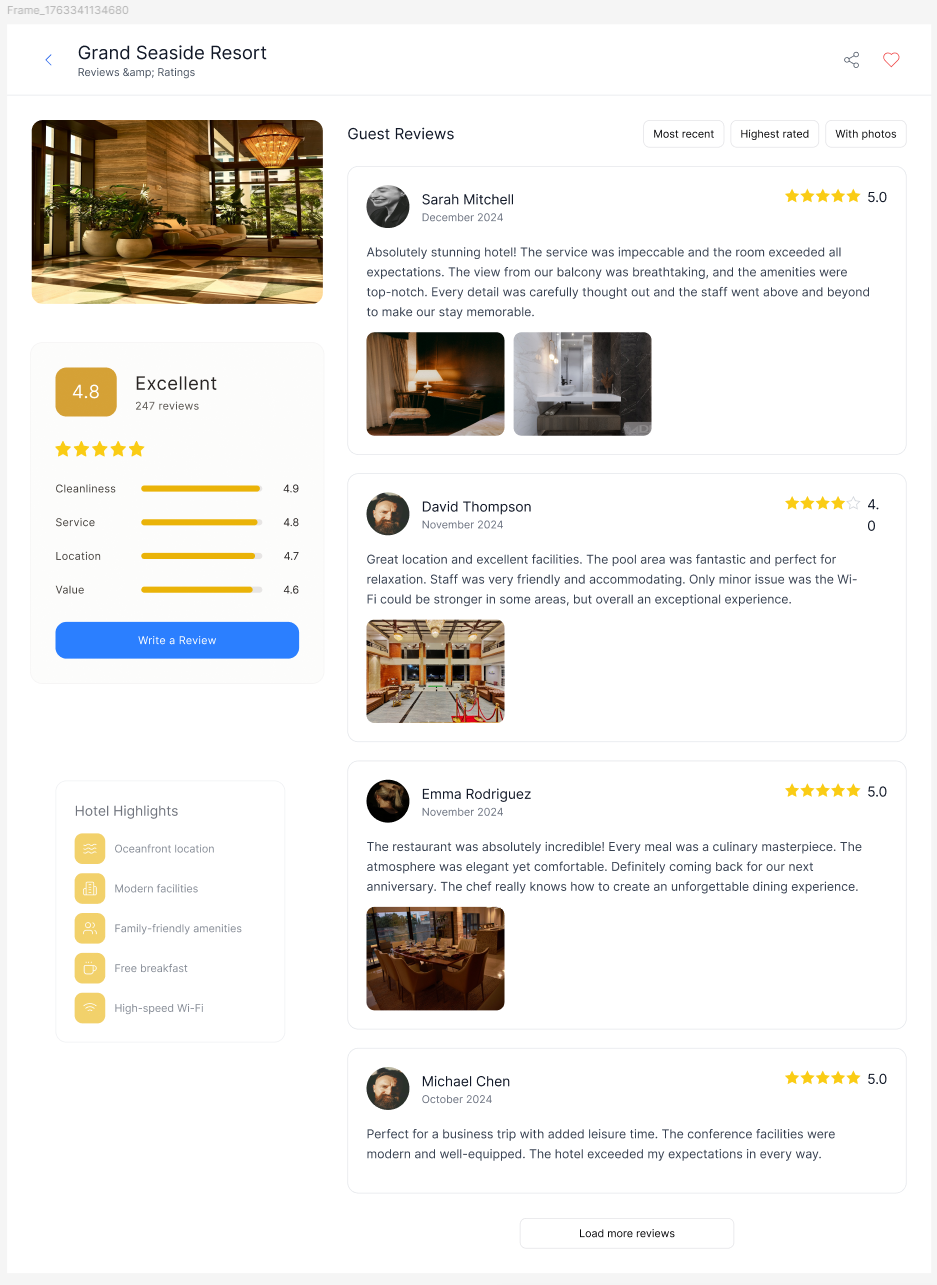
## 5. 將內容插入 Figma
點擊 **Insert to Figma** 將生成的區域放置到您選擇的Frame中.\
智能填充將用新生成的內容替換它之前創建的空白區域.
僅添加了這個新部分 - Frame的其餘部分保持不變.
***
## 5. 將內容插入 Figma
點擊 **Insert to Figma** 將生成的區域放置到您選擇的Frame中.\
智能填充將用新生成的內容替換它之前創建的空白區域.
僅添加了這個新部分 - Frame的其餘部分保持不變.
 ***
## 概括
智能填充可以幫助您:
* 添加新的內容塊,無需手動創建佈局
* 讓插件自動為您創建一個空白部分
* 保持樣式,間距和排版與頁面一致
* 立即生成如下部分:
* 亮點
* 特徵
* 便利設施
* Info塊
* 要點
* 完全使用原生 Figma 圖層工作
智能填充非常適合用有意義的,有風格的內容快速擴展頁面.
***
## 概括
智能填充可以幫助您:
* 添加新的內容塊,無需手動創建佈局
* 讓插件自動為您創建一個空白部分
* 保持樣式,間距和排版與頁面一致
* 立即生成如下部分:
* 亮點
* 特徵
* 便利設施
* Info塊
* 要點
* 完全使用原生 Figma 圖層工作
智能填充非常適合用有意義的,有風格的內容快速擴展頁面.