> ## Documentation Index
> Fetch the complete documentation index at: https://docs.superun.ai/llms.txt
> Use this file to discover all available pages before exploring further.
# Real Prototype
Real Prototype 可以把一個**原本只是靜態畫面**的版型,直接轉換成可點擊的互動原型——\
而且只需要一段簡短的提示.
你不必自己手動連接畫面或設定互動,superun 會自動幫你建立導覽,容器結構與互動流程.
***
## 操作步驟:Real Prototype 怎麼用
### 1. 在外掛中打開 Real Prototype
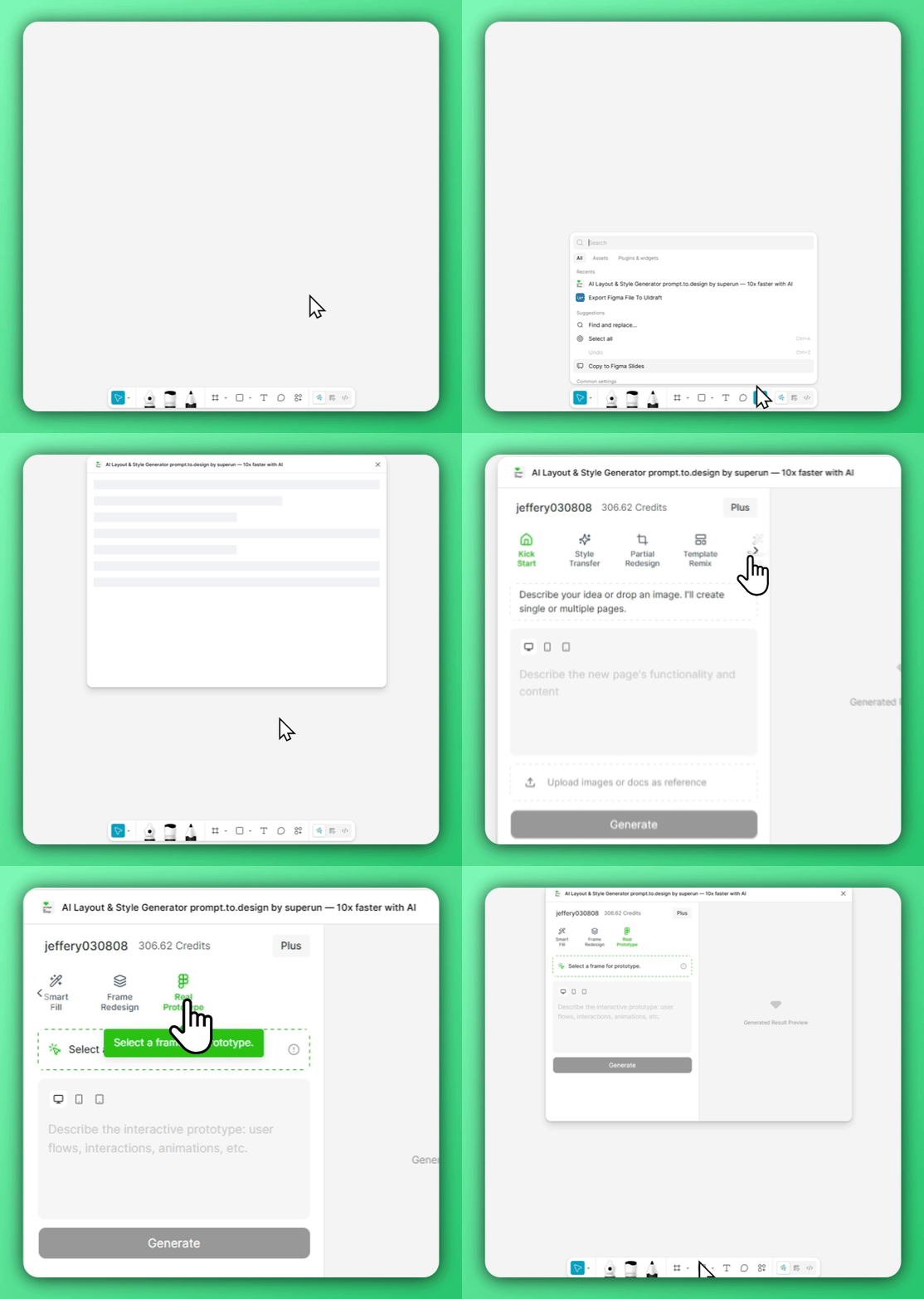 打開 **Prompt.to.design** 外掛,切換到 **Real Prototype** 分頁.
這個模式會讓系統用「互動流程」的角度來理解你的版面,而不是純靜態設計.
***
### 2. 選擇 Frame 並描述使用者流程
打開 **Prompt.to.design** 外掛,切換到 **Real Prototype** 分頁.
這個模式會讓系統用「互動流程」的角度來理解你的版面,而不是純靜態設計.
***
### 2. 選擇 Frame 並描述使用者流程
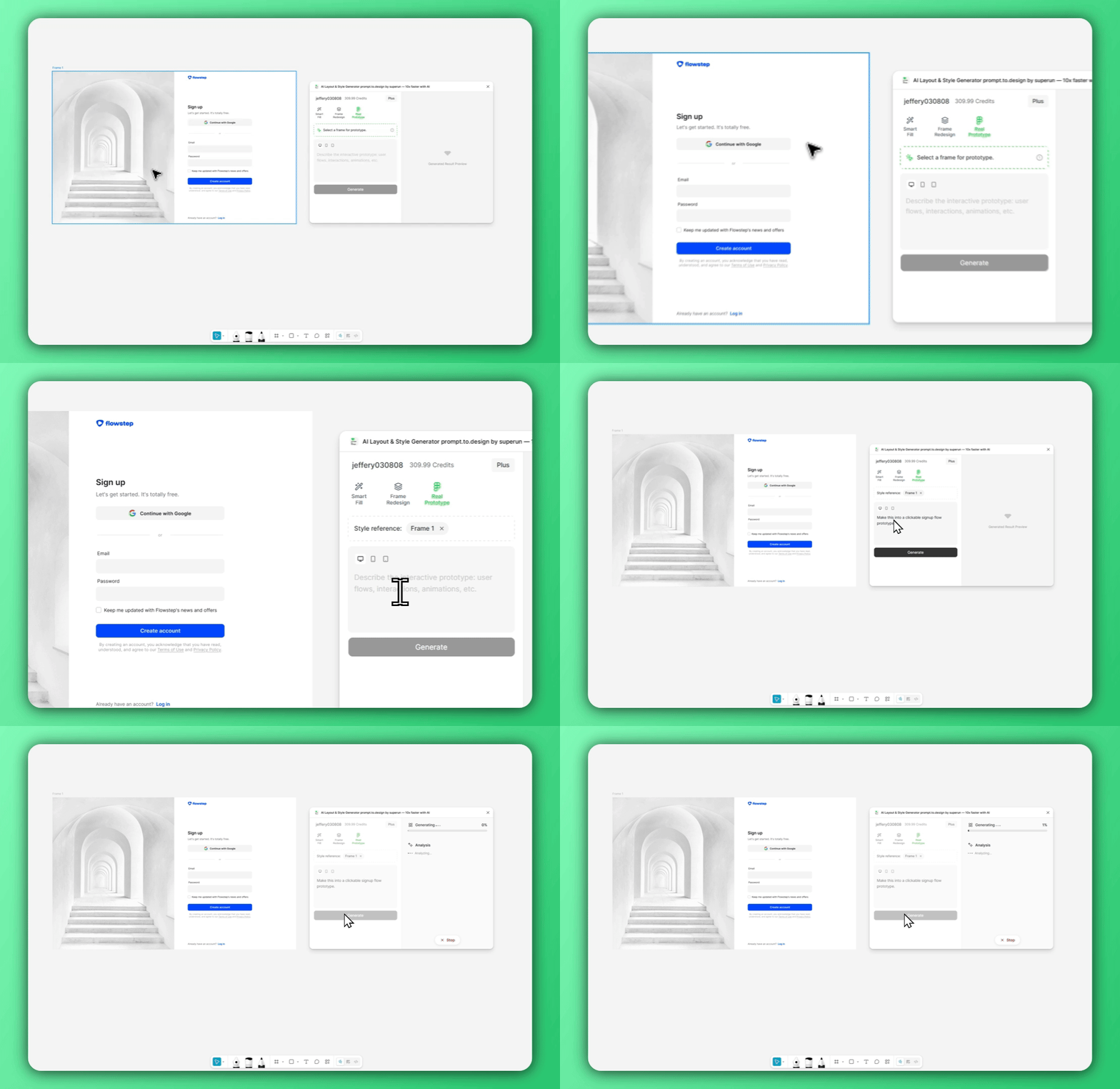 選擇你想轉成互動原型的 Frame.
在範例中,這個 Frame 只是**單一張靜態圖片**:\
沒有圖層,沒有容器,沒有任何互動,只是一張扁平的圖.
接著描述你想要的行為,例如:`Make this into a clickable signup flow prototype.`
superun 會分析 Frame 裡的視覺布局,準備把它轉換成可以互動的 UI 元件結構.
***
### 3. 產生,匯入並體驗互動原型
選擇你想轉成互動原型的 Frame.
在範例中,這個 Frame 只是**單一張靜態圖片**:\
沒有圖層,沒有容器,沒有任何互動,只是一張扁平的圖.
接著描述你想要的行為,例如:`Make this into a clickable signup flow prototype.`
superun 會分析 Frame 裡的視覺布局,準備把它轉換成可以互動的 UI 元件結構.
***
### 3. 產生,匯入並體驗互動原型
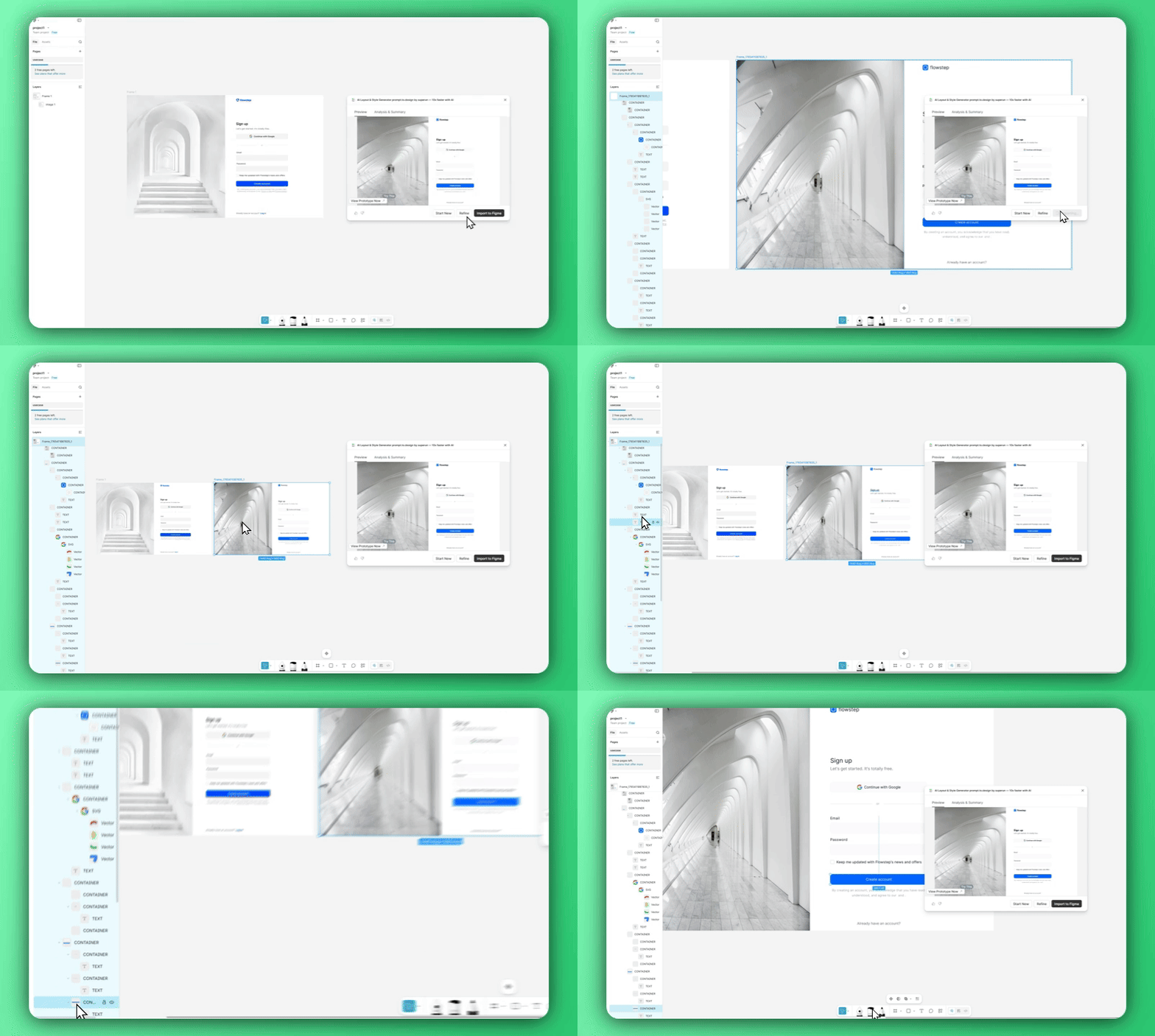 產生完成後,結果就**不再只是一張圖片**.
superun 會自動:
* 切分畫面成有意義的容器
* 偵測按鈕,輸入框與可互動區域
* 建立對應的導覽與流程邏輯
* 產生一個可以實際點擊操作的原型
將原型匯入 Figma 之後,你可以直接在畫布上做使用者測試,流程調整或動效實驗.
Real Prototype 讓你在投入工程或手動原型製作之前,就先拿到一個「可用的互動模型」,\
非常適合快速驗證想法.
產生完成後,結果就**不再只是一張圖片**.
superun 會自動:
* 切分畫面成有意義的容器
* 偵測按鈕,輸入框與可互動區域
* 建立對應的導覽與流程邏輯
* 產生一個可以實際點擊操作的原型
將原型匯入 Figma 之後,你可以直接在畫布上做使用者測試,流程調整或動效實驗.
Real Prototype 讓你在投入工程或手動原型製作之前,就先拿到一個「可用的互動模型」,\
非常適合快速驗證想法.