> ## Documentation Index
> Fetch the complete documentation index at: https://docs.superun.ai/llms.txt
> Use this file to discover all available pages before exploring further.
# Frame Redesign
Frame Redesign 可以幫你在 **保留原本版面結構** 的前提下,只用一小段提示,就為整個 Figma Frame 套用全新的視覺風格.
你不需要從零重做佈局,只是「換一套外觀」——非常適合重新設計,主題探索,或做淺色/深色模式的變化.
***
## 操作步驟:Frame Redesign 怎麼用
### 1. 在外掛中打開 Frame Redesign
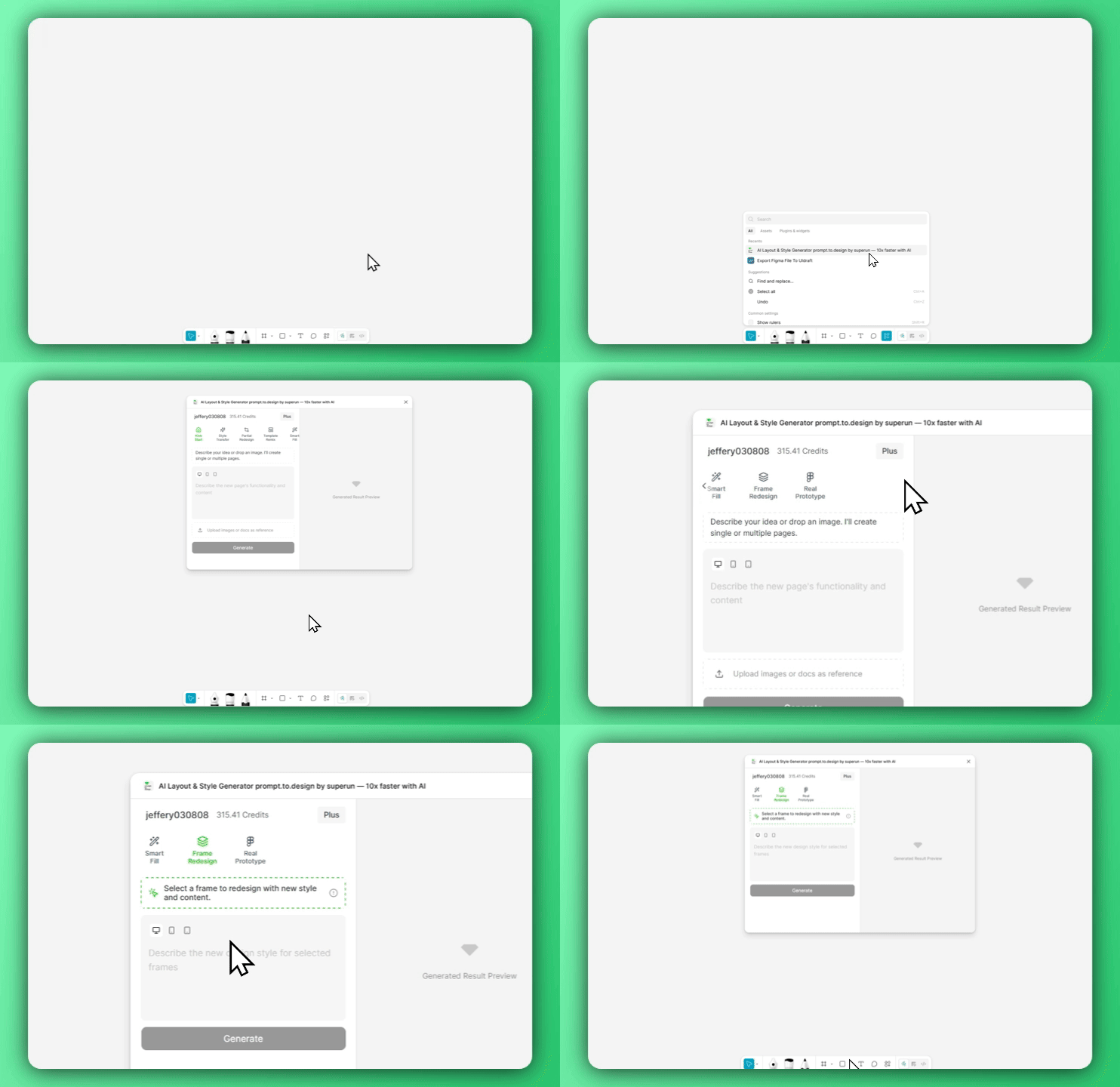 在 Figma 中打開 **Prompt.to.design** 外掛,展開 **Features** 功能列表,選擇 **Frame Redesign**.
***
### 2. 選擇 Frame 並描述你想要的新風格
在 Figma 中打開 **Prompt.to.design** 外掛,展開 **Features** 功能列表,選擇 **Frame Redesign**.
***
### 2. 選擇 Frame 並描述你想要的新風格
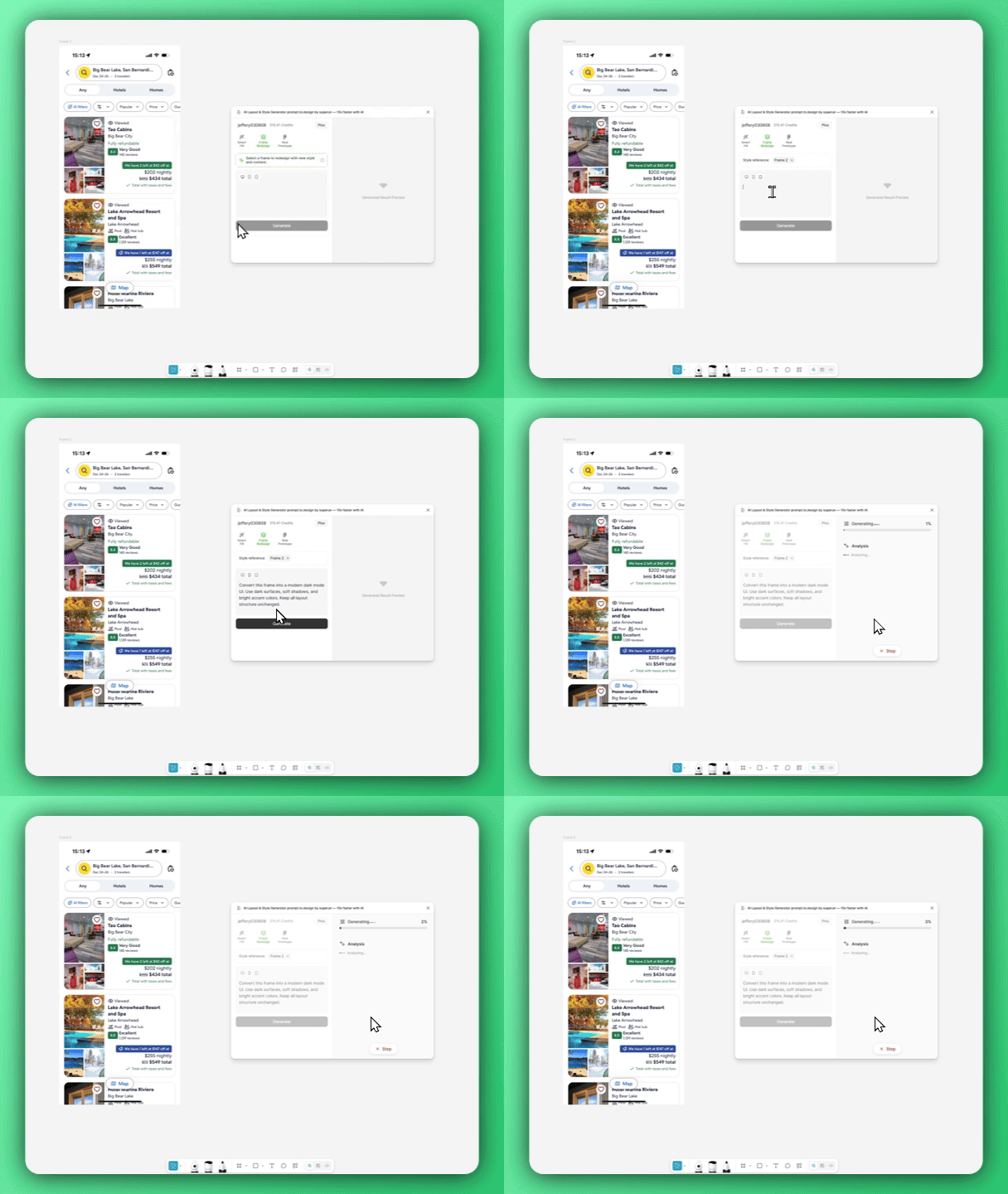 在 Figma 畫布上選取你想改版的 Frame,然後輸入一段簡短的文字,描述你想要的視覺方向——\
例如極簡白色介面,深色音樂 App,或貼近 iOS 風格的 UI.
寫好後點擊 **Generate** 產生新版本.
提示範例:
* `Convert this screen to a clean, minimalist white style.`
* `Turn this into a dark mode music app UI with neon accents.`
* `Restyle this frame to match an iOS 17 flat, pastel look.`
***
### 3. 產生結果,匯入 Figma 並做比較
在 Figma 畫布上選取你想改版的 Frame,然後輸入一段簡短的文字,描述你想要的視覺方向——\
例如極簡白色介面,深色音樂 App,或貼近 iOS 風格的 UI.
寫好後點擊 **Generate** 產生新版本.
提示範例:
* `Convert this screen to a clean, minimalist white style.`
* `Turn this into a dark mode music app UI with neon accents.`
* `Restyle this frame to match an iOS 17 flat, pastel look.`
***
### 3. 產生結果,匯入 Figma 並做比較
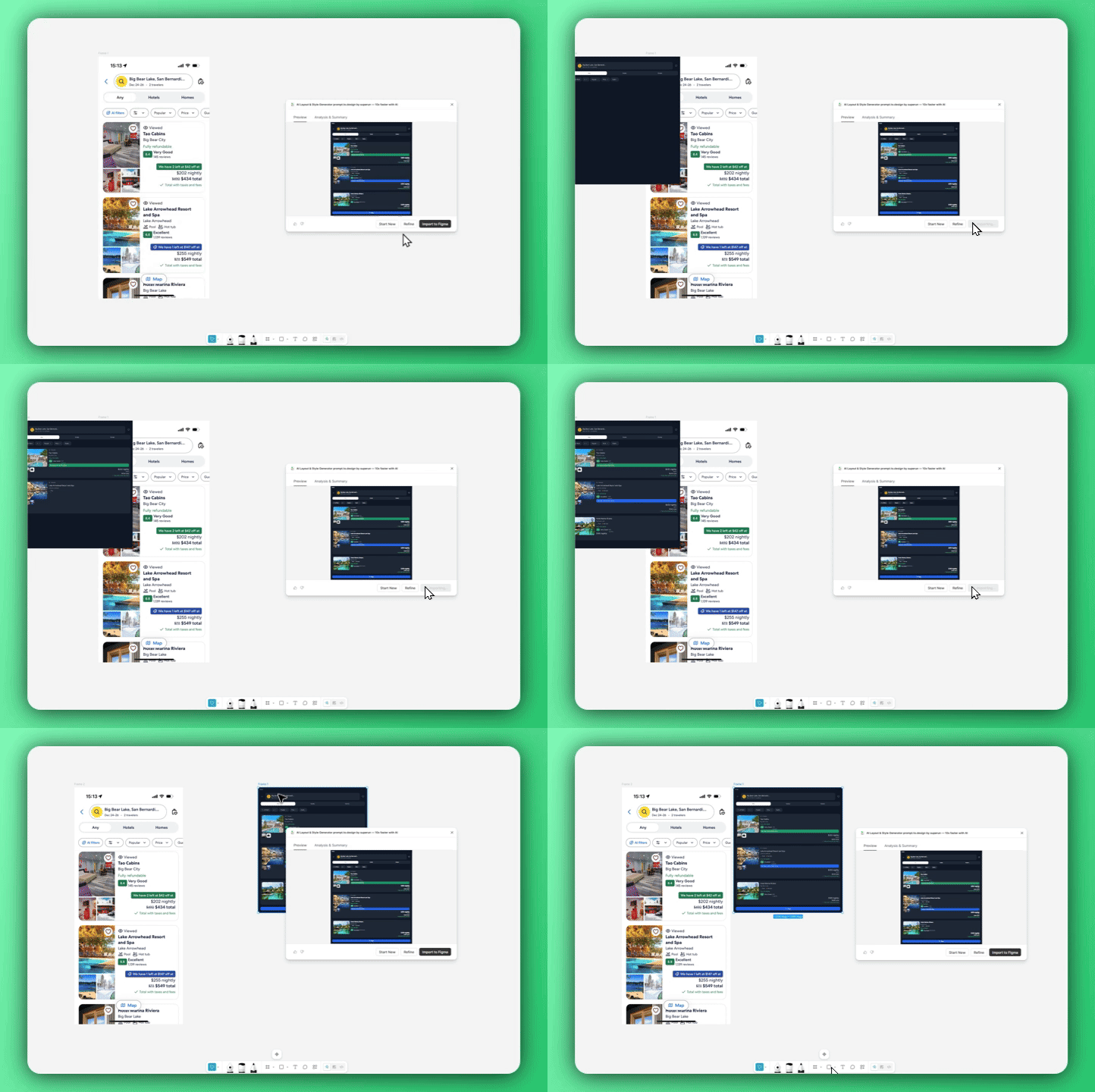 當新風格產生完成後,使用 **Insert into Figma** 匯入結果.
把新舊兩個 Frame 放在一起,可以很直觀地比較前後差異,\
再依需要多次嘗試不同提示,探索更多視覺方向.
***
Frame Redesign 會 **完整保留原本的版面結構**,只更新整體視覺語言,\
讓你可以又快又可控地做風格實驗,過程也更好玩,更沒壓力.
當新風格產生完成後,使用 **Insert into Figma** 匯入結果.
把新舊兩個 Frame 放在一起,可以很直觀地比較前後差異,\
再依需要多次嘗試不同提示,探索更多視覺方向.
***
Frame Redesign 會 **完整保留原本的版面結構**,只更新整體視覺語言,\
讓你可以又快又可控地做風格實驗,過程也更好玩,更沒壓力.