> ## Documentation Index
> Fetch the complete documentation index at: https://docs.superun.ai/llms.txt
> Use this file to discover all available pages before exploring further.
# WeChat QR login
> Add WeChat Open Platform QR sign-in to your site: what the capability does, what to prepare, how to configure it, and the end result.
WeChat QR login lets visitors sign in by scanning a code with WeChat on their phone, so they don't need to remember another account and password. Once enabled, superun wires it into your project's existing pages and login methods.
Create a website application and get the AppID and AppSecret you need.
## What this capability does
* Adds a WeChat QR sign-in entry to your desktop site.
* Keeps your existing login methods and adds WeChat alongside them.
* Creates a login page matching your project's style if the site has none.
* Adds the groundwork WeChat login needs if the project has no login capability yet.
* Sends users on to the page they were headed for, or to your project's existing post-login page.
This capability covers desktop sign-in for a WeChat Open Platform **website application**. It is not the same as WeChat Official Account web authorization, and it does not apply to WeChat mini program login.
## What users see
On your login page, visitors pick WeChat login, scan the code with WeChat on their phone, confirm, and land back on your site signed in.
```mermaid theme={null}
flowchart LR
A["Open login page"] --> B["Choose WeChat login"]
B --> C["Scan and confirm in WeChat"]
C --> D["Signed in"]
D --> E["Continue to target page"]
```
The button, QR area, colors, and layout follow your project's existing design rather than a forced template. Email, phone, and other existing login methods keep working.
## What to prepare
| Item | Required | Notes |
| ------------------------------------- | ---------- | --------------------------------------------------------------------------------------- |
| Verified WeChat Open Platform account | Yes | Needed to create a website application and use website login |
| Approved website application | Yes | WeChat QR login uses a **website application**, not an Official Account or mini program |
| AppID | Yes | The website application's public identifier; enter it on the superun config card |
| AppSecret | Yes | The website application secret; enter it only in superun's secret field |
| Authorized callback domain | Yes | Set on WeChat Open Platform so login results can return to your project domain |
| Business domain | Not needed | Basic QR login does not depend on it |
## Configure WeChat Open Platform
### Create a website application
1. Sign in to [WeChat Open Platform](https://open.weixin.qq.com/).
2. Create a **website application**, fill in the details, and submit it for review.
3. After approval, get the AppID and AppSecret from the application's development info.
### Set the authorized callback domain
Go to **Management center → Website application → Development config → Development info → Domain info** and enter the **authorized callback domain** shown on the superun config card.
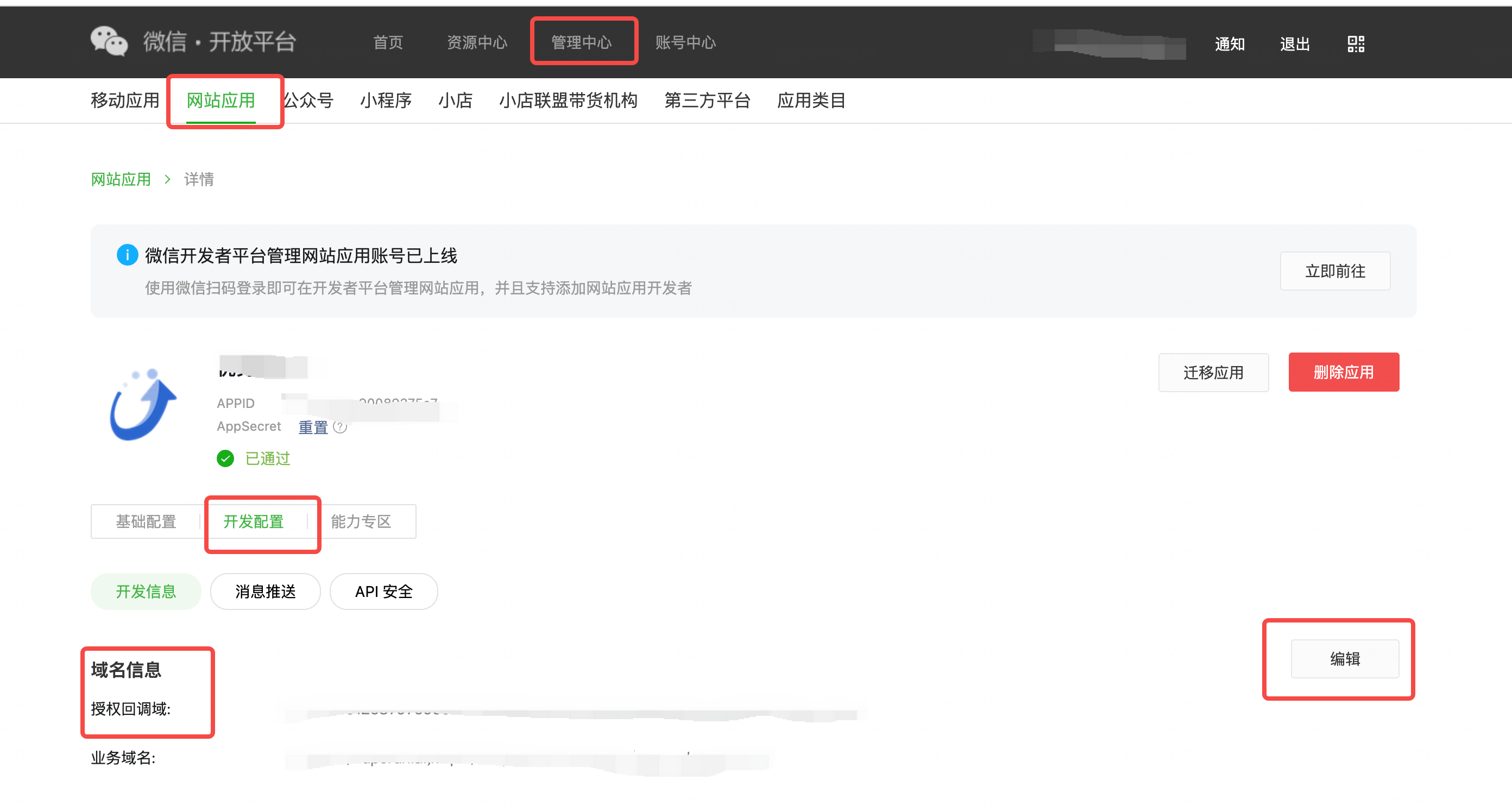 Enter the domain only — no protocol and no path. For a project at `https://example.com/login`, enter:
```text theme={null}
example.com
```
The authorized callback domain must match the domain your project actually uses. Leaving it unset, entering it incorrectly, or changing your project domain without updating it will all break WeChat QR login.
### About the business domain
Basic WeChat QR login does not need a business domain. That setting on WeChat Open Platform mainly covers launching and sharing PC mini programs, which does not affect the QR login described here.
Only configure an HTTPS business domain — and deploy the matching `MP_verify_xxx.txt` verification file — if you use those extra capabilities.
## Enable it in superun
1. Select **WeChat QR login** in your project conversation.
2. Check the authorized callback domain on the config card and enter it on WeChat Open Platform.
3. Enter the AppID and AppSecret of the same website application on the config card.
4. After enabling, say where in the project you want the WeChat login entry to appear.
5. Once the project is updated and published, run one real scan with a WeChat account to verify.
The AppSecret is sensitive. Do not send it in ordinary chat messages, write it into frontend code, or commit it to a Git repository — enter it only in the secret field on the config card.
## How it adapts to your project
| Project state | Result after integration |
| --------------------------------- | ---------------------------------------------------------------------------------- |
| Has a login page | WeChat login is added to the existing page; current methods stay |
| No login page | A login page matching your project's style is created with the WeChat entry |
| No login capability yet | The groundwork WeChat login needs is added |
| Special or multiple login systems | Your existing system is preserved; any replacement or migration is explained first |
This capability does not automatically add email signup, phone signup, password recovery, account linking, or account merging. Ask for those separately in your project.
## Security notes
* The AppSecret is only used server-side to talk to WeChat; it is never written into browser pages.
* WeChat login does not auto-merge existing accounts based on nickname, avatar, or phone number.
* Disabling the plugin does not remove WeChat login already live in your project; removing the live entry takes a separate change and republish.
* After moving the project to a new domain, update the authorized callback domain on WeChat Open Platform.
## Verify the result
After integration, confirm all of the following:
1. The login page shows the WeChat login entry.
2. WeChat on a phone can scan the code and confirm.
3. Authorization completes and the user reaches the site.
4. Existing login methods still work.
5. The login page matches the project's overall design.
6. The AppSecret does not appear in frontend pages or the code repository.
A real scan test depends on an approved website application and a usable WeChat account. Run at least one real scan after publishing to confirm the whole flow works.
If the QR code does not appear, you see `redirect_uri` parameter errors, or sign-in fails after scanning, see [WeChat QR login troubleshooting](/superun/skills/wechat-open-web-login/troubleshooting).
## WeChat official references
* [WeChat Open Platform: website application WeChat login](https://developers.weixin.qq.com/doc/oplatform/Website_App/WeChat_Login/Wechat_Login.html)
* [WeChat Open Platform: website application business domain](https://developers.weixin.qq.com/doc/oplatform/Website_App/guide/domain.html)
* [WeChat Open Platform home](https://open.weixin.qq.com/)
Enter the domain only — no protocol and no path. For a project at `https://example.com/login`, enter:
```text theme={null}
example.com
```
The authorized callback domain must match the domain your project actually uses. Leaving it unset, entering it incorrectly, or changing your project domain without updating it will all break WeChat QR login.
### About the business domain
Basic WeChat QR login does not need a business domain. That setting on WeChat Open Platform mainly covers launching and sharing PC mini programs, which does not affect the QR login described here.
Only configure an HTTPS business domain — and deploy the matching `MP_verify_xxx.txt` verification file — if you use those extra capabilities.
## Enable it in superun
1. Select **WeChat QR login** in your project conversation.
2. Check the authorized callback domain on the config card and enter it on WeChat Open Platform.
3. Enter the AppID and AppSecret of the same website application on the config card.
4. After enabling, say where in the project you want the WeChat login entry to appear.
5. Once the project is updated and published, run one real scan with a WeChat account to verify.
The AppSecret is sensitive. Do not send it in ordinary chat messages, write it into frontend code, or commit it to a Git repository — enter it only in the secret field on the config card.
## How it adapts to your project
| Project state | Result after integration |
| --------------------------------- | ---------------------------------------------------------------------------------- |
| Has a login page | WeChat login is added to the existing page; current methods stay |
| No login page | A login page matching your project's style is created with the WeChat entry |
| No login capability yet | The groundwork WeChat login needs is added |
| Special or multiple login systems | Your existing system is preserved; any replacement or migration is explained first |
This capability does not automatically add email signup, phone signup, password recovery, account linking, or account merging. Ask for those separately in your project.
## Security notes
* The AppSecret is only used server-side to talk to WeChat; it is never written into browser pages.
* WeChat login does not auto-merge existing accounts based on nickname, avatar, or phone number.
* Disabling the plugin does not remove WeChat login already live in your project; removing the live entry takes a separate change and republish.
* After moving the project to a new domain, update the authorized callback domain on WeChat Open Platform.
## Verify the result
After integration, confirm all of the following:
1. The login page shows the WeChat login entry.
2. WeChat on a phone can scan the code and confirm.
3. Authorization completes and the user reaches the site.
4. Existing login methods still work.
5. The login page matches the project's overall design.
6. The AppSecret does not appear in frontend pages or the code repository.
A real scan test depends on an approved website application and a usable WeChat account. Run at least one real scan after publishing to confirm the whole flow works.
If the QR code does not appear, you see `redirect_uri` parameter errors, or sign-in fails after scanning, see [WeChat QR login troubleshooting](/superun/skills/wechat-open-web-login/troubleshooting).
## WeChat official references
* [WeChat Open Platform: website application WeChat login](https://developers.weixin.qq.com/doc/oplatform/Website_App/WeChat_Login/Wechat_Login.html)
* [WeChat Open Platform: website application business domain](https://developers.weixin.qq.com/doc/oplatform/Website_App/guide/domain.html)
* [WeChat Open Platform home](https://open.weixin.qq.com/)