> ## Documentation Index
> Fetch the complete documentation index at: https://docs.superun.ai/llms.txt
> Use this file to discover all available pages before exploring further.
# Frame Redesign
Frame Redesign lets you take any existing Figma frame and instantly apply a new visual style with a short prompt.
Instead of rebuilding layouts from scratch, you keep your structure and only refresh the look — perfect for redesigns, theme explorations, and light/dark mode variations.
***
## Step-by-step: How Frame Redesign works
### 1. Open Prompt.to.design and navigate to Frame Redesign
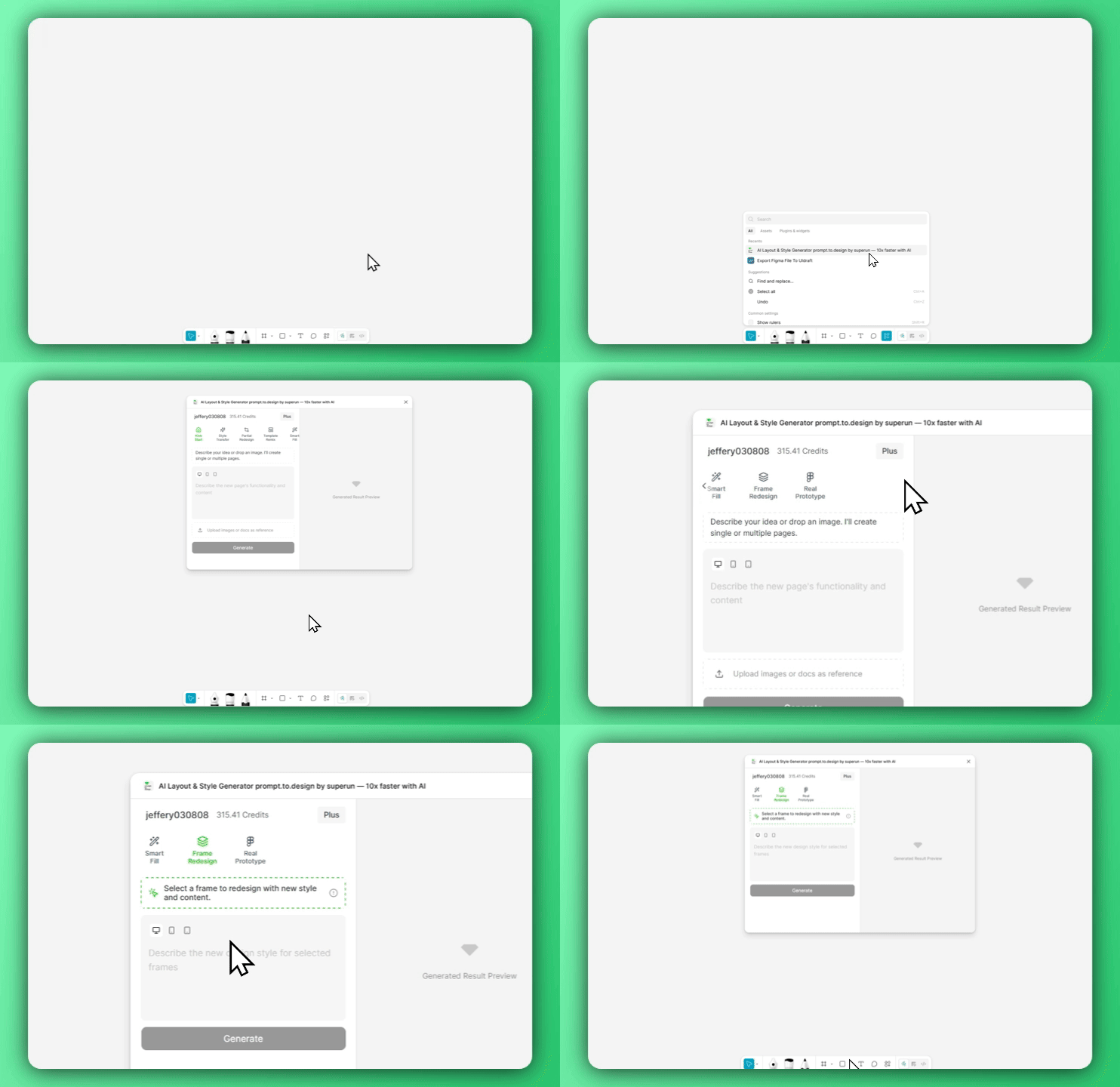 Open the **Prompt.to.design** plugin in Figma, expand the **Features** menu, and select **Frame Redesign**.
***
### 2. Select a frame and describe your new style
Open the **Prompt.to.design** plugin in Figma, expand the **Features** menu, and select **Frame Redesign**.
***
### 2. Select a frame and describe your new style
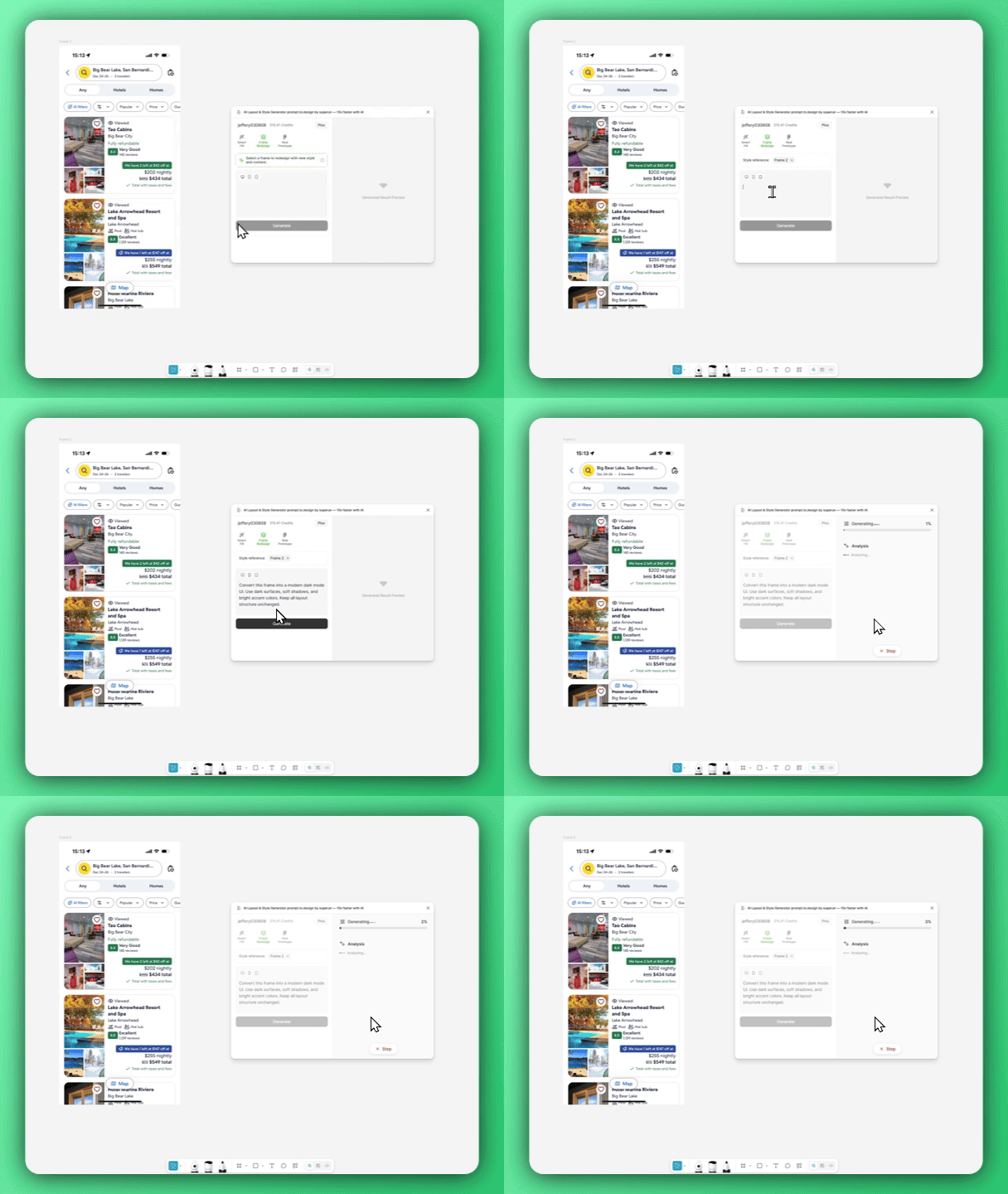 Select the frame you want to restyle on your Figma canvas, then write a short prompt describing the new visual direction you want — such as minimalist white, dark mode, or an iOS-style look.
When ready, click **Generate** to generate your new version.
Example prompts:
* `Convert this screen to a clean, minimalist white style.`
* `Turn this into a dark mode music app UI with neon accents.`
* `Restyle this frame to match an iOS 17 flat, pastel look.`
***
### 3. Generate, import, and compare the result
Select the frame you want to restyle on your Figma canvas, then write a short prompt describing the new visual direction you want — such as minimalist white, dark mode, or an iOS-style look.
When ready, click **Generate** to generate your new version.
Example prompts:
* `Convert this screen to a clean, minimalist white style.`
* `Turn this into a dark mode music app UI with neon accents.`
* `Restyle this frame to match an iOS 17 flat, pastel look.`
***
### 3. Generate, import, and compare the result
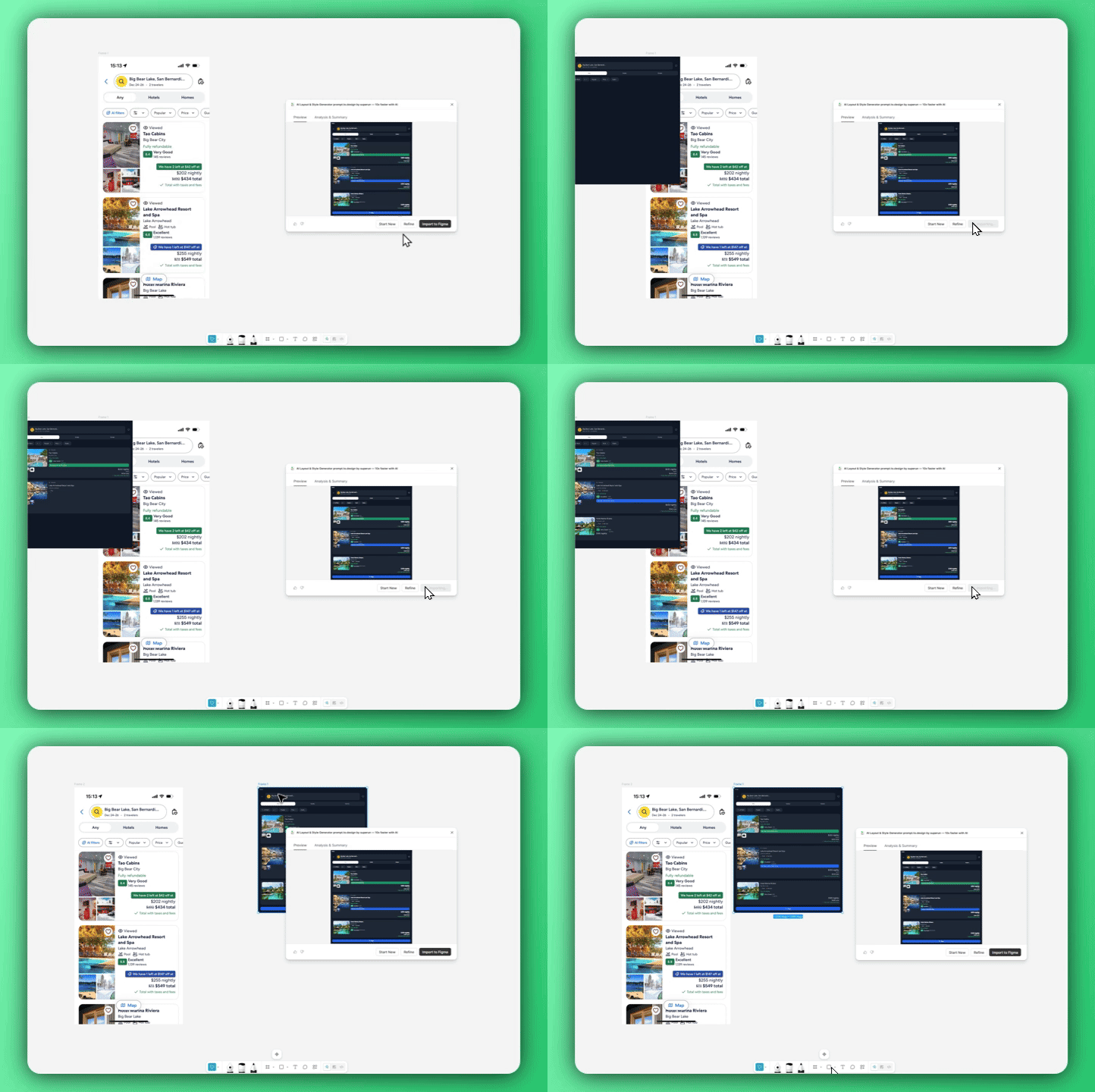 After the new style is generated, import it back into Figma with **Insert into Figma**.
Place it next to your original frame to compare the before-and-after results, and iterate as needed to explore additional style directions.
***
Frame Redesign keeps your layout intact while refreshing the entire visual language — making style experiments fast, controlled, and fun.
After the new style is generated, import it back into Figma with **Insert into Figma**.
Place it next to your original frame to compare the before-and-after results, and iterate as needed to explore additional style directions.
***
Frame Redesign keeps your layout intact while refreshing the entire visual language — making style experiments fast, controlled, and fun.